
PDF/UA
People who use screen readers, braille displays or keyboard navigation depend on the structure of a PDF document: which text is a heading, which cells belong to a table header, what an image shows. PDF/UA is the standard that makes this structure part of the file. Since version 34.0, TX Text Control writes it into every PDF, and your code supplies the information only the author knows: the title of the document and the descriptions of its images, tables, links and form fields.
The DescriptiveText properties were introduced in version 34.0, as Version 34.0 in What's New describes. Setting them in the browser is part of the Document Editor pages, such as Tables and Images.
What PDF/UA Is
PDF/UA is the ISO standard 14289 for accessible PDF documents. In practice, a PDF/UA document needs:
- A tagged structure tree and a logical reading order
- A document title and a document language
- Text that maps to Unicode characters
- Alternative descriptions for meaningful images
- Table headers that assistive technologies can associate with the data cells
- Form fields with accessible labels
Accessibility laws such as Section 508 and the ADA in the United States and the European Accessibility Act refer to accessible documents. PDF/UA covers the technical layer of a PDF file, while WCAG covers the accessibility of digital content in general.
What TX Text Control Generates
Since version 34.0, a PDF saved with StreamType.AdobePDF or StreamType.AdobePDFA contains a logical structure in addition to its visible content, and the two refer to each other. The structure describes the chapters, headings, paragraphs and sections of the document and marks text frames, tables, tables of contents and footnotes. Its order doesn't depend on where objects are placed on a page. The PDF also contains the metadata and the declaration that PDF/UA requires.
You never build the structure tree yourself. Whether a document fully conforms to PDF/UA depends on its content, though: a PDF in which images have no alternative text is technically structured, but not fully compliant. Saved with AdobePDFA, the same document is a PDF/A-3a document as well, as PDF/A describes.
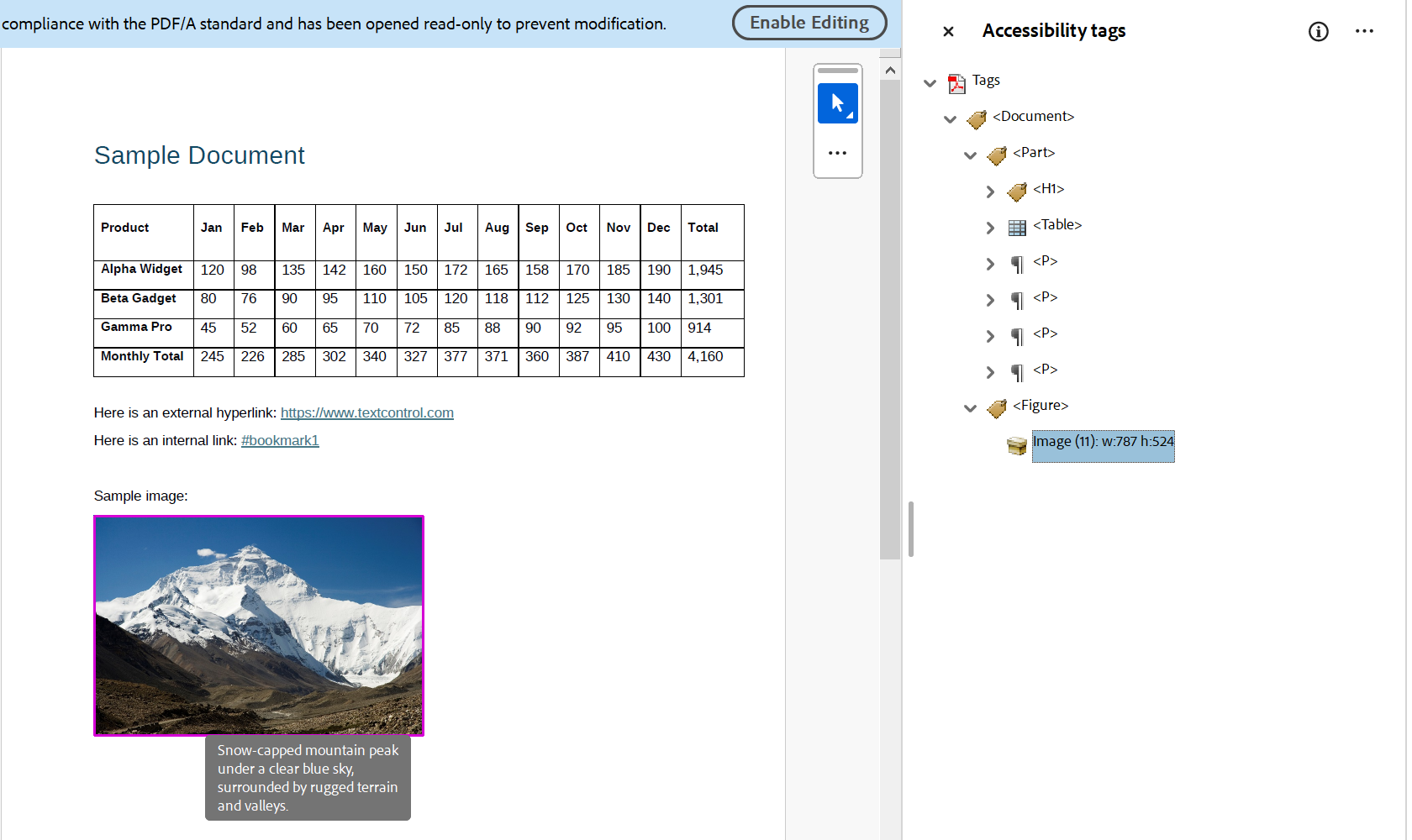
PDF readers show the structure. In the Accessibility tags panel of Adobe Acrobat, a document saved by TX Text Control has tags for its heading, its table, its paragraphs and its image, and the descriptive text of the image appears when the pointer rests on it:
What Your Document Must Provide
| Element | What you set |
|---|---|
| Document | A title in DocumentSettings.DocumentTitle; screen readers use it to identify the document |
| Headings | A structure level from 1 to 10 in ParagraphFormat.StructureLevel, usually as part of a paragraph style; 0 is body text |
| Images, text frames, charts, barcodes, drawings and signature fields | FrameBase.DescriptiveText, written as the alternative text |
| Tables | Header rows with TableRow.IsHeader and a summary in Table.DescriptiveText |
| Links | HypertextLink.DescriptiveText for links to other documents and websites, DocumentLink.DescriptiveText for links within the document |
| Form fields | FormField.DescriptiveText |
| Merged images | ImageMergedEventArgs.DescriptiveText in the ImageMerged event of MailMerge, as Images in Mail Merge and Reporting shows |
For each DescriptiveText property, an empty string means no description, and assigning an empty string removes an existing one.
Create an Accessible Document
The following program creates an invoice with a title, a heading, a logo, a link, a form field and a table of line items. Every element carries the information PDF/UA needs:
using TXTextControl;

using (ServerTextControl tx = new ServerTextControl())
{
    tx.Create();

    // The title of the document
    tx.DocumentSettings.DocumentTitle = "Invoice INV-2025-001";

    tx.Text = "Invoice INV-2025-001\r\n" +
        "Billed to Acme Corporation. Questions: \r\n" +
        "Purchase order: \r\n";

    // A heading style with a structure level
    ParagraphStyle heading = new ParagraphStyle("Invoice Heading");
    heading.FontSize = 320; // 16 pt
    heading.Bold = true;
    heading.ParagraphFormat.StructureLevel = 1;
    tx.ParagraphStyles.Add(heading);
    tx.Paragraphs[1].FormattingStyle = "Invoice Heading";

    // A link with a description
    tx.Select(tx.Find("Questions: ") + "Questions: ".Length, 0);
    tx.HypertextLinks.Add(new HypertextLink("support", "https://www.textcontrol.com/contact/")
    {
        DescriptiveText = "Contact the support team"
    });

    // A form field with a description
    tx.Select(tx.Find("Purchase order: ") + "Purchase order: ".Length, 0);
    TextFormField purchaseOrder = new TextFormField(2880) { Name = "PurchaseOrder" };
    tx.FormFields.Add(purchaseOrder);
    purchaseOrder.DescriptiveText = "Purchase order number";

    // A table with a header row and a summary in the last, empty paragraph
    tx.Select(tx.Paragraphs[tx.Paragraphs.Count].Start - 1, 0);
    tx.Tables.Add(3, 2, 10);
    Table table = tx.Tables.GetItem(10);
    table.Rows.GetItem(1).IsHeader = true;
    table.Cells.GetItem(1, 1).Text = "Description";
    table.Cells.GetItem(1, 2).Text = "Price";
    table.Cells.GetItem(2, 1).Text = "TX Text Control .NET Server License";
    table.Cells.GetItem(2, 2).Text = "199.99";
    table.Cells.GetItem(3, 1).Text = "Priority Support - 12 Months";
    table.Cells.GetItem(3, 2).Text = "99.98";
    table.DescriptiveText = "Line items of the invoice with description and price";

    // A logo anchored to the heading, with an alternative text
    tx.Select(0, 0);
    Image logo = new Image("Documents/logo.png", 4);
    tx.Images.Add(logo, HorizontalAlignment.Right, -1, ImageInsertionMode.DisplaceText);
    logo.DescriptiveText = "Text Control logo";

    tx.Save("invoice.pdf", StreamType.AdobePDF);
}
The code works as follows:
DocumentTitlegives the PDF its title. Screen readers use it to identify the document, and validators report a PDF without a title as an error.- The paragraph style with
StructureLevel1 marks the first paragraph as a heading. Paragraphs describes paragraph styles, and the same structure levels generate Tables of Contents. - Find returns the zero-based position of the label, so the link and the form field are inserted behind their labels.
IsHeadermarks the first row as the header of the table, andTable.DescriptiveTextbecomes the summary of the table in the PDF.- The image is inserted last, so that it doesn't change the positions the program finds before.
With StreamType.AdobePDFA, the document is saved as PDF/A-3a and PDF/UA at the same time. Tables, Images, Fields and Form Fields describe the elements in detail.
Check a Document Before Saving
Documents from templates or uploads can lack descriptions. A check before saving finds them while they can still be fixed. The following program loads a DOCX document, collects the elements without a description in all text parts and saves the PDF only when nothing is missing:
using TXTextControl;

using (ServerTextControl tx = new ServerTextControl())
{
    tx.Create();
    tx.Load("Documents/invoice.docx", StreamType.WordprocessingML);

    List<string> issues = new List<string>();

    if (string.IsNullOrWhiteSpace(tx.DocumentSettings.DocumentTitle))
    {
        issues.Add("The document has no title.");
    }

    // The main text, text frames, headers and footers
    foreach (IFormattedText textPart in tx.TextParts)
    {
        string part = textPart.GetType().Name;

        // Images, text frames, charts, barcodes and drawings
        foreach (FrameBase frame in textPart.Frames)
        {
            if (string.IsNullOrEmpty(frame.DescriptiveText))
            {
                issues.Add($"{part}: {frame.GetType().Name} '{frame.Name}' has no descriptive text.");
            }
        }

        foreach (Table table in textPart.Tables)
        {
            if (string.IsNullOrEmpty(table.DescriptiveText))
            {
                issues.Add($"{part}: table {table.ID} has no descriptive text.");
            }
        }

        foreach (HypertextLink link in textPart.HypertextLinks)
        {
            if (string.IsNullOrEmpty(link.DescriptiveText))
            {
                issues.Add($"{part}: link '{link.Text}' has no descriptive text.");
            }
        }

        foreach (FormField field in textPart.FormFields)
        {
            if (string.IsNullOrEmpty(field.DescriptiveText))
            {
                issues.Add($"{part}: form field '{field.Name}' has no descriptive text.");
            }
        }
    }

    if (issues.Count > 0)
    {
        issues.ForEach(Console.WriteLine);
        return;
    }

    tx.Save("invoice.pdf", StreamType.AdobePDF);
}
ServerTextControl.TextParts contains every text part, and each implements IFormattedText with the collections Frames, Tables, HypertextLinks and FormFields. Add DocumentLinks when your documents contain links within the document. The blog article Preflighting PDF/UA Documents with TX Text Control in .NET C# builds a reusable check with a report and events.
A check before saving works on the document; a validator checks the PDF that was actually written. PDF Validation describes the TXTextControl.PDF.Validation package. Neither replaces a review by people: an alternative text can exist and still describe an image poorly.
Add Descriptions to Existing Documents
Documents that already exist, such as DOCX files from MS Word, can get their descriptions in code before they're converted. The blog article Automating PDF/UA Accessibility with AI: Describing DOCX Documents Using TX Text Control and LLMs loops through the images, links and tables of a document, lets a language model write the descriptions and saves the document as PDF/A. In the Document Editor, users and your JavaScript code set the descriptions with the setDescriptiveText methods, for example Table.setDescriptiveText.
Next Steps
- PDF Validation: check PDF/UA documents after saving.
- PDF/A: create documents that are archivable and accessible.
- Document Metadata: set the title and other metadata.
- Tables of Contents: structure long documents with headings.