
Template Assistant
Learning how merge fields, merge blocks and data-shaping rules fit together is easier with a live template in front of you. The Mail Merge Template Assistant is an online demo in which you design a template in the Document Editor step by step, from connecting JSON data to nested blocks with sorting and filter rules, and every step creates real TX Text Control fields and blocks.
The Template Assistant is a demo application, not a component of TX Text Control .NET Server. It's built on the Document Editor and MailMerge, so your application can do what it does with the same APIs.
What the Template Assistant Is
The Mail Merge Template Assistant is one of the technical demos of Text Control, which run on ASP.NET Core with .NET 10 and the Core version of TX Text Control .NET Server. Like the other demos, it has three areas: Try it to use the assistant, Learn to read how it works and Code to see the code behind it.
In the demo, the Document Editor has an additional Template Assistant group in its Reporting ribbon tab. The group opens a panel next to the document, which overlaps the editor instead of resizing it, so the document keeps its layout. The blog article Learning Mail Merge Templates from Basic Fields to Advanced Reporting Structures introduces the assistant.
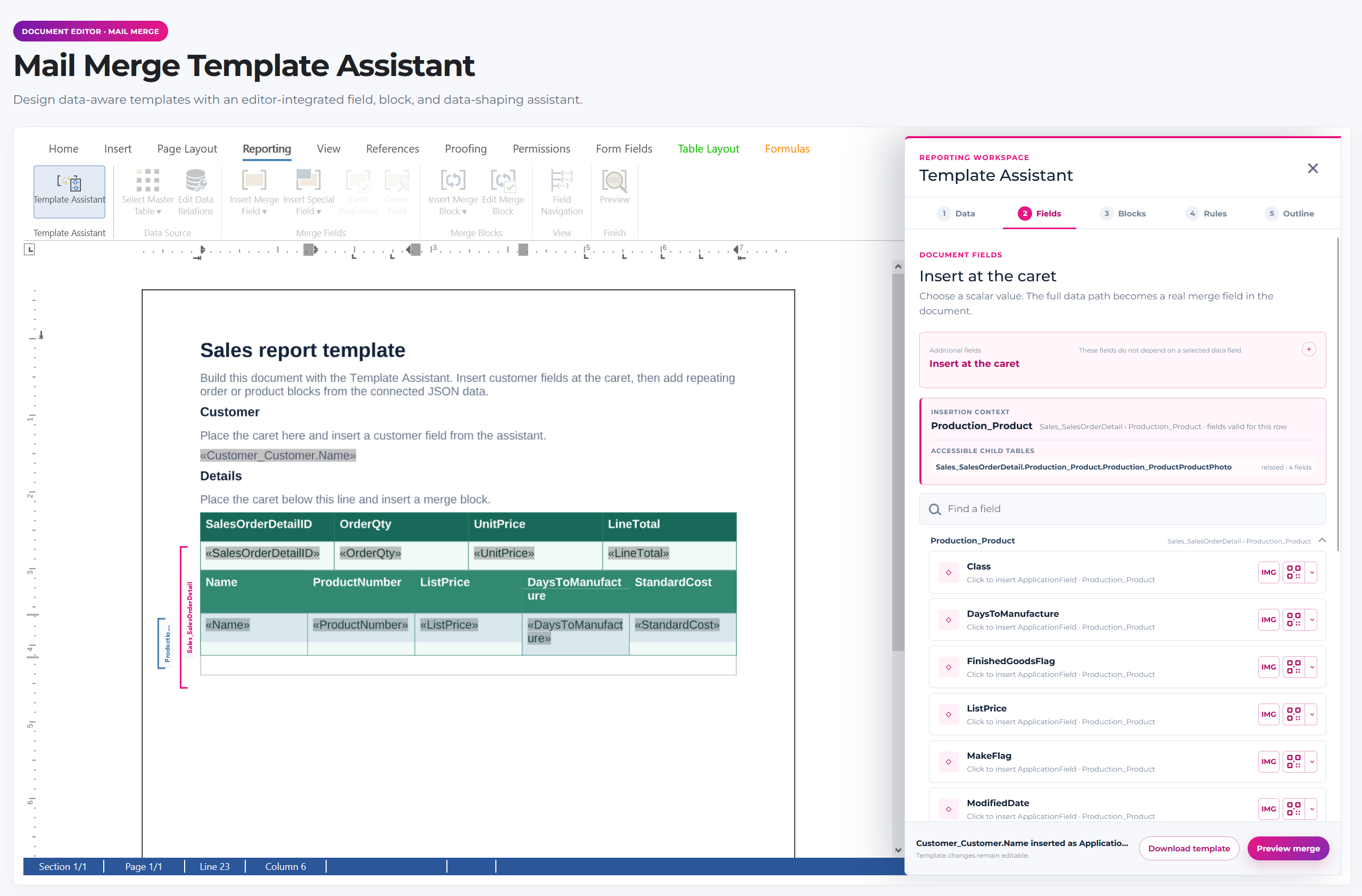
The Steps of the Assistant
| Step | What you do | Documented in |
|---|---|---|
| 1 Data | Load a JSON file or use the sample data of sales orders with products, customers and images. The assistant shows the structure of the data, and the same JSON fills the Reporting tab of the editor | Data Sources |
| 2 Fields | Insert the fields that are available at the input position: fields of the document level outside blocks and fields of the current record inside a block. Values that contain image data become image placeholders, and barcodes can be inserted for values. IF, DATE and INCLUDETEXT fields are available as well | Merge Fields, Images, Barcodes |
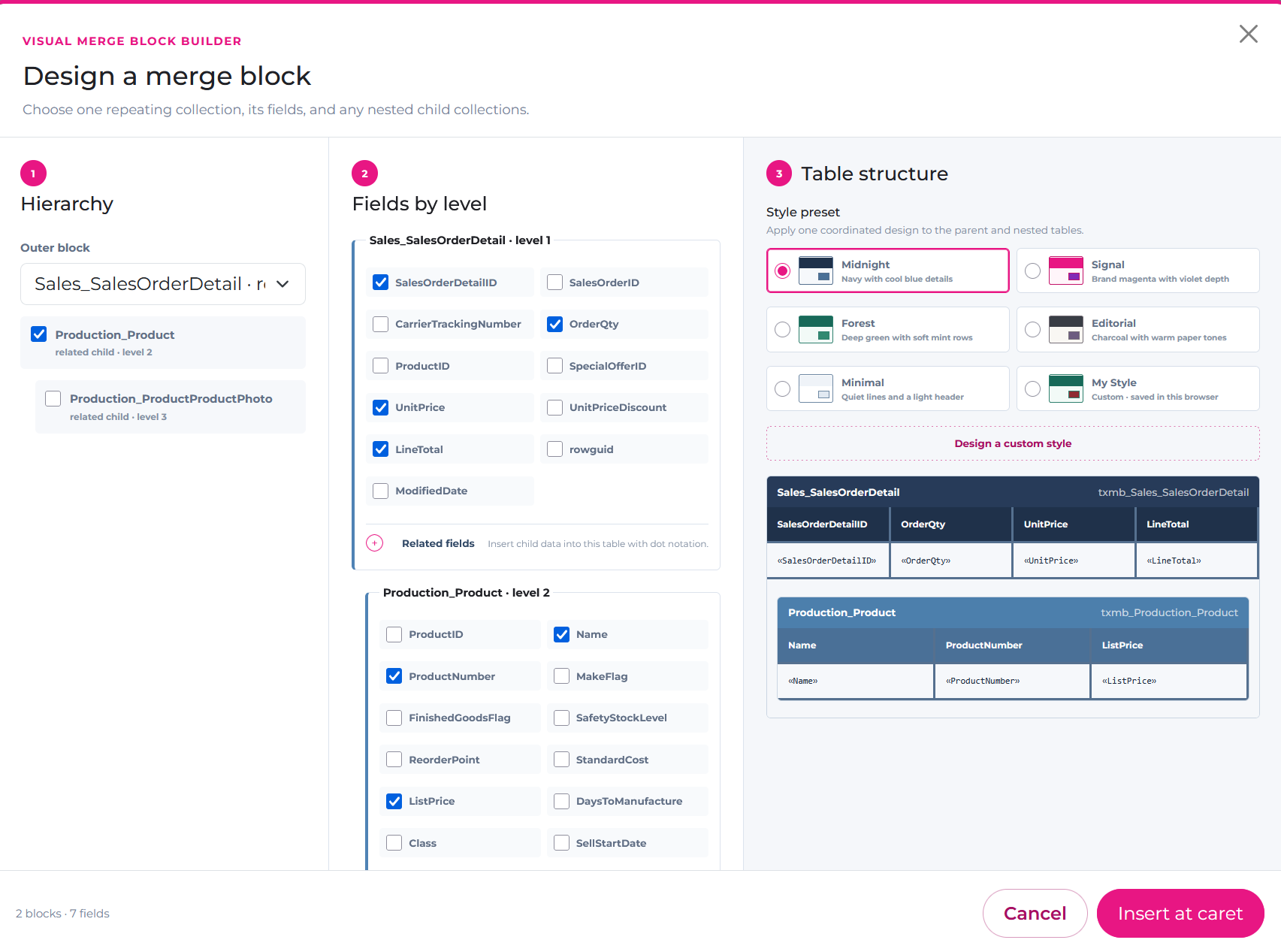
| 3 Blocks | Design a merge block from a collection of the data, with nested child collections and the fields of each level, and style its table | Merge Blocks, Nested Blocks |
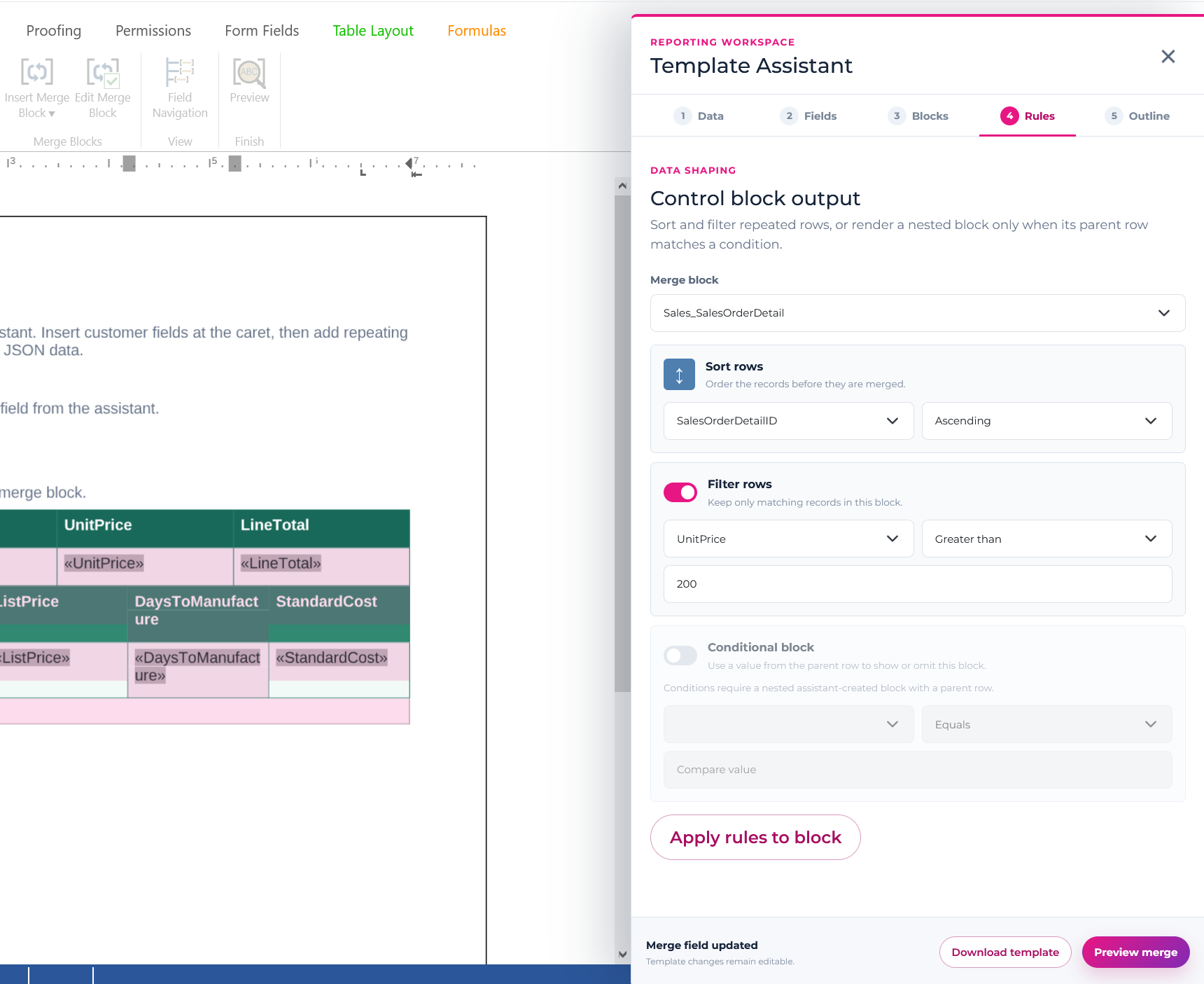
| 4 Rules | Sort the rows of a block, filter them and make a nested block depend on its parent record | Sorting and Filtering |
| 5 Outline | See the fields and blocks of the document with their nesting and levels and jump to an element | Template Design |
In the Blocks step, a dialog designs a merge block: you choose the outer collection and its nested child collections, check the fields of each level and pick a style for the tables, and Insert at caret inserts the nested blocks into the document:
The Rules step sets the sorting and filter rules of a block and, for a nested block, a condition on its parent row; Apply rules to block stores them with the block:
When the input position is in a field that the assistant supports, the field's properties open in the panel, such as the name, the text before and after and the formats of a merge field, and changes apply immediately. Two more actions complete the workflow:
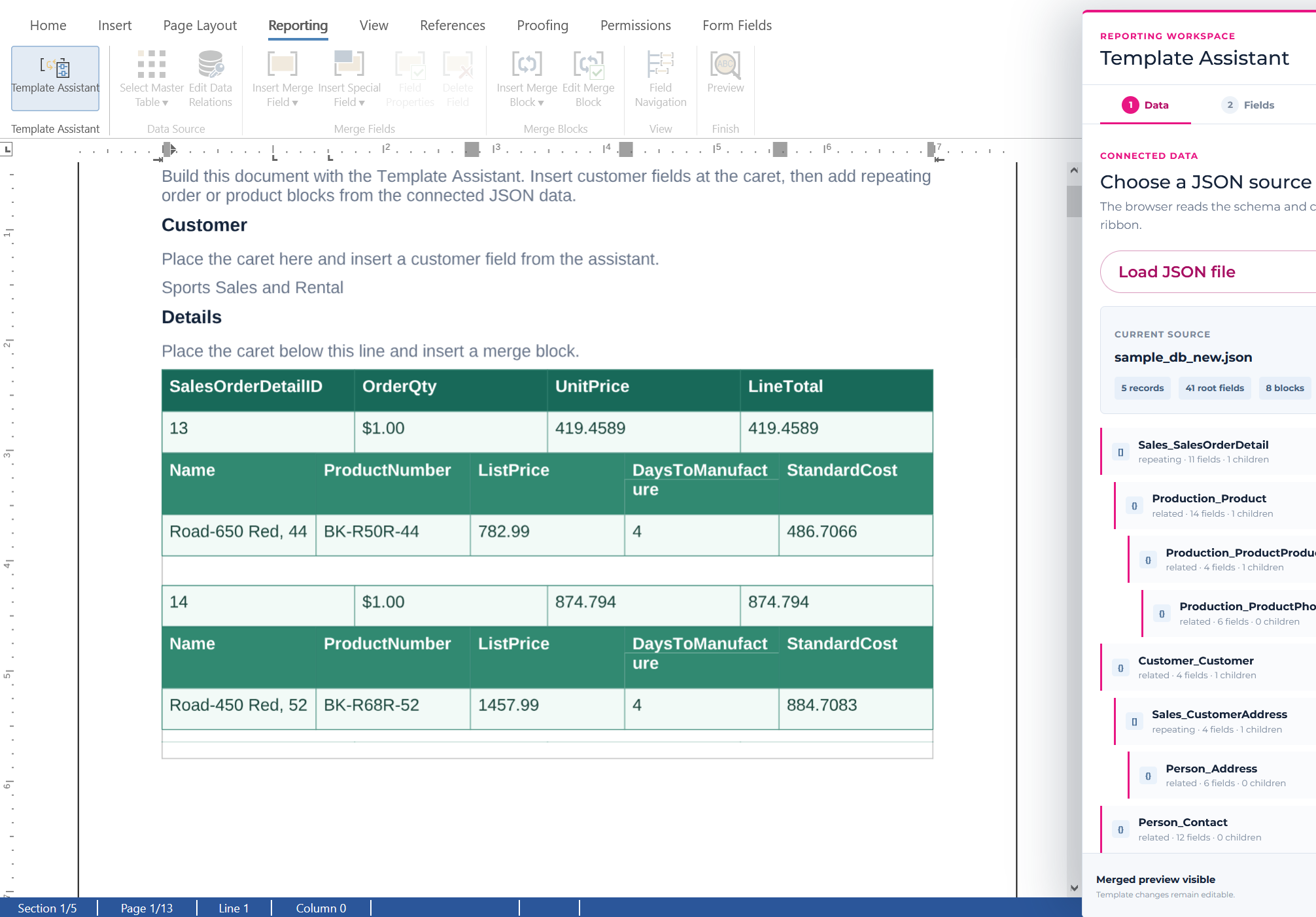
- Preview merge merges the template with the JSON data on the server and shows the result in the editor. Restore template brings the template back.
- Download template saves the template in the TX Text Control format with its fields, blocks, table styles and rules, ready for
MailMerge.
The merged preview shows the nested blocks filled with the sample data, one table with its product row for each order detail:
How the Assistant Works
The assistant keeps no model of the template apart from the document itself. Fields are application fields, merge blocks are subtext parts, tables are regular tables and the sorting and filter rules are stored with the merge blocks, so the downloaded template works with MailMerge without the assistant. The work is divided between the browser and the server:
| Where | What happens | APIs |
|---|---|---|
| Browser | Reading the structure of the JSON, finding the fields for the input position, inserting and editing fields, showing the panel | TXTextControl.loadJsonData, TXTextControl.addMergeField, TXTextControl.saveDocument |
| Server | Checking a block design against the data, generating nested blocks, styling tables, storing rules and merging the preview | DataSourceManager.InsertMergeBlock, MergeBlockInfo, TableCell.CellFormat, MailMerge.MergeJsonData |
For a new block, the browser saves the document in the TX Text Control format and sends it to the server. The server inserts the block with InsertMergeBlock, a MergeBlockInfo whose ChildBlocks describe the nested levels and a MergeBlockSettings for a table row block with a header row, and the browser loads the returned document. In the Document Editor section, Loading and Saving Documents shows how documents travel between the editor and a controller.
Reuse What the Assistant Shows
The Code area of the demo shows the code of the assistant: its JavaScript, its controller and its sample data. It's the actual code behind the demo, and you can study it and apply its patterns in your own application. Parts of it, such as the analysis behind the outline and helpers shared by all demos, aren't included in the code shown.
The documentation covers each pattern the assistant uses:
- Insert merge fields from JavaScript: Merge Fields in Getting Started.
- Insert nested merge blocks on the server: Nested Blocks.
- Store sorting, filter and merging rules: Sorting and Filtering.
- Test a template with sample data: Template Design.
The demo site has related demos, such as the Nested Merge Block Designer and Merging Sub-Templates.
Next Steps
- Template Design: design templates that merge well.
- Nested Blocks: build the master-detail structures that the assistant generates.
- Document Editor with ASP.NET Core: add the editor to your own application.