
Navigation
Users scroll, jump to pages and follow links in the Document Viewer, and your own navigation next to the viewer, such as a table of contents or a list of sections, can do the same. Your code scrolls to a page, shows the page thumbnails and decides what happens when users click links.
The examples change the view of the ASP.NET Core tutorial. They load App_Data/template.docx, as the tutorial does in "Load a File With DocumentPath"; use a document with several pages and at least one hyperlink.
How Users Navigate
- Scrolling. Users scroll through the pages of the document.
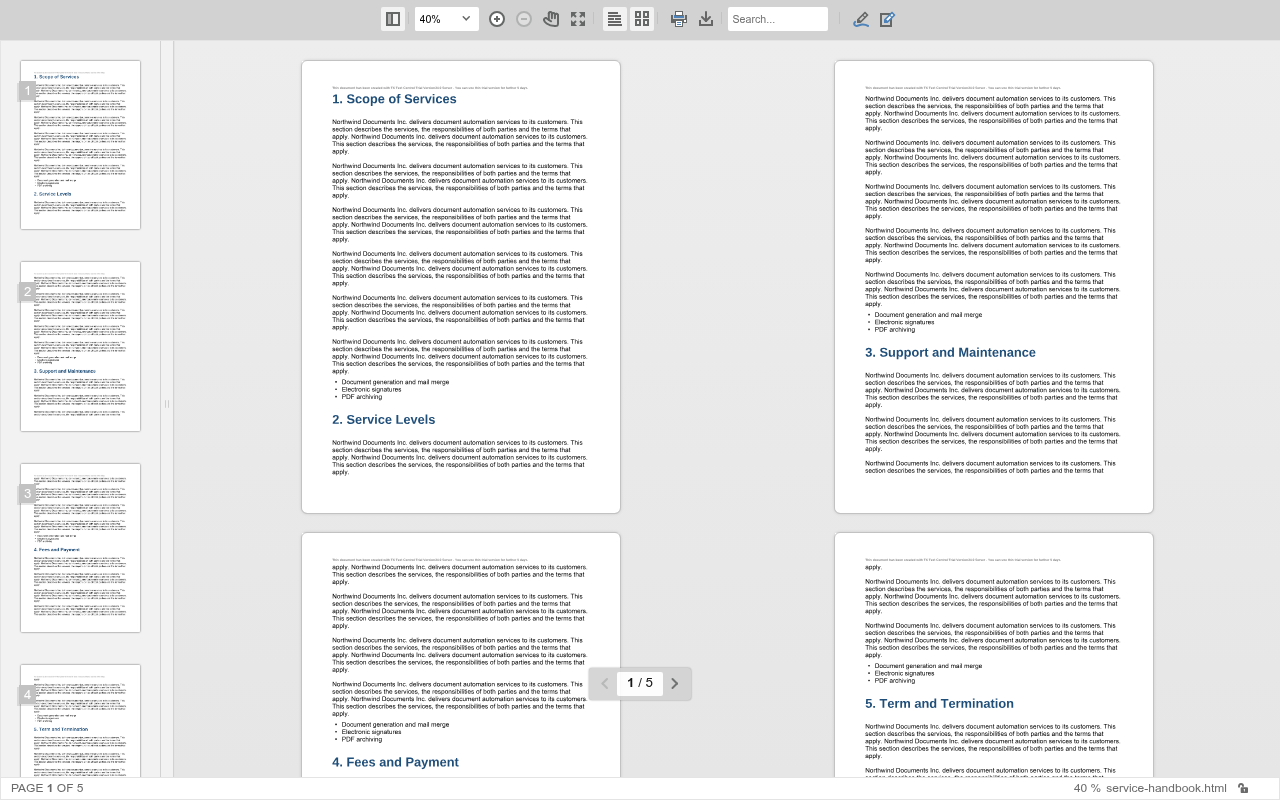
- Page thumbnails. The thumbnail sidebar shows a small image of each page. A toolbar button shows and hides it, and the sidebar can be resized.
- Two-page view. A toolbar button switches between a view with one page and a view with two pages side by side, like an open book, which gives an overview of long documents.
- Page navigator. A small bar at the bottom of the pages shows the current page and the number of pages, with Previous page and Next page buttons. The status bar shows the same numbers, for example "PAGE 1 OF 5".
- Links. A click on a document link, such as an entry of a table of contents, scrolls to its target in the document. A click on a hypertext link navigates to its URL.
The following viewer shows a document of five pages in the two-page view, with the thumbnail sidebar on the left and the page navigator at the bottom:
On smaller screens, the viewer shows a mobile-friendly view with its own buttons; see User Interface.
Handle Link Clicks
The viewer raises an event before it follows a link:
| Event | Is raised when | Default behavior |
|---|---|---|
documentLinkClicked | A link to a target in the same document is clicked | The viewer scrolls to the target |
hypertextLinkClicked | A link to a URL outside the document is clicked | The viewer navigates to the URL |
Call preventDefault on the event object to stop the default behavior. The following script keeps users in the application by ignoring clicks on hypertext links, while document links keep working. Add it to the handler of documentViewerLoaded in the view above:
TXDocumentViewer.addEventListener("hypertextLinkClicked", function (e) {
  // Don't navigate to the URL of the link
  e.preventDefault();
});
addEventListener attaches the handler. Apart from preventDefault, the reference documents no properties of the event object for these two events.
The links come from the document. In the Document Editor, users and your code insert hyperlinks, bookmarks and document links, as described in Fields. A table of contents inserted with links consists of document links to its headings; see Tables of Contents.