
Watermarks
A "DRAFT" across every page of a contract under review, "CONFIDENTIAL" on an internal report or the name of the person who downloaded a document: watermarks mark the status or the origin of a document on each page. In TX Text Control, a watermark is an image in the header that lies behind the text. You center it on pages of any size, create text watermarks without an image file, limit them to some pages or sections and remove them again.
A first watermark on a loaded PDF is added in Add a Watermark in Getting Started. Headers and images in general are described in Headers and Footers and Images.
How Watermarks Work
Images, text frames, barcodes and drawings can be placed anywhere on a page while they belong to a header or footer. They're then shown in the background of every page on which the header or footer appears, and they don't change the height of the header. Three settings make an image a watermark:
- In the header. The image is added to the Images collection of a header, so it's repeated on every page of its section.
- Fixed on the page.
ImageInsertionMode.FixedOnPageplaces the image at a position on the page instead of at a text position. - Behind the text.
ImageInsertionMode.BelowTheTextputs the image under the text, so the text remains readable.
SVG images are the best choice for watermarks: one image fits every size, and a document saved as PDF contains them as vector graphics. Each kind of header, such as the header of the first page or of even pages, has its own background.
Center a Watermark on Every Page
Documents can contain sections with different page sizes and orientations. The following program adds an SVG image to the header of every section of a document and centers it on the page of its section:
using TXTextControl;

using (ServerTextControl tx = new ServerTextControl())
{
    tx.Create();
    tx.Load("Documents/sample.docx", StreamType.WordprocessingML);

    // Page sizes and margins in twips, the unit of image sizes and locations
    tx.PageUnit = MeasuringUnit.Twips;

    foreach (Section section in tx.Sections)
    {
        section.HeadersAndFooters.Add(HeaderFooterType.Header);
        HeaderFooter header = section.HeadersAndFooters.GetItem(HeaderFooterType.Header);

        // 8 is the import filter for SVG
        Image watermark = new Image("Documents/draft.svg", 8);

        header.Images.Add(watermark, 1, new System.Drawing.Point(0, 0),
            ImageInsertionMode.FixedOnPage | ImageInsertionMode.BelowTheText);

        watermark.Name = "watermark";

        // Center the image between the page margins
        SectionFormat format = section.Format;

        int x = (int)((format.PageSize.Width - watermark.Size.Width - format.PageMargins.Left - format.PageMargins.Right) / 2);
        int y = (int)((format.PageSize.Height - watermark.Size.Height - format.PageMargins.Top - format.PageMargins.Bottom) / 2);

        watermark.Location = new System.Drawing.Point(x, y);
    }

    tx.Save("sample-draft.pdf", StreamType.AdobePDF);
}
The code works as follows:
- ServerTextControl.PageUnit sets the unit of page sizes and margins to a
MeasuringUnitvalue:Millimeter,CentiInch,StandardWPForTwips. WithTwips, they use the same unit as FrameBase.Size and FrameBase.Location, 1/1440 inch. - Section.HeadersAndFooters adds a header to one section. GetItem returns it.
- ImageCollection.Add with a page number and a location places the image at a fixed position.
- The position subtracts the image size and both page margins from the page size, as the blog article Adding Watermarks to PDF Documents in .NET C# calculates it. SectionFormat.PageSize and PageMargins provide the values of each section.
- FrameBase.Name marks the image, so your code can find and remove it later.
The horizontal position is measured from the left page margin, so the calculation uses these values:
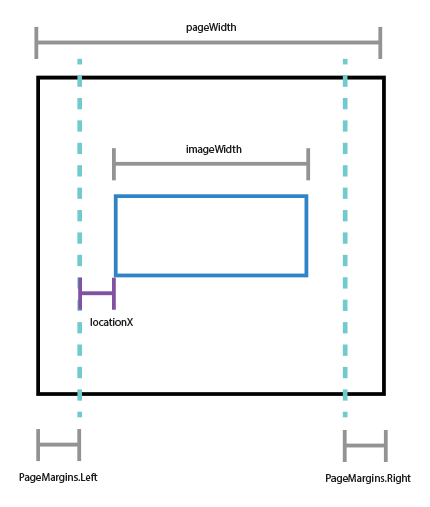
Each section gets an image object of its own. Save the result with StreamType.AdobePDF, or as DOCX or in the TX Text Control format to keep working on it.
Create a Text Watermark
A text watermark doesn't need an image file: your code writes an SVG image with a text element, rotates the text and passes the image as a stream. The following program adds a gray, rotated "CONFIDENTIAL" to the header of every section:
using System.Text;
using TXTextControl;

string svg =
    "<svg xmlns='http://www.w3.org/2000/svg' width='800' height='400' viewBox='0 0 800 400'>" +
    "<text x='400' y='220' text-anchor='middle' font-family='Arial' font-size='90' " +
    "fill='#D3D3D3' transform='rotate(-20 400 200)'>CONFIDENTIAL</text>" +
    "</svg>";

byte[] data = Encoding.UTF8.GetBytes(svg);

using (ServerTextControl tx = new ServerTextControl())
{
    tx.Create();
    tx.Load("Documents/sample.docx", StreamType.WordprocessingML);

    foreach (Section section in tx.Sections)
    {
        section.HeadersAndFooters.Add(HeaderFooterType.Header);
        HeaderFooter header = section.HeadersAndFooters.GetItem(HeaderFooterType.Header);

        // The stream must stay open until the image has been added
        using (MemoryStream stream = new MemoryStream(data, 0, data.Length, false, true))
        {
            Image watermark = new Image(stream);

            header.Images.Add(watermark, 1, new System.Drawing.Point(1440, 2880),
                ImageInsertionMode.FixedOnPage | ImageInsertionMode.BelowTheText);

            watermark.Name = "watermark";
        }
    }

    tx.Save("sample-confidential.pdf", StreamType.AdobePDF);
}
The code works as follows:
text-anchor='middle'centers the text at itsxposition, andtransform='rotate(...)'turns it around the center of the image. Thefillcolor sets how strong the watermark appears.- The
Imageconstructor with aMemoryStreamneeds no filter index. The stream must be publicly visible, which the fifth argument of theMemoryStreamconstructor sets, as Insert an Image From a Byte Array explains. - The location is given in twips, 1440 horizontally and 2880 vertically; the centering calculation of the previous section works here as well.
The font of the SVG text must be available on the server, as Make Fonts Available on the Server describes. TX Text Control supports SVG 1.1 without external images and style sheets, interactivity, animation, advanced text transformations and image processing effects such as patterns, masking and filters. The blog article Generating and Adding Watermarks to Documents using C# sizes the SVG image to the measured text.
Limit a Watermark to Some Pages
The header you add the image to decides where the watermark appears:
- The first page only. Add the image to the header of the type
HeaderFooterType.FirstPageHeader, the special header of the first page of the document or of a section. - Even pages.
HeaderFooterType.EvenHeaderadds a header for even pages, which gets its own watermark. - One section. Use the headers of a single section, such as
tx.Sections[2].HeadersAndFooters, and set ConnectedToPrevious tofalse, so the header of that section can have content of its own. Give a Section Its Own Header shows this. - Selected pages. Without a header, add the image to the main text on the pages you choose: loop through GetPages and call
tx.Images.Add(image, page.Number, location, ImageInsertionMode.FixedOnPage | ImageInsertionMode.BelowTheText)after the content of the document is final, so that the page numbers no longer change.
Add a Watermark for Each Recipient
A watermark with the name of the recipient, the download time and a document ID shows who received a copy. Add it when the document is downloaded, so that templates stay clean. Because a watermark in a PDF can be removed in an editor, combine it with metadata, an embedded file with the same data and a digital signature that makes changes detectable. The blog article Secure by Design: Dynamic Watermarking for Enterprise Documents in C# .NET builds this in four steps. Document Metadata, Attachments and Signing PDF Documents describe the parts.
Remove a Watermark
A watermark that your application added and named can be removed from documents saved as DOCX or in the TX Text Control format. The following program removes the images named "watermark" from all headers and footers:
using TXTextControl;

using (ServerTextControl tx = new ServerTextControl())
{
    tx.Create();
    tx.Load("Documents/contract-draft.docx", StreamType.WordprocessingML);

    foreach (IFormattedText textPart in tx.TextParts)
    {
        if (textPart is HeaderFooter header)
        {
            // null if the header has no image with this name
            Image watermark = header.Images.GetItem("watermark");

            if (watermark != null)
            {
                header.Images.Remove(watermark);
            }
        }
    }

    tx.Save("contract-final.pdf", StreamType.AdobePDF);
}
ServerTextControl.TextParts contains the headers and footers of all sections. ImageCollection.GetItem finds an image by its name, and Remove deletes it. In the Document Viewer, users mark documents with stamps instead, which are annotations; Add Custom Stamps describes them.
Next Steps
- Headers and Footers: work with the headers that hold watermarks.
- Images: insert and position images.
- Signing PDF Documents: protect a watermarked PDF against changes.
- PDF Creation: control the PDF documents you save.