
Digital Signatures
A digital signature is only as trustworthy as the process that creates it. Whoever holds the private key of a signing certificate can sign in its name, and whoever can post to your signing endpoint can make your server apply that key. For developers who build signing into an application with TX Text Control .NET Server, the security side of signing covers what a signature protects, how to keep the key safe, how to accept signed documents only from signing processes you started, and how to check and record signatures. The steps of signing itself are in Digital Signatures.
What a Signature Protects
A digital signature makes any change to a PDF document after signing detectable, and its certificate identifies the signer. It doesn't hide the content: for confidentiality, encrypt the document as well. What a Digital Signature Proves explains integrity and authenticity and compares signatures with passwords and stored hashes, and Multiple Signatures explains why a signed PDF can't be signed again.
Keep the Private Key Safe
Everyone who has the private key of the certificate can sign in the name of its owner, so the key stays on the server: the browser components never receive it. Read the certificate and its password from the configuration or a secret store, never from the source code, and use one certificate per environment, with a certificate from a trusted certificate authority (CA) in production. Certificate-Based Signatures shows the code for PFX files, the Windows certificate store and Azure Key Vault, and Self-Signed Certificates creates certificates for tests.
Protect the Signing Endpoint
When users submit a signed document in the Document Viewer, the viewer sends it to the TextControl controller of the viewer package in your application, and this controller posts it on to the URL in RedirectUrlAfterSignature, where your endpoint applies the certificate. Anyone who can post to this endpoint can make your server sign a document of their choice with your certificate. Because your server sends the request, not the browser, it carries no authentication cookie of the user, so [Authorize] can't protect the endpoint. Accept a document only when it belongs to a signing process that your application started:
- When your application starts a signing process, it creates a random token and stores it together with the ID of the document.
- The token goes into the query string of the endpoint's URL in
RedirectUrlAfterSignature, and the ID intoUniqueId. - A filter checks the token before the action runs, removes it so that it can't be used a second time, and compares the ID with the
UniqueIdof the posted document.
The following classes keep the tokens and check them. Create SigningTokens.cs in an ASP.NET Core MVC application with the Document Viewer:
using System.Collections.Concurrent;
using System.Security.Cryptography;
using Microsoft.AspNetCore.Http;
using Microsoft.AspNetCore.Mvc;
using Microsoft.AspNetCore.Mvc.Filters;
using TXTextControl.Web.MVC.DocumentViewer.Models;

// The open signing processes: a token and the ID of its document
public static class SigningTokens
{
    private static readonly ConcurrentDictionary<string, string> _tokens = new();

    public static string Create(string uniqueId)
    {
        string token = Convert.ToHexString(RandomNumberGenerator.GetBytes(32));
        _tokens[token] = uniqueId;
        return token;
    }

    public static bool Redeem(string token, out string? uniqueId)
    {
        // A token can be used once
        return _tokens.TryRemove(token, out uniqueId);
    }
}

// Rejects signed documents that don't belong to an open signing process
public class SigningTokenFilter : ActionFilterAttribute
{
    public override void OnActionExecuting(ActionExecutingContext context)
    {
        string? token = context.HttpContext.Request.Query["token"];
        context.ActionArguments.TryGetValue("data", out object? argument);

        if (string.IsNullOrEmpty(token)
            || !SigningTokens.Redeem(token, out string? uniqueId)
            || argument is not SignatureData data
            || data.UniqueId != uniqueId)
        {
            context.Result = new StatusCodeResult(StatusCodes.Status403Forbidden);
        }
    }
}
The controller starts the signing process and receives the signed document. Take the SignatureController of Receive and Sign the Document on the Server, add an Index action that starts the process and put the filter on SignDocument. In production, load the certificate from the configuration instead of a fixed path, as Load the Certificate in ASP.NET Core shows:
using Microsoft.AspNetCore.Authorization;
using Microsoft.AspNetCore.Mvc;
using TXTextControl.Web.MVC.DocumentViewer.Models;
public class SignatureController : Controller
{
public IActionResult Index()
{
// Start a signing process for the document with this ID
ViewBag.UniqueId = "12345-ABCDE";
ViewBag.SigningToken = SigningTokens.Create("12345-ABCDE");
return View();
}
// Sent by the server without the user's cookie: the token filter decides
[]
[]
[]
public string SignDocument([FromBody] SignatureData data)
{
// Sign each signature box and return the PDF document as a base64 string,
// as in "Receive and Sign the Document on the Server"
// ...
}
}
The view Views/Signature/Index.cshtml shows the document and passes the token with the URL of the endpoint:
@using TXTextControl.Web.MVC.DocumentViewer

<div style="width: 800px; height: 600px;">

@Html.TXTextControl().DocumentViewer(settings => {
    settings.DocumentPath = "App_Data/contract.docx";
    settings.Dock = DocumentViewerSettings.DockStyle.Fill;
    settings.SignatureSettings = new SignatureSettings() {
        ShowSignatureBar = true,
        OwnerName = "Paul Paulsen",
        SignerName = "Tim Typer",
        SignerInitials = "TT",
        UniqueId = (string)ViewBag.UniqueId,
        RedirectUrlAfterSignature = Url.Action("SignDocument", "Signature",
            new { token = (string)ViewBag.SigningToken }, Context.Request.Scheme),
        SignatureBoxes = new SignatureBox[] {
            new SignatureBox("txsign") {
                SigningRequired = true,
                Style = SignatureBox.SignatureBoxStyle.Signature
            }
        }
    };
}).Render()

</div>
The code works as follows:
SigningTokens.Createcreates a random token of 32 bytes for each signing process and keeps it with the ID of the document. The dictionary exists only in the memory of one application instance. In production, store the tokens in a database, which also works with several instances.- RedirectUrlAfterSignature contains the URL of
SignDocumentwith the token in its query string, and UniqueId the ID of the document. The viewer's controller posts a SignatureData object to this URL, whose UniqueId contains the ID. With the JavaScript API, add the token to the query string of redirectUrlAfterSignature in the same way. SigningTokenFilterruns after the posted data has been bound to thedataparameter and before the action. It rejects the request with status 403 when the token is missing, unknown or already used, or when the posted document has another ID.TryRemovemakes each token valid for one request only.[AllowAnonymous]lets the request through a fallback policy that requires signed-in users, so that the token filter decides. Without a fallback policy, the attribute has no effect.
When the view opens, the signer sees the document with a signature bar that names the owner, and the signature field txsign becomes a box to sign:
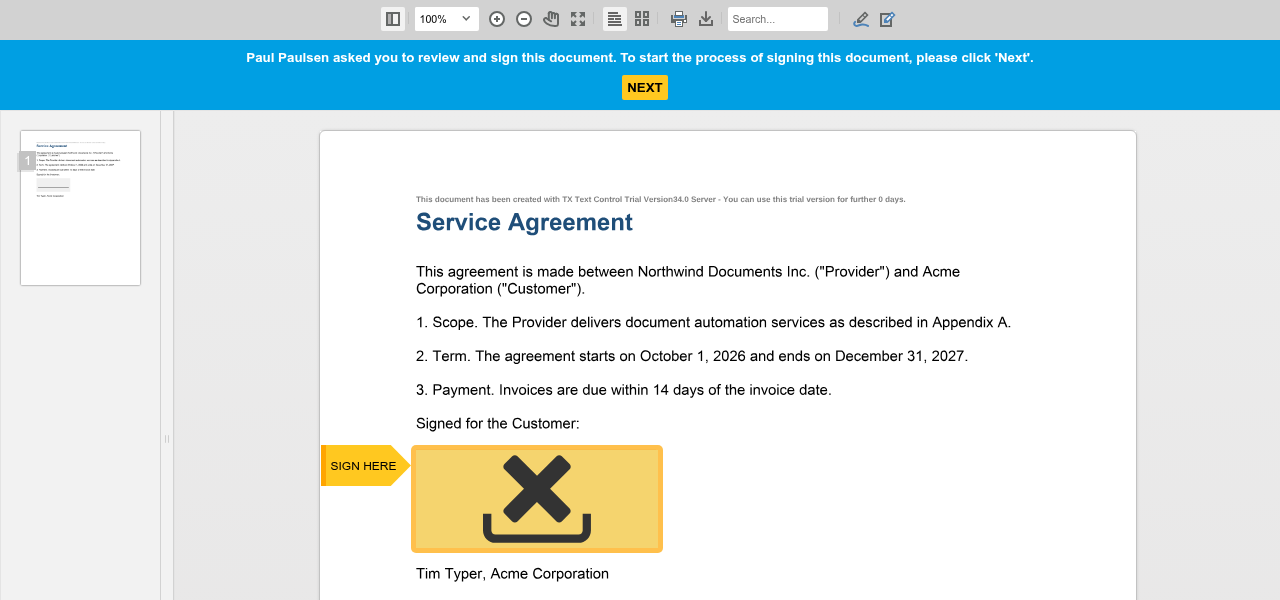
The ID and the other values in SignatureData come from the browser, so use them only after checking them against the processes your application started. Protect the Index action with a sign-in, so that only signed-in users can start a signing process, as Authentication describes. The blog article Securing the Signature Endpoint with Custom ActionFilterAttributes introduces the filter.
Identify the Signers
A token proves that a signed document belongs to a process, not who signed it. For documents that go to people outside your application, such as patients or customers, verify the signer before the viewer opens, for example with two-step authentication or a one-time code sent by email. The blog article HIPAA Compliant Electronic and Digital Signatures lists such methods. The open-source signing platform SignFabric sends a time-limited one-time code before a recipient can open a document.
Check Documents You Receive
When your application receives signed PDF documents, for example as uploads, check the signatures with the TXTextControl.PDF.Validation package before it relies on them. The package proves that a document is unchanged, not who signed it: for the trust in the certificate, use a validator such as Adobe Acrobat. Signature Validation shows the code and what the package checks.
Keep Signatures Verifiable
Without a trusted timestamp, the signing time is the time on the computer that signed. A timestamp from an RFC 3161 time server proves when the document was signed and keeps the signature verifiable after the certificate expires; only a hash of the signature leaves your system. RFC 3161 Timestamps shows the code and the error to handle when the time server can't be reached.
Record the Signing Process
A signature shows who signed and whether the document changed. When and how the document reached the signer and how the signer was identified are recorded by your application in an audit trail. The blog article Electronic Signatures: Document Audit Trails records the status of each document, from sent and received to opened and signed, with the name, email address, a unique document ID and the IP address of the signer. SignFabric's audit trail adds the details of the certificate, the hashes of the original and the signed document and how the signer was authenticated, as Major SignFabric Updates: Stronger Audit Trails, Validation, and Recipient Workflows describes.
Next Steps
- Digital Signatures: sign PDF documents, from certificates to validation.
- Digital Signatures in Document Viewer: collect signatures from users in the browser.
- Document Security: encrypt documents and remove confidential content.
- Compliance: signature levels, HIPAA and other requirements.