
Paragraphs
How text is laid out on a page is decided paragraph by paragraph: its alignment, indents, spacing, page breaks, style, list numbering and writing direction. Your code reads the paragraphs of a document, formats them, defines paragraph styles that keep documents consistent, turns paragraphs into bulleted, numbered and structured lists and sets right-to-left paragraphs for Arabic and Hebrew text.
Character attributes such as fonts and colors are described in Text, and Create a Document shows a first centered paragraph with a frame. Paste an example into Program.cs of a console application to run it.
How Paragraphs Work
A paragraph ends with a carriage return and a line feed (\r\n). ServerTextControl.Paragraphs contains the paragraphs of the main text; headers, footers and text frames have their own Paragraphs collection. Every document has at least one paragraph, and paragraphs are numbered from 1.
A Paragraph has these properties:
| Property | Contains |
|---|---|
| Number | The number of the paragraph, starting at 1 |
| Start, Length | The one-based position of its first character and its number of characters, including the paragraph end |
| Text, Lines | Its text and its number of lines |
| Format | Its formatting, as a ParagraphFormat object |
| FormattingStyle | The name of its paragraph style |
| ListFormat, ListNumberText | Its list formatting, and the number of a numbered list item with the text before and after it |
The following program prints the paragraphs of Documents/sample.docx with their style, number of lines and alignment, and saves the first paragraph as HTML:
using TXTextControl;

using (ServerTextControl tx = new ServerTextControl())
{
    tx.Create();
    tx.Load("Documents/sample.docx", StreamType.WordprocessingML);

    Console.WriteLine($"{tx.Paragraphs.Count} paragraphs");

    foreach (Paragraph paragraph in tx.Paragraphs)
    {
        Console.WriteLine($"#{paragraph.Number} \"{paragraph.FormattingStyle}\", " +
            $"{paragraph.Lines} line(s), {paragraph.Format.Alignment}: " +
            $"{paragraph.ListNumberText}{paragraph.Text}");
    }

    // The paragraph at text position 0
    Paragraph first = tx.Paragraphs.GetItem(0);

    if (first != null)
    {
        string html;
        first.Save(out html, StringStreamType.HTMLFormat);
        Console.WriteLine(html);
    }
}
tx.Paragraphs[1] returns a paragraph by its number. GetItem returns the paragraph at a text position, which starts at 0, or null. Paragraph.Save saves the paragraph to a string or a byte array. For selected text, Selection.ParagraphFormat gets and sets the formatting of all selected paragraphs.
Format Paragraphs
Assign a ParagraphFormat object to Paragraph.Format to format a paragraph. The following program formats a heading, a body paragraph, a note with a frame and an appendix that starts on a new page:
using TXTextControl;

using (ServerTextControl tx = new ServerTextControl())
{
    tx.Create();

    tx.Text = "Terms and Conditions\r\n" +
              "These terms apply to all orders placed with our company. Please read them carefully before you place an order.\r\n" +
              "Note: Prices are subject to change without notice.\r\n" +
              "Appendix";

    // Heading: centered, 12 pt space after it, on the same page as the next paragraph
    tx.Paragraphs[1].Format = new ParagraphFormat(HorizontalAlignment.Center)
    {
        BottomDistance = 240, // 240 twips = 12 pt
        KeepWithNext = true
    };

    // Body: justified, indented on both sides, first line indented further, 1.5 line spacing
    tx.Paragraphs[2].Format = new ParagraphFormat()
    {
        Alignment = HorizontalAlignment.Justify,
        LeftIndent = 720,     // 0.5 inch
        RightIndent = 720,
        HangingIndent = -360, // negative: the first line is indented by another 0.25 inch
        LineSpacing = 150,    // percent of the font size
        BottomDistance = 120,
        KeepLinesTogether = true
    };

    // Note: background color and a box frame
    tx.Paragraphs[3].Format = new ParagraphFormat()
    {
        BackColor = System.Drawing.Color.LightYellow,
        Frame = Frame.Box,
        FrameDistance = 60,
        FrameLineWidth = 10
    };

    // Appendix: always starts at the top of a page
    tx.Paragraphs[4].Format = new ParagraphFormat() { PageBreakBefore = true };

    tx.Save("paragraphs.pdf", StreamType.AdobePDF);
}
All distances are measured in twips, 1/1440 inch. The properties of ParagraphFormat:
| Property | Sets | Default |
|---|---|---|
| Alignment | Left, Right, Center or Justify | Left |
| LeftIndent, RightIndent | The indents from the left and right edge of the text area | 0 |
| HangingIndent | The hanging indent; a negative value indents the first line further | 0 |
| TopDistance, BottomDistance | The space before and after the paragraph | 0 |
| LineSpacing | The line spacing in percent of the font size, from 1 to 10000 | 100 |
| AbsoluteLineSpacing | A fixed line spacing in twips; 0 takes it from the font | 0 |
| KeepLinesTogether | No page break inside the paragraph | false |
| KeepWithNext | The paragraph stays on the page of the next paragraph | false |
| PageBreakBefore | The paragraph always starts at the top of a page | false |
| WidowOrphanLines | How many lines of the paragraph must not be separated from the rest at a page break, from 0 (off) to 3 | 0 |
Frame, FrameStyle, FrameLineWidth, FrameLineColor, FrameDistance | Lines around the paragraph with their style, width, color and distance from the text | No frame, 15 twips |
| BackColor | The background color | Transparent |
| Direction | LeftToRight or RightToLeft text | LeftToRight |
A heading that must start on a new page is better served by PageBreakBefore than by a page break character: when the text before it grows or shrinks, a forced page break can leave an empty page, as the blog article Document Templates Tip: Say No to Forced Page Breaks shows.
Tab stops are set with three arrays of ParagraphFormat: TabPositions with the positions in twips, TabTypes with the types LeftTab, RightTab, CenterTab, DecimalTab or RightBorderTab and TabLeaders with the values None, Period, Dot, Dash or Underline, which fill the space before a tab stop. A paragraph has up to 14 tab stops.
Use Paragraph Styles
A ParagraphStyle combines character attributes and paragraph formatting under a name. Paragraphs that use a style change when the style changes, which keeps all headings or body paragraphs of a document alike. The following program creates styles for headings and body text, applies them and then changes the color of the headings:
using TXTextControl;

using (ServerTextControl tx = new ServerTextControl())
{
    tx.Create();

    tx.Text = "Delivery Terms\r\n" +
              "Shipping\r\n" +
              "Goods are shipped within five business days.\r\n" +
              "Payment Terms\r\n" +
              "Invoices are payable within 30 days.";

    // Heading style, based on the root style [Normal]
    ParagraphStyle heading = new ParagraphStyle("Contract Heading");
    heading.FontName = "Arial";
    heading.FontSize = 320; // 16 pt
    heading.Bold = true;
    heading.ParagraphFormat.TopDistance = 240;
    heading.ParagraphFormat.BottomDistance = 120;
    heading.ParagraphFormat.KeepWithNext = true;
    tx.ParagraphStyles.Add(heading);

    // Subheading style, based on the heading style
    ParagraphStyle subheading = new ParagraphStyle("Contract Subheading", "Contract Heading");
    subheading.FontSize = 280; // 14 pt
    tx.ParagraphStyles.Add(subheading);

    // Body text style
    ParagraphStyle body = new ParagraphStyle("Contract Body");
    body.ParagraphFormat.Alignment = HorizontalAlignment.Justify;
    body.ParagraphFormat.LineSpacing = 120;
    tx.ParagraphStyles.Add(body);

    // Apply the styles to the paragraphs
    tx.Paragraphs[1].FormattingStyle = "Contract Heading";
    tx.Paragraphs[2].FormattingStyle = "Contract Subheading";
    tx.Paragraphs[3].FormattingStyle = "Contract Body";
    tx.Paragraphs[4].FormattingStyle = "Contract Heading";
    tx.Paragraphs[5].FormattingStyle = "Contract Body";

    // Change a style later: every paragraph that uses it changes
    ParagraphStyle existing = tx.ParagraphStyles.GetItem("Contract Heading");

    if (existing != null)
    {
        existing.ForeColor = System.Drawing.Color.DarkBlue;
        existing.Apply();
    }

    tx.Save("styles.docx", StreamType.WordprocessingML);
}
The code works as follows:
- The ParagraphStyle constructor with a name creates a style based on the root style
[Normal], which uses Arial at 10 pt by default. With the name of a base style as second parameter, the new style inherits the attributes of that style. - The character attributes, such as
FontNameandBold, and ParagraphStyle.ParagraphFormat define the style. - ParagraphStyles.Add adds the style to the document, and
Paragraph.FormattingStyleapplies it to a paragraph by its name. - GetItem returns a style by its name, or
null. After changing a style, Apply applies it to the document.
Documents loaded from MS Word bring their styles along, such as "Heading 1", and Paragraph.FormattingStyle returns their names. ParagraphFormat.StructureLevel gives a style or paragraph a level between 0 and 10, where 0 is body text and the levels 1 to 10 are the ones a table of contents is generated from, as Tables of Contents describes. The blog article Applying and Updating Formatting Styles from Master Templates (DOTX) in DOCX Documents copies the styles of one document to others.
List, Change and Remove Styles
ServerTextControl.ParagraphStyles is a ParagraphStyleCollection, and ServerTextControl.InlineStyles, with the character styles described in Use Inline Styles, an InlineStyleCollection. Both derive from FormattingStyleCollection. The following program lists the paragraph styles of a document with their base styles and removes one of them:
using TXTextControl;

using (ServerTextControl tx = new ServerTextControl())
{
    tx.Create();
    tx.Load("styles.docx", StreamType.WordprocessingML);

    foreach (ParagraphStyle style in tx.ParagraphStyles)
    {
        // null for the root style
        string baseStyle = style.BaseStyle?.Name ?? "(none)";
        Console.WriteLine($"{style.Name}, based on {baseStyle}, followed by {style.FollowingStyle}");
    }

    // The heading paragraphs are followed by body text when a user presses ENTER
    ParagraphStyle heading = tx.ParagraphStyles.GetItem("Contract Heading");

    if (heading != null)
    {
        heading.FollowingStyle = "Contract Body";
    }

    // true if the style was removed
    bool removed = tx.ParagraphStyles.Remove("Contract Subheading");
    Console.WriteLine($"Style removed: {removed}");

    tx.Save("styles-changed.docx", StreamType.WordprocessingML);
}
The code works as follows:
- BaseStyle returns the style a style is based on, a
ParagraphStyleor anInlineStyle, andnullfor the root style. It's read only; the base style is set with the constructor. - FollowingStyle is the name of the style the next paragraph gets when a user presses ENTER at the end of a paragraph with this style. It's saved with the document and matters when the document is edited, for example in the Document Editor.
- Remove takes the name of a style and returns
trueif the style was removed.
Inline styles have two more methods. InlineStyle.IsInheritedFromParagraph tells whether attributes of the style come from the surrounding paragraph, and InlineStyle.ResetToParagraph makes attributes follow the paragraph again. Both take a combination of InlineStyle.Attributes values, such as InlineStyle.Attributes.FontName | InlineStyle.Attributes.FontSize. Selection.RemoveInlineStyles removes the inline styles from the selected text.
Create Bulleted and Numbered Lists
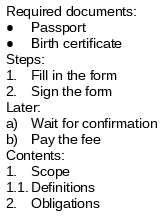
A ListFormat turns a paragraph into a list item. The following program creates a bulleted list, a numbered list, a second numbered list that starts again with a) and a structured list whose items show the numbers of their parent levels:
using TXTextControl;

using (ServerTextControl tx = new ServerTextControl())
{
    tx.Create();

    tx.Text = "Required documents:\r\n" + // paragraph 1
              "Passport\r\n" +
              "Birth certificate\r\n" +
              "Steps:\r\n" +              // paragraph 4
              "Fill in the form\r\n" +
              "Sign the form\r\n" +
              "Later:\r\n" +              // paragraph 7
              "Wait for confirmation\r\n" +
              "Pay the fee\r\n" +
              "Contents:\r\n" +           // paragraph 10
              "Scope\r\n" +
              "Definitions\r\n" +
              "Obligations";

    // Bulleted list
    ListFormat bullets = new ListFormat(ListType.Bulleted);
    tx.Paragraphs[2].ListFormat = bullets;
    tx.Paragraphs[3].ListFormat = bullets;

    // Numbered list: 1. 2.
    ListFormat numbers = new ListFormat(ListType.Numbered) { TextAfterNumber = "." };
    tx.Paragraphs[5].ListFormat = numbers;
    tx.Paragraphs[6].ListFormat = numbers;

    // Numbered lists continue by default: restart the numbering, with letters a) b)
    tx.Paragraphs[8].ListFormat = new ListFormat(ListType.Numbered)
    {
        NumberFormat = NumberFormat.Letters,
        TextAfterNumber = ")",
        RestartNumbering = true
    };
    tx.Paragraphs[9].ListFormat = new ListFormat(ListType.Numbered)
    {
        NumberFormat = NumberFormat.Letters,
        TextAfterNumber = ")"
    };

    // Structured list: the numbers of higher levels are shown in front of lower levels, 1. 1.1. 2.
    tx.Paragraphs[11].ListFormat = new ListFormat(ListType.Structured)
    {
        Level = 1,
        NumberFormat = NumberFormat.ArabicNumbers,
        RestartNumbering = true
    };
    tx.Paragraphs[12].ListFormat = new ListFormat(ListType.Structured) { Level = 2, NumberFormat = NumberFormat.ArabicNumbers };
    tx.Paragraphs[13].ListFormat = new ListFormat(ListType.Structured) { Level = 1, NumberFormat = NumberFormat.ArabicNumbers };

    foreach (Paragraph paragraph in tx.Paragraphs)
    {
        Console.WriteLine($"{paragraph.ListNumberText} {paragraph.Text}");
    }

    tx.Save("lists.docx", StreamType.WordprocessingML);
}
Saved as PDF, the document shows the four lists: bullets, the numbers 1. and 2., the letters a) and b) of the restarted list, and the structured list 1., 1.1. and 2., whose second-level item carries the number of its parent in front of its own. The structured list sets NumberFormat explicitly: without it, the Core engine continues the letters of the list before it and numbers the items a., a.a. and b.
The properties of ListFormat:
| Property | Sets | Default |
|---|---|---|
| Type | None, Bulleted, Numbered or Structured | None |
| NumberFormat | ArabicNumbers (1, 2, 3), Letters (a, b, c), CapitalLetters, RomanNumbers or SmallRomanNumbers | ArabicNumbers |
| FirstNumber, RestartNumbering | The first number, and whether a new numbered list begins | 1, false |
| Level | The list level, from 1 to 10 | 1 |
| TextBeforeNumber, TextAfterNumber | Text before and after the number, up to 20 characters | — |
| BulletCharacter, FontName | The bullet character and its font | — |
| HangingIndent | The distance between the number or bullet and the text, in twips | 360 |
A paragraph style can carry a list format of its own through ParagraphStyle.ListFormat. The blog article Convert Plain Text to Bulleted Lists in C# with .NET turns lines that start with a hyphen into list items.
Write Right-to-Left Paragraphs
Arabic and Hebrew are written from right to left. The writing direction is a paragraph attribute, ParagraphFormat.Direction, with the values LeftToRight, the default, and RightToLeft of the Direction enumeration. In a right-to-left paragraph, blocks of left-to-right and right-to-left characters are ordered from right to left. The following program adds text from a file to a heading and turns every paragraph after the heading to right to left:
using TXTextControl;

using (ServerTextControl tx = new ServerTextControl())
{
    tx.Create();

    // Arabic or Hebrew text from a UTF-8 file
    string rightToLeftText = File.ReadAllText("Documents/rtl.txt");
    tx.Text = "Invoice INV-2025-001\r\n" + rightToLeftText;

    // Select everything from the second paragraph to the end of the text
    int start = tx.Paragraphs[2].Start - 1;
    tx.Select(start, tx.Text.Length - start);

    // Right to left, with left and right alignment and tab stops mirrored
    if (tx.Selection.ChangeDirection(Direction.RightToLeft))
    {
        Console.WriteLine("The direction of the selected paragraphs was changed.");
    }

    tx.Save("right-to-left.pdf", StreamType.AdobePDF);
}
The code works as follows:
Paragraph.Startis one-based, so 1 is subtracted before the position is passed toSelect.- Selection.ChangeDirection sets the direction of all selected paragraphs and returns
trueif at least one paragraph was changed. It also mirrors their alignment, so a left-aligned paragraph becomes right-aligned, and it swaps left and right tab stops. Centered and justified paragraphs keep their alignment. - Setting
Directionin aParagraphFormatchanges only the direction: a left-aligned paragraph stays left-aligned. Use it when you set the alignment yourself, for examplenew ParagraphFormat() { Direction = Direction.RightToLeft, Alignment = HorizontalAlignment.Right }.
Justified lines with Arabic or Hebrew characters can be filled in another way. ParagraphFormat.Justification decides how the space of a justified line is filled, with a value of Justification:
| Value | A justified line is filled with |
|---|---|
Spaces (default) | Additional space between the words |
Kashida | Inserted Kashida lines |
SpacesAndKashida | Both |
tx.SelectAll();
tx.Selection.ParagraphFormat.Alignment = HorizontalAlignment.Justify;
tx.Selection.ParagraphFormat.Justification = Justification.SpacesAndKashida;
For a selection whose paragraphs have different directions, Direction returns its default, LeftToRight. Spell checking and hyphenation use the language of the text, which you set with Selection.Culture, as Text shows.
Next Steps
- Text: format characters and use inline styles.
- Sections: set the page size, margins and columns.
- Tables: arrange content in rows and columns.
- Text and Paragraph Formatting in the Document Editor: format paragraphs from JavaScript.