
Zooming
The size of the pages in the Document Viewer depends on the viewer itself, on users who zoom and pan and on your code. Your code sets the zoom to 100% and reacts when the zoom changes, for example to show the zoom level in your own page.
The examples change the view of the ASP.NET Core tutorial and load App_Data/template.docx.
How Zooming Works
By default, the zoom is responsive: the viewer resizes the pages so that they fill the available space of the viewer, and it adapts them when the size of the viewer changes.
Users set an explicit zoom factor in three ways:
- with the zoom drop-down list of the toolbar
- with the + and - buttons of the toolbar
- with the mouse wheel while they hold down the Ctrl key
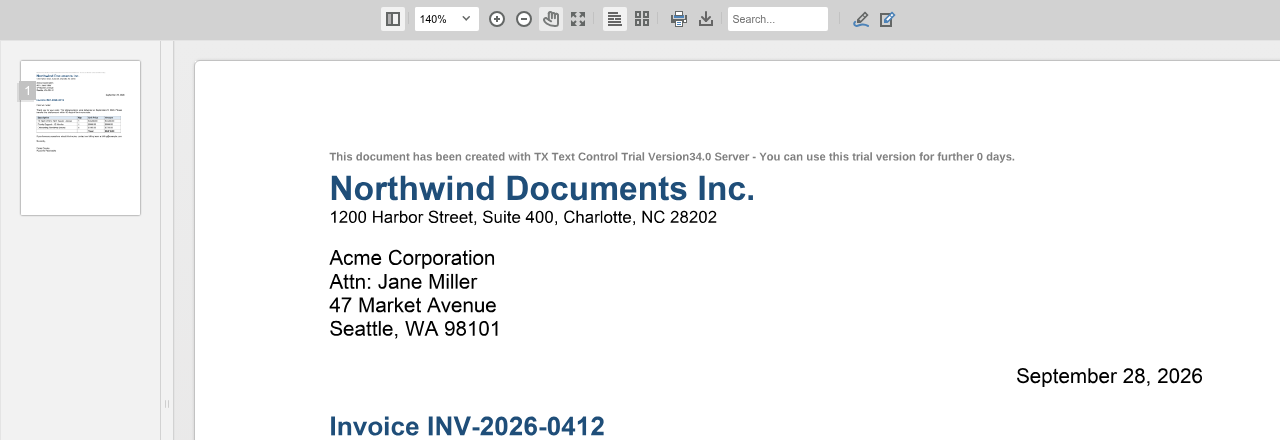
Once users set an explicit zoom factor, the zoom is locked, which an icon in the status bar shows. To move around a zoomed page, users select the hand icon, Pan around the document, and drag the page:
Set the Zoom and React to Changes
The following view adds a button that sets the zoom to 100% and shows the current zoom level next to it. Replace the content of Views/Home/Index.cshtml:
@using TXTextControl.Web.MVC.DocumentViewer

<div style="margin-bottom: 8px;">
    <input type="button" id="lockZoom" value="Zoom to 100%" />
    Zoom level: <span id="zoomLevel"></span>
</div>

<div style="width: 800px; height: 600px;">

@Html.TXTextControl().DocumentViewer(settings => {
    settings.DocumentPath = "App_Data/template.docx";
    settings.Dock = DocumentViewerSettings.DockStyle.Fill;
}).Render()

</div>

<script>
    window.addEventListener("documentViewerLoaded", function () {
        document.getElementById("lockZoom").addEventListener("click", function () {
            TXDocumentViewer.lockZoom();
        });

        // Show the current zoom level whenever it changes
        TXDocumentViewer.addEventListener("zoomChanged", function (e) {
            document.getElementById("zoomLevel").textContent = e.newValue;
        });
    });
</script>
The code works as follows:
- lockZoom locks the zoom to 100% instead of the responsive zoom.
- addEventListener attaches a handler to the
zoomChangedevent, which is raised whenever the zoom level changes. ThenewValueproperty of the event object contains the new zoom level.
Run the application and zoom with the + button: the zoom level next to Zoom to 100% changes. Click Zoom to 100% to set the zoom back.
The zoomChanged event was introduced with version 33.2.1 of the Document Viewer package and isn't yet listed in the reference of addEventListener. The viewer has no methods that set another zoom factor or return the current one, and none that restore the responsive zoom.
Sharp Pages at Every Zoom Level
How sharp the pages look when users zoom in depends on how the backend renders them, which DocumentViewerSettings.RenderMode sets. Vector graphics stay sharp at every zoom level, while images can look less sharp when users zoom in; Render Modes compares the four modes and shows the setting.
Next Steps
- Navigation: scroll to pages and handle links.
- User Interface: the toolbar and the full screen mode.
- Events: all events of the viewer.