
Form Fields
Forms you deploy, such as applications, orders or consent forms, are filled out by users in the Document Viewer. Your code checks the entries, reads the values and sends them to your server for processing.
The examples change the view of the ASP.NET Core tutorial. How forms are designed, including required fields and conditional instructions, is described in Form Fields in Document Editor.
How Forms Work in the Viewer
The viewer supports MS Word compatible form fields: text form fields, check boxes, drop-down lists and date picker fields. When a document that contains form fields is loaded, the viewer enables them automatically, and users fill them out. Unlike in the Document Editor, the document doesn't need to be protected.
- Conditional instructions of the document work in the viewer. They enable fields depending on other fields, set values and check entries, for example with regular expressions.
- Required fields that aren't valid are highlighted in red.
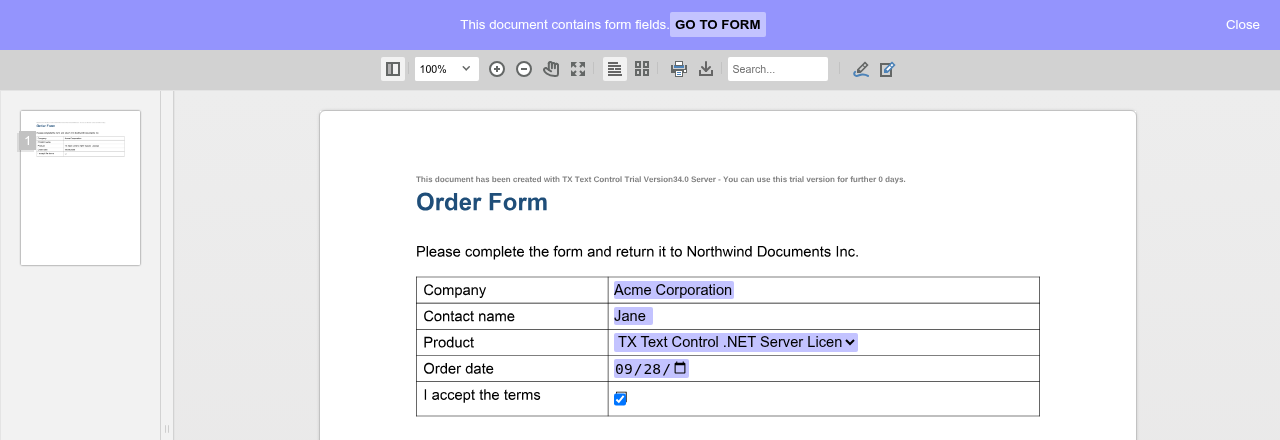
- The forms bar tells users that the document contains fields to fill out.
- PDF forms can be filled out when the PDF document is displayed with PDF.js, as described in Loading Documents.
The following order form shows the forms bar and the four kinds of fields, with a light purple background, while a user fills them out:
Validate and Submit the Values
TXDocumentViewer.forms returns the Forms object. The following view shows the forms bar and adds a Submit button that checks the required fields and posts the values to a controller. Put a form, for example a document with form fields saved from the Document Editor, into the App_Data folder as form.tx, and replace the content of Views/Home/Index.cshtml:
@using TXTextControl.Web.MVC.DocumentViewer

<div style="width: 800px; height: 600px;">

@Html.TXTextControl().DocumentViewer(settings => {
    settings.DocumentPath = "App_Data/form.tx";
    settings.Dock = DocumentViewerSettings.DockStyle.Fill;
}).Render()

</div>

<input type="button" onclick="submitForm()" value="Submit" />

<script>
    window.addEventListener("documentViewerLoaded", function () {
        // Tell users that the document contains fields to fill out
        TXDocumentViewer.forms.showFormsBar(true);
    });

    async function submitForm() {
        // false: at least one required field isn't completed
        if (TXDocumentViewer.forms.validate() === false) {
            alert("Please complete all required fields.");
            return;
        }

        // Check boxes have a Boolean value; the server expects strings
        var values = TXDocumentViewer.forms.getValues().map(function (field) {
            return { name: field.name, value: String(field.value) };
        });

        var response = await fetch("/Home/SubmitForm", {
            method: "POST",
            headers: { "Content-Type": "application/json" },
            body: JSON.stringify(values)
        });

        alert(response.ok ? "Your form has been submitted." : "The form couldn't be submitted.");
    }
</script>
Add the action that receives the values to Controllers/HomeController.cs:
using Microsoft.AspNetCore.Mvc;
using TXTextControl.Web.MVC.DocumentViewer.Models;
public class HomeController : Controller
{
public IActionResult Index()
{
return View();
}
[]
public IActionResult SubmitForm([FromBody] List<CompletedFormField> formFields)
{
foreach (CompletedFormField field in formFields)
{
// Store the value, for example in a database
Console.WriteLine(field.Name + ": " + field.Value);
}
return Ok();
}
}
The code works as follows:
- showFormsBar shows the bar that informs users about the form.
- validate returns
trueif all required fields are completed, andfalseif fields are missing. - getValues returns an array with an object for each form field: its
name, itstype("text","checkbox","selection"or"date") and itsvalue. The value is a string, or a Boolean value for check boxes. The code converts all values to strings. - The action binds the posted array to CompletedFormField objects with the Name and Value of each field.
Run the application, fill out the form and click Submit: the console of the application lists the names and values of the form fields.
The blog article DocumentViewer: Deploying Forms shows a complete process with a sample on GitHub, and Handling Form Field Data in Angular Applications does the same in Angular.
Save the Filled Form
To keep the values in the document itself, save it with saveDocument and mergeFormFields: true, which merges the values of the form fields into the document:
async function getFilledForm() {
  const result = await TXDocumentViewer.saveDocument(
    TXDocumentViewer.StreamType.InternalUnicodeFormat,
    { mergeFormFields: true, embedAnnotations: false });

  // The document as a base64-encoded string, ready to send to your server
  return await result.base64();
}
On the server, the form fields are still part of the saved document. ServerTextControl.FormFields returns them with their values, and Flatten Forms describes how to turn them into static text. Saving Documents shows how the result is posted to a controller.
To prepare forms with values before users see them, merge data into the form fields on the server with MailMerge; FormFieldMergeType with Preselect sets the values of the fields.
Forms and Signatures
When users sign a document that contains form fields, the values and the signatures are merged into the signed document. The endpoint that receives the signed document also receives the values: SignatureData.FormFields contains a CompletedFormField for each field. Digital Signatures describes the signing process.
Form Field Events
forms.addEventListener attaches a handler to events of the form fields, which receives the element that caused the event and details about the event, and removeEventListener removes it. Forms.Events lists three event types: Focus when a field gets the focus, Blur when it loses the focus and Change when it loses the focus after its content has changed. The reference describes the event type as a case-sensitive string, but it doesn't document the strings to pass for these types, so this page shows no example of the events.
Next Steps
- Digital Signatures: let users sign the completed form.
- Saving Documents: save the document with the entered values.
- Form Fields in Document Editor: design forms with required fields and conditional instructions.