
Shapes
Not everything in a document is part of the text flow. Drawings with MS Word-compatible shapes, text frames, charts and barcodes are objects that users draw or place over the text in the Document Editor, and your code can do different things with each of them through the JavaScript API, up to where the API ends. That matters when your application works with documents that contain shapes or adds boxes of text.
The examples extend the view of the ASP.NET Core tutorial.
Drawings and Shapes
A drawing is a frame in the document that holds one or more shapes, such as rectangles, arrows or callouts. The shapes are compatible with the preset shapes of MS Word, so drawings from DOCX documents keep their shapes when they are loaded and saved.
In the editor, a drawing behaves in two ways:
- As a frame. The user selects the drawing as a whole and moves, resizes, aligns and wraps it like an image.
- As a canvas. A double-click inside the drawing activates it. The user then selects and changes the single shapes inside: their type, fill, outline and order.
Users insert drawings and shapes with the Shape button of the Insert tab. Its menu groups the shapes by kind and also creates an empty drawing canvas and turns the drawing marker lines on and off:
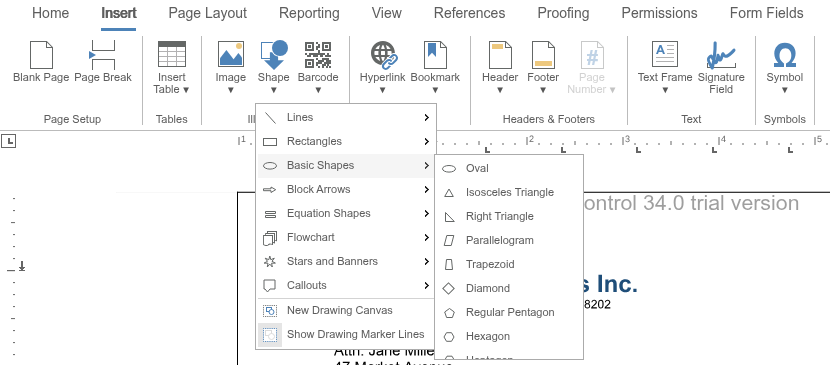
Users format drawings and shapes with the contextual tabs that the editor shows for them.
What Your Code Can Do With Drawings
The JavaScript API has no methods that create a drawing, add a shape to it or read or change a single shape. Shapes come from the user interface of the editor or from a loaded document. Your code can:
- React to drawings. The editor raises
drawingCreated,drawingDeleted,drawingSelected,drawingDeselected,drawingActivatedanddrawingDeactivated. The handlers receive DrawingEventArgs, whose drawingFrame contains the ID, name, location and text position of the drawing. - Change the frame of a drawing. TXTextControl.frames returns the frames of the document. FrameCollection.getItem without an ID passes the frame that the user has selected, as a FrameBase object. Its methods change the size, alignment, position and insertion mode of the frame, without changing the shapes inside.
- Show marker lines. setDrawingMarkerLines shows a marker frame around drawings, so that users see their position and size.
- Select drawings behind the text. setSelectObjects with
truelets a mouse click select a drawing that lies behind the text.
The following code turns on marker lines, logs selected drawings and describes or locks the drawing that the user has selected. Add it below the editor in Views/Home/Index.cshtml:
<input type="button" onclick="describeSelectedDrawing()" value="Describe Drawing" />
<input type="button" onclick="lockSelectedDrawing()" value="Lock Drawing" />

<script>
    TXTextControl.addEventListener("textControlLoaded", function () {
        // Show a marker frame around drawings
        TXTextControl.setDrawingMarkerLines(true);

        // Let a click select drawings behind the text
        TXTextControl.setSelectObjects(true);

        TXTextControl.addEventListener("drawingSelected", function (e) {
            console.log("Drawing selected at text position " + e.drawingFrame.textPosition);
        });
    });

    function describeSelectedDrawing() {
        // Without an ID, getItem passes the frame selected by the user
        TXTextControl.frames.getItem(function (frame) {
            if (frame === null) {
                console.log("Select a drawing first.");
                return;
            }

            frame.setDescriptiveText("Flow chart of the approval process", function () {
                frame.getSize(function (size) {
                    console.log("Size: " + size.width + " x " + size.height + " twips");
                });
            });
        });
    }

    function lockSelectedDrawing() {
        TXTextControl.frames.getItem(function (frame) {
            if (frame !== null) {
                frame.setMoveable(false);
                frame.setSizeable(false);
            }
        });
    }
</script>
- setDescriptiveText sets the text that screen readers use for the drawing.
- setMoveable and setSizeable with
falsekeep users from moving and resizing the frame with the mouse.
frames.getItem passes whichever frame is selected: a drawing, an image, a text frame or a barcode. Call the functions after the user has selected a drawing.
On the server, ServerTextControl.Drawings reads and removes the drawings of a document, and TXDrawingCore, added in version 33.0, creates shapes and renders them as SVG, which you insert as an image. Text Frames and Shapes shows both.
Text Frames
A text frame is a rectangle with text that users edit like the main text. Unlike drawings, text frames are fully programmable: TXTextControl.textFrames returns a TextFrameCollection that adds, finds and removes them. A TextFrame is a text part of its own, with a selection, paragraphs and tables.
Text frames are placed like images: inline with addInline, whose error callback comes before the callback, anchored to a paragraph with addAnchored or addAnchoredAtLocation, or at a fixed position with addAtFixedPositionOnPage and addAtFixedPositionInDocument. With addWithMouse, the user draws the frame. Images explains the kinds of placement and the insertion modes.
The following code inserts a text frame with a double blue border at the input position and fills it with text:
<input type="button" onclick="insertTextFrame()" value="Insert Text Frame" />
<input type="button" onclick="removeTextFrame()" value="Remove Text Frame" />

<script>
    function insertTextFrame() {
        // 3 x 1.5 inches in twips (1 inch = 1440 twips)
        var size = { width: 4320, height: 2160 };

        TXTextControl.textFrames.addAnchored(size,
            TXTextControl.HorizontalAlignment.Right,
            -1, // anchor at the current input position
            TXTextControl.TextFrameInsertionMode.DisplaceText,
            function (textFrame) {
                textFrame.setID(1, function () {
                    textFrame.setBorderWidth(20, function () {
                        textFrame.setBorderColor("#1F4E79", function () {
                            textFrame.setBorderStyle(TXTextControl.FrameStyle.Double, function () {
                                textFrame.selection.setText("Note: prices include VAT.");
                            });
                        });
                    });
                });
            },
            function (error) {
                console.log(error.msg);
            });
    }

    function removeTextFrame() {
        TXTextControl.textFrames.getItem(function (textFrame) {
            if (textFrame !== null) {
                TXTextControl.textFrames.remove(textFrame);
            }
        }, null, 1);
    }
</script>
The code works as follows:
addAnchoredtakes the size as an object withwidthandheightin twips, the alignment, the text position (-1for the input position) and a value of TextFrameInsertionMode.DisplaceTextlets the text flow around the frame. The callback receives the new text frame.- setID gives the frame the ID 1, which
removeTextFramepasses to getItem to find it again. - setBorderWidth sets the width of the border in twips; 0 removes the border. setBorderColor and setBorderStyle set its color and a single or double line from FrameStyle. Both were added in version 30.0, together with getBorderColor and getBorderStyle, which pass the current color and style of the border to a callback, as getBorderWidth passes its width.
- The
selectionof the text frame works like the selection of the main text; setText inserts the text into the frame.
Further methods of TextFrame set the background color (setBackColor), the transparency from 0.0 to 1.0 (setTransparency) and the distance between the border and the text (setInternalMargins). activate moves the input position into the frame. Frames without a border are shown with marker lines when setTextFrameMarkerLines is turned on.
The editor raises textFrameCreated, textFrameDeleted, textFrameSelected and textFrameDeselected, and textFrameActivated and textFrameDeactivated when the input position moves into or out of a text frame.
Charts and Barcodes
Charts and barcodes are frames as well:
- Charts are inserted and formatted with the ribbon. The JavaScript API has no chart objects; it raises the events
chartCreated,chartDeleted,chartSelectedandchartDeselected. - Barcodes are available in the JavaScript API: TXTextControl.barcodes returns the barcodes of the text part with the input focus, and BarcodeCollection.addInline inserts a barcode of a type and with a text. Its callback is the first parameter.
Charts and Barcodes describes both in detail.
Next Steps
- Images: placement and insertion modes of frames.
- Events: all frame, drawing and text frame events.
- Charts and Barcodes: charts and barcodes in the editor.
- Barcodes in Mail Merge and Reporting: fill barcodes with data in templates.