
Create a Document
A document doesn't have to start as a file: you can build it from scratch in code. You insert text, format characters and paragraphs with the Selection class, add a table and a header and save the result as DOCX and PDF.
Prerequisites
- A console application that references
TXTextControl.TextControl.Core.SDK, as created in Create Your First Application. - Each example is a complete
Program.cs. Replace the content of the file with the example and run the application.
Key Concepts
A few ideas make the code on this page easier to follow:
- Input position: Like the cursor in a word processor,
ServerTextControlhas a current input position. New text and new tables are inserted there. - Selection: The Selection class describes a piece of text and its formatting attributes. The ServerTextControl.Selection property gets or sets the current selection, and you use it to insert text and to apply character and paragraph formatting.
- Paragraphs: A carriage return and a line feed (
\r\n) end a paragraph. - Twips: Font sizes, border widths and distances are measured in twips. One point is 20 twips, so 240 twips are 12 pt.
Add Text
The quickest way to put text into a document is the Text property, which sets the text of the whole document:
tx.Text = "This is a sample document.";
To build a document piece by piece, set tx.Selection.Text instead. Each assignment inserts the text at the current input position, so the pieces appear in the order you add them. Formatting attributes that you set on tx.Selection before the text apply to the text that follows:
using TXTextControl;

using (ServerTextControl tx = new ServerTextControl())
{
    tx.Create();

    tx.Selection.FontSize = 480; // 480 twips = 24 pt
    tx.Selection.Text = "Sample Document\r\n\r\n";

    tx.Selection.FontSize = 240; // 240 twips = 12 pt
    tx.Selection.Text = "This paragraph was added with ServerTextControl.\r\n";

    tx.Save("text.docx", StreamType.WordprocessingML);
}
Format Characters and Paragraphs
To format a paragraph, create a Selection object, set its text and its attributes, and then assign it to tx.Selection. The following example inserts a centered, bold paragraph with a gray background and a red double line below it:
using TXTextControl;

using (ServerTextControl tx = new ServerTextControl())
{
    tx.Create();

    // Create a selection at the start of the document and set its text
    Selection selection = new Selection(0, 0);
    selection.Text = "Hello, World!";

    // Set the paragraph format
    selection.ParagraphFormat = new ParagraphFormat()
    {
        Alignment = HorizontalAlignment.Center,
        BackColor = System.Drawing.Color.LightGray,
        Frame = Frame.BottomLine,
        FrameLineColor = System.Drawing.Color.Red,
        FrameStyle = FrameStyle.Double,
        FrameLineWidth = 10
    };

    // Set the font format
    selection.FontSize = 240; // 240 twips = 12 pt
    selection.FontName = "Arial";
    selection.Bold = true;

    // Apply the changes to the document
    tx.Selection = selection;

    tx.Save("formatted.docx", StreamType.WordprocessingML);
}
new Selection(0, 0) creates a selection that starts at position 0 with a length of 0, which is the beginning of the document. The changes take effect when you assign the object to tx.Selection.
The saved document starts with the formatted paragraph:

The properties you need most often:
| Property | Description |
|---|---|
Selection.Bold, Selection.Italic | Bold and italic text. |
Selection.FontName | The name of the font. |
Selection.FontSize | The font size in twips. |
Selection.ForeColor | The text color, as a System.Drawing.Color. |
Selection.Underline | The underline style, for example FontUnderlineStyle.Single. |
Selection.ParagraphFormat | The paragraph formatting, as a ParagraphFormat object. |
ParagraphFormat.Alignment | HorizontalAlignment.Left, Right, Center or Justify. |
ParagraphFormat.BackColor | The background color of the paragraph. |
ParagraphFormat.Frame, FrameStyle, FrameLineColor, FrameLineWidth | Lines around the paragraph, their style, color and width in twips. |
Add a Table
Tables.Add inserts a table with the given number of rows and columns at the current input position. The third parameter is an ID of your choice, which you pass to Tables.GetItem to get the new Table object:
using TXTextControl;

using (ServerTextControl tx = new ServerTextControl())
{
    tx.Create();

    // Add a table with 5 rows, 4 columns and the ID 10
    tx.Tables.Add(5, 4, 10);
    Table table = tx.Tables.GetItem(10);

    // Make the first row a header row with a gray background
    TableRow headerRow = table.Rows.GetItem(1);
    headerRow.IsHeader = true;
    headerRow.CellFormat = new TableCellFormat()
    {
        BackColor = System.Drawing.Color.LightGray,
        BottomBorderWidth = 10
    };

    // Set the text of every cell and add borders to the data cells
    foreach (TableCell cell in table.Cells)
    {
        if (cell.Row == 1)
        {
            cell.Text = "Header Column " + cell.Column.ToString();
        }
        else
        {
            cell.Text = "Row " + cell.Row.ToString() + ", Column " + cell.Column.ToString();

            cell.CellFormat = new TableCellFormat()
            {
                BottomBorderWidth = 1,
                TopBorderWidth = 1,
                LeftBorderWidth = 1,
                RightBorderWidth = 1
            };
        }
    }

    tx.Save("table.pdf", StreamType.AdobePDF);
}
What the code does:
- Rows and columns are numbered from 1.
table.Rows.GetItem(1)returns the first row, and each TableCell reports its position through itsRowandColumnproperties. - TableRow.IsHeader marks the row as part of the table header. Header rows are repeated at the top of each page when the table extends over several pages.
- A TableCellFormat sets the background color and the border widths, in twips, of a row or a cell.
Add a Header
Headers and footers belong to the HeadersAndFooters collection. Add a header first, then get it from the collection and set its text through its own Selection:
using TXTextControl;

using (ServerTextControl tx = new ServerTextControl())
{
    tx.Create();

    tx.Text = "This document has a header.";

    // Add a header to the document
    tx.HeadersAndFooters.Add(HeaderFooterType.Header);

    // Get the header and set its text
    HeaderFooter header = tx.HeadersAndFooters.GetItem(HeaderFooterType.Header);
    header.Selection.Text = "This is the header";

    tx.Save("header.pdf", StreamType.AdobePDF);
}
For a footer, use HeaderFooterType.Footer in both calls. GetItem throws an ArgumentException if the requested header or footer has not been added.
Complete Example
The following program combines the steps above. It adds a heading and a paragraph, inserts a table below them, adds a header, and saves the document as DOCX and PDF:
using TXTextControl;

using (ServerTextControl tx = new ServerTextControl())
{
    tx.Create();

    // Heading
    tx.Selection.FontSize = 480; // 24 pt
    tx.Selection.Bold = true;
    tx.Selection.Text = "Quarterly Report\r\n\r\n";

    // Body text
    tx.Selection.FontSize = 240; // 12 pt
    tx.Selection.Bold = false;
    tx.Selection.Text = "The following table lists the results.\r\n\r\n";

    // Table with a header row
    tx.Tables.Add(4, 3, 10);
    Table table = tx.Tables.GetItem(10);

    TableRow headerRow = table.Rows.GetItem(1);
    headerRow.IsHeader = true;
    headerRow.CellFormat = new TableCellFormat()
    {
        BackColor = System.Drawing.Color.LightGray
    };

    foreach (TableCell cell in table.Cells)
    {
        cell.Text = "Row " + cell.Row.ToString() + ", Column " + cell.Column.ToString();
    }

    // Header
    tx.HeadersAndFooters.Add(HeaderFooterType.Header);
    HeaderFooter header = tx.HeadersAndFooters.GetItem(HeaderFooterType.Header);
    header.Selection.Text = "Quarterly Report";

    // Save as DOCX and PDF
    tx.Save("report.docx", StreamType.WordprocessingML);
    tx.Save("report.pdf", StreamType.AdobePDF);
}

Console.WriteLine("Documents created: report.docx and report.pdf");
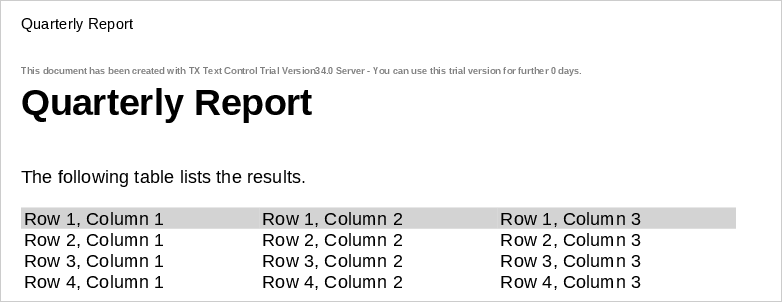
The first page of report.pdf shows the header, the heading, the body text and the table with its gray header row. The table has no borders, because the example sets none:
Next Steps
- Save as DOCX and PDF — save to a byte array and return the document from ASP.NET Core.
- Simple Mail Merge — design the layout once as a template and fill it with data.
- Create a PDF — create PDF documents in more depth.
- Load a Document — start from an existing document instead of an empty one.