
ASP.NET Web Forms Document Editor
In ASP.NET Web Forms, the Document Editor is a server control: the class Web.TextControl in TXTextControl.Web.dll, which you place on an .aspx page with a tag. It was the first browser-based editor of TX Text Control, introduced in version 21.0, and it still ships with the Windows setup of version 34.0. Follow the steps below to add it to a Web Forms application in Visual Studio 2022 with .NET Framework 4.8, register its handlers and connect it to the TX TextControl Service.
Legacy technology. Web Forms runs on the .NET Framework only, and with it TX Text Control runs on Windows only and uses the Classic engine. New applications use the Document Editor in ASP.NET Core.
Prerequisites
- Visual Studio 2022 and .NET Framework 4.8.
- The Windows setup of TX Text Control .NET Server 34.0, trial or full version, on the development machine. It installs TXTextControl.Web.dll to the Assembly folder of
C:\Program Files\Text Control GmbH\TX Text Control 34.0.NET Server for ASP.NET\and the TX TextControl Service. - IIS Express 8.0 or higher with the WebSocket protocol installed, as the requirements of the Document Editor on the .NET Framework state.
The setup installs this tutorial as a sample project in two languages:
- C#:
%USERPROFILE%\Documents\TX Text Control 34.0.NET Server for ASP.NET\CSharp\Web Forms\editor\ - Visual Basic:
%USERPROFILE%\Documents\TX Text Control 34.0.NET Server for ASP.NET\VB.NET\Web Forms\editor\
How the Control Works
Browser: Document Editor
    |
    |-- WebSocket ---> TXWebSocketHandler.ashx in your web application
                           |
                           |-- TCP ---> TX TextControl Service (Windows service)
- The control
Web.TextControlderives fromSystem.Web.UI.WebControls.WebControl. It renders the editor into the page and has server-side properties and methods, such as LoadText and SaveText. - Two HTTP handlers in Web.config serve the editor:
TXTextControl.Web.WebSocketHandlerat the path TXWebSocketHandler.ashx, which accepts the WebSocket connection of the editor, andTXTextControl.Web.TXPrintHandlerat TXPrintHandler.ashx. - The TX TextControl Service synchronizes the documents and calculates their layout. The WebSocket handler connects to it, by default on the local computer.
Create the Project
In Visual Studio 2022, choose Create a new project.
Select ASP.NET Web Application (.NET Framework) as the project template and confirm with Next.
Enter a project name, select .NET Framework 4.8 as the Framework and confirm with Create.
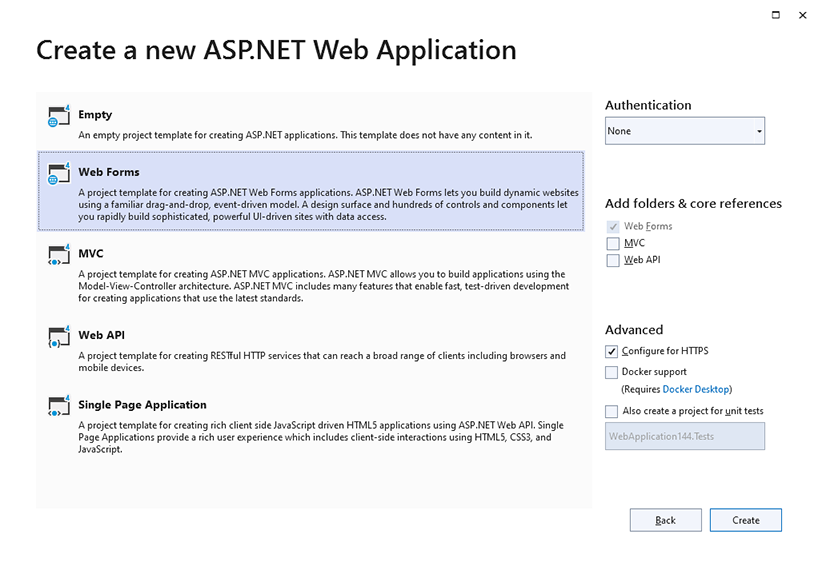
In the next dialog, choose Web Forms as the project template and confirm with Create.
Add the Assembly Reference
The Web Forms control is not in a NuGet package. You reference it from the installation folder:
- With the project selected in Solution Explorer, choose Project > Add Project Reference... to open the Reference Manager.
- Click Browse..., open the Assembly folder of the installation and select TXTextControl.Web.dll.
- Click Add and close the Reference Manager with OK.
The control needs no other TX Text Control assembly in the project and no licenses.licx file. The engine runs in the TX TextControl Service.
Add the Control to the Page
Open Default.aspx in the root folder of the project. Keep its first line, the Page directive, and replace everything below it with the following markup:
<%@ Register Assembly="TXTextControl.Web" Namespace="TXTextControl.Web" TagPrefix="cc1" %>

<asp:Content ID="BodyContent" ContentPlaceHolderID="MainContent" runat="server">
    <cc1:TextControl ID="TextControl1" runat="server" />

    <input type="button" onclick="insertTable()" value="Insert Table" />

    <script>
        function insertTable() {
            TXTextControl.tables.add(5, 5, 10, function(e) {
              if (e === true) { // if added
                TXTextControl.tables.getItem(function(table) {
                  table.cells.forEach(function(cell) {

                    cell.setText("Cell text");

                  });
                }, null, 10);
              }
            })
        }
    </script>

</asp:Content>
The markup works as follows:
- The
Registerdirective makes the controls of the namespaceTXTextControl.Webin the assemblyTXTextControl.Webavailable on the page under the tag prefixcc1. <cc1:TextControl ID="TextControl1" runat="server" />creates the editor. The code-behind file of the page reaches it asTextControl1.asp:Contentfills theMainContentplaceholder of the master page of the Web Forms template.- The button calls the JavaScript API of the editor in the browser, the global
TXTextControlobject, with the same code as the ASP.NET Core tutorial.tables.addinserts a table with 5 rows, 5 columns and the ID 10, and the callback writes "Cell text" into every cell.
Register the Handlers in Web.config
Open Web.config in the root folder of the project and add the following element directly after the opening configuration element:
<system.webServer>
  <handlers>
    <add name="TXWebSocketHandler" verb="*" path="TXWebSocketHandler.ashx" type="TXTextControl.Web.WebSocketHandler, TXTextControl.Web, Version=34.0.1400.500, Culture=neutral, PublicKeyToken=6B83FE9A75CFB638" />
    <add name="TXPrintHandler" verb="*" path="TXPrintHandler.ashx" type="TXTextControl.Web.TXPrintHandler, TXTextControl.Web, Version=34.0.1400.500, Culture=neutral, PublicKeyToken=6B83FE9A75CFB638" />
  </handlers>
</system.webServer>
Each type attribute names the handler class and the assembly with its full version, 34.0.1400.500 for version 34.0. After an upgrade to another version of TX Text Control, change the version in both entries.
Run the Application
Press F5 to build and start the application. The home page shows the Document Editor with its ribbon bar in the content area of the template. Click Insert Table to insert a table with "Cell text" in every cell.
The editor needs the running TX TextControl Service and the WebSocket protocol of IIS Express. When it doesn't load, check both first.
Load a Document in the Code-Behind
The server-side methods of the control are called from the code-behind file. To show a document when the page opens, load it in Page_Load of Default.aspx.cs:
using System;
using System.Web.UI;

namespace WebFormsEditor
{
    public partial class _Default : Page
    {
        protected void Page_Load(object sender, EventArgs e)
        {
            if (!IsPostBack)
            {
                // Load an HTML string as the initial document
                TextControl1.LoadText(
                    "<html><body><p>Welcome to <strong>Text Control</strong></p></body></html>",
                    TXTextControl.Web.StringStreamType.HTMLFormat);
            }
        }
    }
}
- Keep the namespace and class name that Visual Studio generated for your project.
- LoadText replaces the content of the editor. Its overloads load a file with a Web.StreamType, a byte array with a
Web.BinaryStreamTypeor a string with a Web.StringStreamType. LoadTextAsync returns without waiting until the text is loaded. - UserNames and Dock are set on the control the same way, in the code-behind or as attributes of the tag.
Set the Path of the WebSocket Handler
The browser builds the URL of TXWebSocketHandler.ashx from the URL of the current page. In most applications, this URL is correct. When the page is in a virtual directory and the generated URL is wrong, the editor can't connect to the web server. Set WebSocketHandlerPath to correct it:
<cc1:TextControl ID="TextControl1" runat="server" WebSocketHandlerPath="/editor/" />
- The value is the part of the path between the root of the web site and the handler. For a handler at
ws://www.website.com/editor/TXWebSocketHandler.ashx, it is/editor/. - Absolute directories such as
/editor/and relative directories such as../../are possible. - The default value is
null. Withnullor an empty string, the browser derives the URL from the page.
Connect to a Service on Another Server
Since version 23.0, the TX TextControl Service can run on an application server of its own, or on several of them behind a load balancer, instead of on the web server. Set ServiceAddress to the IP address of that server, in the Properties window of Visual Studio or in the code-behind:
// Before the editor connects, for example in Page_Load
TextControl1.ServiceAddress = System.Net.IPAddress.Parse("10.0.0.20");
- The default value of
ServiceAddressis 127.0.0.1, the local computer. - ServicePort sets the port the WebSocket handler connects to on that server.
- Both properties affect all instances of
Web.TextControlin the application. They are instance properties only so that the Visual Studio designer shows them.
Deploy the Application
A Web Forms application with the editor is deployed in two parts: the web application, with Copy Local set to true on the TXTextControl.Web reference so that the assembly is published with it, and the TX TextControl Service on the server. .NET Framework Applications in the Deployment Guide describes both.
Next Steps
- ASP.NET MVC Document Editor: the editor in an MVC 5 application.
- Web Forms Document Viewer (Legacy): the viewer control of Web Forms.
- JavaScript API: program the editor in the browser.
- .NET Framework Applications: deploy the application and the service.