
PDF Creation
Any document that TX Text Control creates, loads or merges becomes a PDF with one Save call. The details of that PDF are up to your code: who may open it and what readers may do with it, whether a script runs when it opens, which document elements become links and form fields and which fonts the pages use. The sections below cover these decisions for PDF documents created on the server.
The first PDF, a PDF in a byte array, document properties and a controller that returns a PDF are part of Create a PDF in Getting Started. Smaller PDF files through image compression are described in Reduce the Size of PDF Files.
What a PDF Keeps From the Document
TX Text Control lays out the document before it writes the PDF, so page breaks, repeated table header rows and the headers and footers of each section are part of the pages. Beyond the visible pages, elements of the document become interactive parts of the PDF:
| In the document | In the PDF |
|---|---|
| Hypertext links, document links and bookmarks | Links to websites and link targets within the document, as Fields describes |
| Tables of contents with links | Entries that jump to their headings, as Tables of Contents describes |
| Form fields | Interactive PDF form fields with their names and values, as Form Fields describes |
| Signature fields | Signature fields, which can be signed with a certificate when the PDF is saved, as Signature Fields describes |
| SVG, EMF and WMF images | Vector graphics instead of bitmaps |
| Headings, tables, text frames, footnotes and descriptive texts | The tagged structure of an accessible PDF, as PDF/UA describes |
How tables and headings break across pages is set in the document: header rows that repeat on every page, table rows that don't break across pages and headings that stay with the next paragraph, as Tables and Paragraphs describe.
Protect a PDF With Passwords and Permissions
Two passwords and a set of permissions protect a PDF document:
- UserPassword encrypts the document: it's required to open it. An empty string means everyone can open the document.
- MasterPassword protects the permissions. An empty string means access isn't restricted.
- DocumentAccessPermissions sets what readers may do. It only has an effect when a
MasterPasswordis set, and its values can be combined.
Both passwords apply to PDF only, with an encryption key length of 128 bits. The permissions are:
| Value | Allows |
|---|---|
AllowAll | All of the permissions |
None | None of the permissions |
AllowLowLevelPrinting | Printing |
AllowHighLevelPrinting | Printing without restrictions |
AllowExtractContents | Copying or otherwise extracting text and graphics |
AllowContentAccessibility | Extracting content for the visually impaired only |
AllowGeneralEditing | Changing the content of the document |
AllowAuthoring | Adding comments and filling in form fields, including signature fields |
AllowAuthoringFields | Filling in existing form fields, including signature fields |
AllowDocumentAssembly | Inserting, rotating and deleting pages and creating bookmarks and thumbnails |
The following program saves an invoice that requires a password to open and may only be printed, then checks that the saved PDF is encrypted:
using TXTextControl;

string path = "invoice-protected.pdf";

using (ServerTextControl tx = new ServerTextControl())
{
    tx.Create();
    tx.Load("Documents/sample.docx", StreamType.WordprocessingML);

    SaveSettings saveSettings = new SaveSettings()
    {
        UserPassword = "user1234",
        MasterPassword = "owner1234",
        DocumentAccessPermissions = DocumentAccessPermissions.AllowLowLevelPrinting |
                                    DocumentAccessPermissions.AllowContentAccessibility
    };

    tx.Save(path, StreamType.AdobePDF, saveSettings);
}

// Check the result: without the password, loading must fail
using (ServerTextControl check = new ServerTextControl())
{
    check.Create();

    try
    {
        check.Load(path, StreamType.AdobePDF);
        Console.WriteLine("The PDF isn't encrypted.");
    }
    catch (FilterException exception) when (exception.Reason == FilterException.FilterError.InvalidPassword)
    {
        LoadSettings loadSettings = new LoadSettings() { UserPassword = "user1234" };
        check.Load(path, StreamType.AdobePDF, loadSettings);

        Console.WriteLine($"Encrypted, permissions: {loadSettings.DocumentAccessPermissions}");
    }
}
The code works as follows:
- The user password is required to open the document, and the master password is required to change its security settings.
- Loading the PDF without a password throws a FilterException whose Reason is
InvalidPassword. With the password, the load succeeds, and LoadSettings.DocumentAccessPermissions returns the permissions. With the master password, it returnsAllowAll. - A check like this in an automated pipeline makes sure that no document leaves unprotected.
A document can also be protected with a MasterPassword alone: everyone can open it, but the permissions apply, for example AllowAuthoringFields | AllowHighLevelPrinting for a form that readers fill in and print but don't change. Permissions are respected by compliant PDF readers but aren't a cryptographic protection, so confidential content needs a user password. PDF/A doesn't allow encryption, as PDF/A describes. The blog article PDF Security Explained: Passwords, Permissions, Encryption and Digital Signatures in C# .NET combines protection with digital signatures.
Run JavaScript When the PDF Opens
SaveSettings.DocumentLevelJavaScriptActions embeds scripts that run when a PDF reader opens the document. Scripts can fill form fields, validate input, calculate values or show messages. The following program creates an invoice with a form field that a script fills with the current date, and shows a message when the invoice is past due:
using TXTextControl;

using (ServerTextControl tx = new ServerTextControl())
{
    tx.Create();

    tx.Selection.Text = "Invoice INV-2025-001\r\nAcme Corporation\r\nDue: June 10, 2025\r\n\r\nOpened on: ";

    // A form field that the script addresses by its name
    TextFormField openedOn = new TextFormField(2000) { Name = "OpenedOn" };
    tx.FormFields.Add(openedOn);

    string script = @"
        var field = this.getField('OpenedOn');
        field.value = util.printd('m/d/yyyy', new Date());

        if (new Date() > new Date('2025-06-10T00:00:00')) {
            app.alert('Invoice INV-2025-001 is past due.');
        }";

    SaveSettings saveSettings = new SaveSettings()
    {
        DocumentLevelJavaScriptActions = new string[] { script }
    };

    tx.Save("invoice-reminder.pdf", StreamType.AdobePDF, saveSettings);
}
The code works as follows:
- Form fields are exported with their names, so the script finds the field with
this.getField. The objectsthis,utilandappbelong to the JavaScript API of PDF readers such as Adobe Acrobat, which Adobe documents. DocumentLevelJavaScriptActionstakes an array, so a document can contain several scripts.- The scripts aren't embedded in PDF/A documents.
When Adobe Acrobat opens such a PDF, a script can show a message box. The blog article on time-based alerts linked below shows this message when a document has expired:
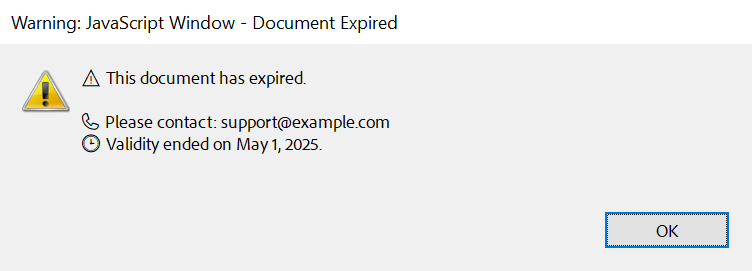
Most desktop PDF readers run JavaScript, but in a more limited environment than a browser. The blog article Add JavaScript to PDFs with TX Text Control in C# .NET: Time-Based Alerts Made Easy describes expiration notices, and Inject JavaScript to PDF Documents in C# opens the print dialog with the document and adds a print button.
Use the Right Fonts
A PDF contains the fonts its pages use, so the fonts must be available where the PDF is created. The Core engine brings them with your application in its Fonts folder, and ServerTextControl.InstallFonts registers a second folder, as Fonts in the Deployment Guide describes.
FontSettings restricts which fonts a document may use: TrueTypeFontsOnly allows TrueType and OpenType fonts, ScalableFontsOnly scalable fonts and EmbeddableFontsOnly fonts that can be embedded. All three are false by default. Set them, like AdaptFontEvent, before you load the document, so that they apply to its fonts. The following program registers an additional font folder, allows TrueType and OpenType fonts only and chooses the replacement for the fonts that don't qualify:
using TXTextControl;

// A folder next to the application, for example with corporate fonts
ServerTextControl.InstallFonts("Additional Fonts");

using (ServerTextControl tx = new ServerTextControl())
{
    tx.Create();

    tx.FontSettings.TrueTypeFontsOnly = true;
    tx.FontSettings.AdaptFontEvent = true;

    tx.AdaptFont += (sender, e) =>
    {
        // The replacement must be one of the supported fonts
        if (Array.IndexOf(e.SupportedFonts, "Arial") >= 0)
        {
            e.AdaptedFontName = "Arial";
        }

        Console.WriteLine($"{e.FontName} replaced with {e.AdaptedFontName}");
    };

    tx.Load("Documents/sample.docx", StreamType.WordprocessingML);
    tx.Save("sample.pdf", StreamType.AdobePDF);
}
AdaptFont occurs for each font that must be replaced, because a loaded document uses a font that isn't available or because FontSettings excludes it, and only when AdaptFontEvent is true. AdaptedFontName sets the replacement, which must be one of the SupportedFonts. A replaced font can change line and page breaks. PDF/A requires EmbeddableFontsOnly, as The Rules of PDF/A describes; with tx.FontSettings.EmbeddableFontsOnly = true and StreamType.AdobePDFA, the same program writes a PDF/A document. Make Fonts Available on the Server shows how to list the available fonts, and Fonts in Troubleshooting helps when text looks different than expected.
Send the PDF as an Email Attachment
A PDF that goes to a customer by email doesn't need a file on the server. Save with BinaryStreamType.AdobePDF writes the PDF into a byte array, and a MemoryStream over the array becomes the attachment of a MailMessage from the System.Net.Mail namespace of .NET:
using System.Net;
using System.Net.Mail;
using TXTextControl;

byte[] pdf;

using (ServerTextControl tx = new ServerTextControl())
{
    tx.Create();
    tx.Load("Documents/invoice.docx", StreamType.WordprocessingML);

    // The PDF in memory, without a file
    tx.Save(out pdf, BinaryStreamType.AdobePDF);
}

using (MailMessage message = new MailMessage("billing@example.com", "customer@example.com"))
{
    message.Subject = "Invoice INV-2025-001";
    message.Body = "Please find your invoice attached.";
    message.Attachments.Add(new Attachment(new MemoryStream(pdf), "INV-2025-001.pdf", "application/pdf"));

    using (SmtpClient client = new SmtpClient("smtp.example.com", 587))
    {
        client.EnableSsl = true;
        client.Credentials = new NetworkCredential("username", "password");
        client.Send(message);
    }
}
Only the first part is TX Text Control: ServerTextControl.Save with the byte array overload, which Create a PDF introduces. The server name, port and credentials of the SMTP server are placeholders for your mail provider's settings. The blog article Create and Send PDF Documents as Email Attachments with .NET C# puts the mail code into a class of its own.
Create PDF Documents Efficiently
Choose the Core engine, return short jobs directly and queue long ones, and create the PDF only when the document is final: Performance Best Practices gives the measurements behind these recommendations. Long-running jobs can notify the client when the PDF is ready, as the blog article Generating Documents using a RESTful, Asynchronous Web API using WebHooks shows.
Next Steps
- PDF Conversion: convert DOCX, HTML, XLSX and Markdown documents to PDF.
- PDF/A: create PDF documents for long-term archiving.
- PDF/UA: create accessible PDF documents.
- Digital Signatures: sign the PDF documents you create.