
Flatten Forms
A signed contract, an approved application or an invoice sent to a customer should show the values that were entered, not fields that anyone can still change. Flattening replaces each form field with the text it shows, so that the PDF you archive or send contains plain text. You decide which fields to flatten and when: all fields or only some, while merging data, before a digital signature is applied or in the browser.
The examples below use the order form that Create a Fillable Form creates in Document Processing, with the form fields Customer, Product, InvoiceDate and TermsAccepted, saved as Documents/order-form.tx.
What Flattening Does
A flattened form field is removed from the document, and the text it showed stays in its place:
| Form field | Text that remains |
|---|---|
| TextFormField | The entered text |
| SelectionFormField | The text of the selected item |
| DateFormField | The date as the field displays it, formatted with its DateFormat |
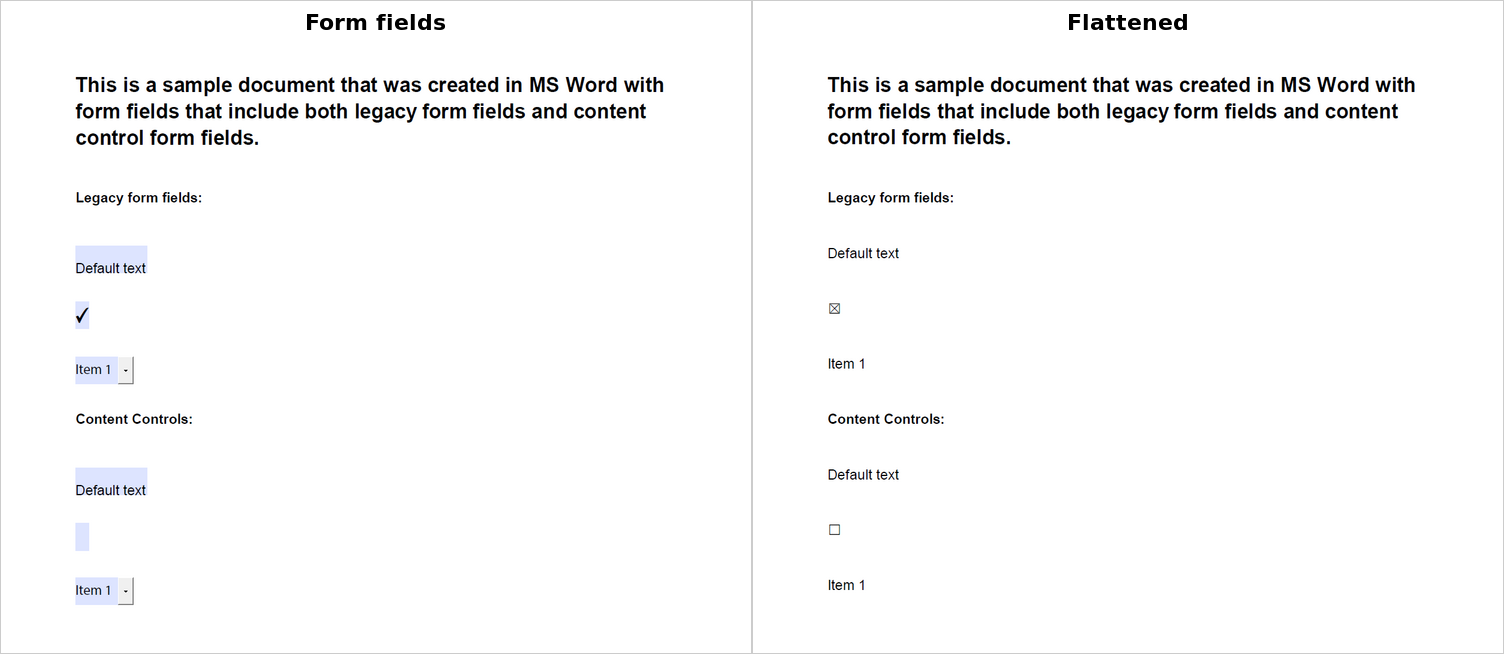
| CheckFormField | The character that displays the state of the check box, set with CheckedCharacter and UncheckedCharacter |
The following PDF documents, from the blog article Convert MS Word DOCX to PDF with Form Fields in C# .NET, show the same Word form saved with its form fields and saved after flattening. The flattened version has the text of each field without a field around it, and the check boxes are characters:
Keep three things in mind:
- Read the values first. After flattening, a PDF has no fields whose values your code could read, only text at positions on the page. Store the values before you flatten, as Import Form Data and Read and Check the Values of a Filled Form describe.
- Flattening doesn't protect the content. A PDF can still be changed without a trace. A digital signature makes changes detectable, as Flatten, Then Sign shows.
- Signature fields stay. A SignatureField isn't a form field, so flattening doesn't remove it.
Flatten Some Fields and Keep Others
A form can go out partly filled: the values your application knows are fixed, and the fields the recipient still has to fill in stay fillable. The following program fills the order form with the data of Documents/order.json, flattens all form fields except TermsAccepted and checks which fields the saved PDF still contains:
[
  {
    "Customer": "Acme Corporation",
    "Product": "Priority Support - 12 Months",
    "InvoiceDate": "2025-05-27"
  }
]
using TXTextControl;
using TXTextControl.DocumentServer;
using TXTextControl.DocumentServer.PDF;

using (ServerTextControl tx = new ServerTextControl())
{
    tx.Create();
    tx.Load("Documents/order-form.tx", StreamType.InternalUnicodeFormat);

    // Fill the form fields with the data and keep them
    using (MailMerge mailMerge = new MailMerge
    {
        TextComponent = tx,
        FormFieldMergeType = FormFieldMergeType.Preselect
    })
    {
        mailMerge.MergeJsonData(File.ReadAllText("Documents/order.json"));
    }

    // The main text, text frames, headers and footers
    foreach (IFormattedText textPart in tx.TextParts)
    {
        TextFieldCollection formFields = textPart.GetTextFields(TextFieldType.FormFields);

        // Collect first: removing a field changes the collection
        List<TextField> flatten = new List<TextField>();

        foreach (TextField field in formFields)
        {
            if (field.Name != "TermsAccepted")
            {
                flatten.Add(field);
            }
        }

        // true: the fields are removed, their text stays
        foreach (TextField field in flatten)
        {
            formFields.Remove(field, true);
        }
    }

    tx.Save("order-confirmation.pdf", StreamType.AdobePDF);
}

// The form fields that are still fillable in the PDF
foreach (var field in Forms.GetAcroFormFields("order-confirmation.pdf"))
{
    Console.WriteLine($"Fillable: {field.FieldName}");
}
The code works as follows:
- FormFieldMergeType
Preselectfills the form fields whose names match the data and keeps them as form fields.TermsAcceptedhas no value in the data, so it stays unchanged. - IFormattedText.GetTextFields returns the form fields of a text part as a TextFieldCollection, whose Remove takes a second parameter: with
true, the field is removed and its text stays; with one parameter, the text is deleted as well. - The fields are collected before any of them is removed, because removing a field changes the collection.
- Forms.GetAcroFormFields reads the form fields of the saved PDF, so the loop lists the fields that are still fillable.
To choose fields by another property, such as ID, change the condition. The blog article Programmatically Fill, Flatten, and Export DOCX Form Templates to PDF in C# .NET compares the two merge types for a DOCX form template: Preselect, which keeps the fields editable, and Replace, which flattens them.
Flatten All Fields of One Type
GetTextFields returns the fields of the types you pass, and TextFieldCollection.Clear with true removes all of them and keeps their text. The following program flattens the check boxes and date fields of a filled form, Documents/form-filled.tx, and leaves the text boxes and selection fields fillable:
using TXTextControl;

using (ServerTextControl tx = new ServerTextControl())
{
    tx.Create();
    tx.Load("Documents/form-filled.tx", StreamType.InternalUnicodeFormat);

    foreach (IFormattedText textPart in tx.TextParts)
    {
        // true: the fields are removed, their text stays
        textPart.GetTextFields(TextFieldType.CheckFormField | TextFieldType.DateFormField).Clear(true);
    }

    tx.Save("form-reviewed.pdf", StreamType.AdobePDF);
}
TextFieldType values can be combined. TextFieldType.FormFields stands for all form field types, so GetTextFields(TextFieldType.FormFields).Clear(true) flattens every form field of a text part. Use GetTextFields for this: FormFieldCollection.Clear has no parameter to keep the text, and FormFieldCollection.Remove removes a single form field.
Flatten During a Merge
When the form is final as soon as the data is merged, FormFieldMergeType.Replace fills and flattens in one step. The following program merges Documents/order.json into the order form and saves the result as PDF/A for the archive:
using TXTextControl;
using TXTextControl.DocumentServer;

using (ServerTextControl tx = new ServerTextControl())
{
    tx.Create();

    // PDF/A requires fonts that can be embedded
    tx.FontSettings.EmbeddableFontsOnly = true;
    tx.Load("Documents/order-form.tx", StreamType.InternalUnicodeFormat);

    using (MailMerge mailMerge = new MailMerge
    {
        TextComponent = tx,
        FormFieldMergeType = FormFieldMergeType.Replace
    })
    {
        mailMerge.FormFieldMerged += (sender, e) =>
        {
            if (!e.Merged)
            {
                Console.WriteLine($"No value for {e.FormField.Name}");
            }
        };

        mailMerge.MergeJsonData(File.ReadAllText("Documents/order.json"));
    }

    tx.Save("order-archive.pdf", StreamType.AdobePDFA);
}
The code works as follows:
Replacereplaces the form fields with the values of the data, so the saved document has no form fields left. It can't keep single fields fillable; for that, fill withPreselectand flatten yourself, as shown above.- Form fields without a value are removed according to RemoveEmptyFields, which is
trueby default.TermsAcceptedhas no value in order.json, so the check box is removed together with its character. WithRemoveEmptyFieldsset tofalse, the field's current text stays in the document. - FormFieldMerged occurs for each form field, and
e.Mergedisfalsefor a field that received no value. - The value for a
SelectionFormFieldmust match one of its items.
Merge Form Fields compares the three merge types, and PDF/A describes the archive format.
Flatten, Then Sign
A digital signature is created while the document is saved and covers the content at that moment. Flatten before you save, so that the signed PDF contains the final values. The following program flattens a filled form and saves it as a signed PDF/A document:
using System.Security.Cryptography.X509Certificates;
using TXTextControl;

// Load the certificate including its private key
X509Certificate2 certificate = X509CertificateLoader.LoadPkcs12FromFile(
    "certificate.pfx",
    "123",
    X509KeyStorageFlags.Exportable);

using (ServerTextControl tx = new ServerTextControl())
{
    tx.Create();
    tx.FontSettings.EmbeddableFontsOnly = true;
    tx.Load("Documents/form-filled.tx", StreamType.InternalUnicodeFormat);

    // Flatten all form fields of all text parts
    foreach (IFormattedText textPart in tx.TextParts)
    {
        textPart.GetTextFields(TextFieldType.FormFields).Clear(true);
    }

    SaveSettings saveSettings = new SaveSettings()
    {
        DigitalSignature = new DigitalSignature(certificate, null)
    };

    tx.Save("form-signed.pdf", StreamType.AdobePDFA, saveSettings);
}
SaveSettings.DigitalSignature signs the whole document. X509CertificateLoader requires .NET 9 or later; Digitally Sign a PDF shows the .NET 8 alternative, creates a test certificate and signs signature fields instead. Signature fields keep their place when the form fields are flattened, as Signature Fields describes.
Flatten in the Browser
- Document Editor. The JavaScript method flattenFormFields converts all form fields to static text, and SaveSettings.flattenFormFields flattens them when the document is saved. Read the Values exports a flattened PDF.
- Document Viewer. The viewer has no method that flattens form fields. Save the filled form with
mergeFormFields, as Save the Filled Form shows, and flatten it on the server with the code above.
Forms That Arrive as PDF
The Forms class reads the form fields of a PDF file, but TX Text Control has no method that flattens the fields of an existing PDF. To archive a PDF form that a customer filled in, read its values with GetAcroFormFields and transfer them into your own template of the form, as Import Form Data shows. Then flatten the template with one of the methods above and save it as PDF or PDF/A.
Next Steps
- Import Form Data: read the values of filled PDF forms before you flatten them.
- AcroForms: create fillable PDF forms.
- PDF/A: archive flattened forms.
- Digital Signatures: sign the final documents.