
Sections
Sections let one document mix page layouts: a portrait report with a landscape page for a wide table, a heading above two columns of text or an appendix with its own margins. ServerTextControl inserts section breaks, formats each section and reads the sections of the documents you load.
The programs below are console applications, each a complete Program.cs. The page format of a document with a single section is set in Creating Documents, and the headers and footers of a section in Headers and Footers.
What a Section Is
A Section is a part of a document that has its own page size, page margins, orientation, page columns and headers and footers. Every document has at least one section, and sections are numbered from 1.
- Sections are a layer over the text. The text, tables and images of a section are in the usual collections of
ServerTextControl, such asTablesandImages. Only the headers and footers are reached through the section. - A new section inherits. When you insert a section break, the new section takes over all settings of the previous one, and you change the settings that should differ.
- Some settings need a new page. The page size and different headers and footers can only change at a section that begins on a new page.
Documents that you load bring their sections along. A mail merge that appends several records to one document also creates sections: each record starts a new one.
Insert a Section Break
ServerTextControl.Sections returns the SectionCollection of the document. SectionCollection.Add inserts a section break at the current input position and returns true if the section was added. If the input position is inside a paragraph or a table, the break splits it in two. The parameter is a value of SectionBreakKind:
| Value | The new section begins |
|---|---|
BeginAtNewPage | On the next page, with a new paragraph |
BeginAtNewLine | On the next line, with a new paragraph |
A second overload, Add(SectionBreakKind, int), inserts the break at a text position instead of the input position.
The following program creates a report whose second section is in landscape orientation:
using TXTextControl;

using (ServerTextControl tx = new ServerTextControl())
{
    tx.Create();

    // Section 1: portrait, the default
    tx.Selection.Text = "Quarterly Report\r\nThis part is in portrait orientation.";

    // Section 2: begins on a new page and is turned to landscape
    tx.Sections.Add(SectionBreakKind.BeginAtNewPage);
    tx.Selection.Text = "This part has room for a wide table.";
    tx.Sections[2].Format.Landscape = true;

    // Section 3: inherits landscape from section 2, so turn it back
    tx.Sections.Add(SectionBreakKind.BeginAtNewPage);
    tx.Selection.Text = "The report continues in portrait orientation.";
    tx.Sections[3].Format.Landscape = false;

    foreach (Section section in tx.Sections)
    {
        Console.WriteLine($"Section {section.Number} of {tx.Sections.Count}: landscape {section.Format.Landscape}");
    }

    tx.Save("orientation.pdf", StreamType.AdobePDF);
}
The code works as follows:
- Each
Addinserts a break, and the text that follows goes into the new section. tx.Sections[2]returns the section with the number 2 through the collection's indexer. GetItem without a parameter returns the section that contains the input position.- Section.Format returns the SectionFormat of the section, and Landscape turns its pages.
- Section 3 inherits landscape orientation from section 2, so the program sets it back to portrait.
Open orientation.pdf: the second page is in landscape orientation, the first and third in portrait.
Format a Section
SectionFormat holds the page settings of a section. Change its properties through Section.Format:
| Property | Sets | Default |
|---|---|---|
| Landscape | Landscape (true) or portrait (false) orientation | false |
| BreakKind | Whether the section begins on a new page or a new line | BeginAtNewPage |
| Columns | The number of page columns | 1 |
| EqualColumnWidth | Whether all columns have the same width, calculated from the page size | true |
| ColumnLineWidth, ColumnLineColor | A line between the columns: its width in twips (0 for no line) and its color | 0 |
| PageMargins | The page margins, as a PageMargins object | 1 inch each |
| PageBorder | A border in the page margin, as a PageBorder object | No border |
| PageSize | The width and height of the page, always as the values in portrait orientation | US letter |
| RestartPageNumbering | Whether the page numbers start again in this section | false |
Two units are in use:
- Page sizes and margins are measured in the unit of ServerTextControl.PageUnit, which is 1/100 inch by default. A margin of
75is 0.75 inch. - Column widths, column distances, lines and page borders are measured in twips, 1/1440 inch.
RestartPageNumbering works together with page number fields, which Headers and Footers describes.
Set Page Columns
A newsletter or a glossary often continues in two columns below a heading that spans the page. A section that begins on a new line changes the number of columns without a page break:
using TXTextControl;

using (ServerTextControl tx = new ServerTextControl())
{
    tx.Create();

    tx.Selection.Text = "Company Newsletter";

    // The columns begin on the next line
    tx.Sections.Add(SectionBreakKind.BeginAtNewLine);

    SectionFormat format = tx.Sections[2].Format;
    format.Columns = 2;
    format.EqualColumnWidth = true;
    format.ColumnLineWidth = 20; // twips
    format.ColumnLineColor = System.Drawing.Color.Gray;

    // Enough text to fill the first column and continue in the second
    for (int i = 1; i <= 100; i++)
    {
        tx.Selection.Text = "This is paragraph " + i + " of the two-column part.\r\n";
    }

    tx.Save("columns.pdf", StreamType.AdobePDF);
}
The heading spans the width of the page. The paragraphs below it fill the left column first and continue at the top of the right one, with a gray line between the two columns of equal width:
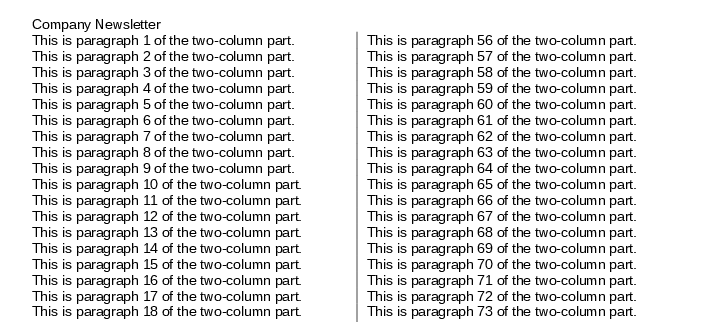
Text fills one column before it continues in the next: with 40 paragraphs instead of 100, all of them stay in the left column, and the right column stays empty.
The distances between the columns and columns of different widths are set with the SectionFormat constructors. SectionFormat(int columns, int[] columnWidths, int[] columnDistances) takes one width per column and one distance less than there are columns. The widths and distances together must not exceed the width of the page minus the left and right margins; otherwise an exception occurs.
Columns of Different Widths
A narrow column for side notes next to a wide one for the main text needs two widths. When you choose the width of the first column and the distance, the second column gets the rest of the text area:
second column = page width - left margin - right margin - first column - distance
The page size and the margins are in 1/100 inch, the default of PageUnit, and the column widths in twips. One inch is 1440 twips, so the program multiplies the page values by 14.4:
using TXTextControl;

using (ServerTextControl tx = new ServerTextControl())
{
    tx.Create();

    tx.Selection.Text = "Product Catalog";
    tx.Sections.Add(SectionBreakKind.BeginAtNewLine);

    // 2 inches for the first column, 0.25 inch between the columns, in twips
    int firstColumnWidth = 2880;
    int columnDistance = 360;

    // Page size and margins are in 1/100 inch, so 14.4 converts them to twips
    SectionFormat currentFormat = tx.Sections.GetItem().Format;
    int secondColumnWidth = (int)(
        currentFormat.PageSize.Width * 14.4
        - currentFormat.PageMargins.Left * 14.4
        - currentFormat.PageMargins.Right * 14.4
        - firstColumnWidth
        - columnDistance);

    // The constructor sets EqualColumnWidth to false
    tx.Sections.GetItem().Format = new SectionFormat(
        2,
        new int[] { firstColumnWidth, secondColumnWidth },
        new int[] { columnDistance });

    SectionFormat format = tx.Sections.GetItem().Format;
    Console.WriteLine($"Column widths: {string.Join(", ", format.ColumnWidths)} twips");

    for (int i = 1; i <= 100; i++)
    {
        tx.Selection.Text = "This is paragraph " + i + " of the catalog.\r\n";
    }

    tx.Save("unequal-columns.pdf", StreamType.AdobePDF);
}
The code works as follows:
Sections.AddwithBeginAtNewLinestarts the section with the columns below the heading, andGetItemwithout a parameter returns this new section, because it contains the input position.- PageSize and PageMargins are read from the current format. With a US letter page, 8.5 inches wide, and margins of 1 inch, the text area is 9360 twips wide, and the second column gets 6120 twips.
- The
SectionFormatconstructor takes the number of columns, one width per column and one distance less than there are columns. It is assigned to Section.Format as a whole, because ColumnWidths and ColumnDistances are read only.
PageSize always holds the values in portrait orientation. For a section in landscape orientation, calculate with PageSize.Height as the width of the page. If you set PageUnit to another unit, such as millimeters, use the factor for that unit instead of 14.4.
Set Margins and a Page Border
The following program gives every section of a loaded document the same margins and a page border:
using TXTextControl;

using (ServerTextControl tx = new ServerTextControl())
{
    tx.Create();
    tx.Load("Documents/sample.docx", StreamType.WordprocessingML);

    foreach (Section section in tx.Sections)
    {
        // Left, top, right and bottom: 0.75 inch in the default unit of 1/100 inch
        section.Format.PageMargins = new PageMargins(75, 75, 75, 75);

        // Lines on all four sides at the default distance from the edge of the page
        section.Format.PageBorder = new PageBorder(20, PageBorder.DefaultDistance, System.Drawing.Color.DarkBlue);
    }

    tx.Save("bordered.pdf", StreamType.AdobePDF);
}
The code works as follows:
- The loop reaches every section, so documents with several sections get the same margins everywhere.
- The PageMargins constructor takes the left, top, right and bottom margin.
- The PageBorder constructor sets the line width, the distance and the color of all four lines. The distance is measured from the edge of the page, and DefaultDistance is 454 twips, which is 8 mm.
PageBorder also sets each line on its own, with properties such as TopLineWidth, TopLineColor and TopDistance. With MeasureFromText, the distances are measured from the text instead of the edge of the page, and only then can SurroundHeader and SurroundFooter include the header and footer. FirstPageOnly draws the border on the first page of the section only, and OmitFirstPage on all pages but the first.
Read the Sections of a Loaded Document
Before you change a document from another source, you may want to know how its pages are set up. The following program prints the layout of every section of Documents/sample.docx:
using TXTextControl;

using (ServerTextControl tx = new ServerTextControl())
{
    tx.Create();
    tx.Load("Documents/sample.docx", StreamType.WordprocessingML);

    foreach (Section section in tx.Sections)
    {
        SectionFormat format = section.Format;

        Console.WriteLine($"Section {section.Number}: starts at character {section.Start}, {section.Length} characters");
        Console.WriteLine($"  Page size (portrait values): {format.PageSize.Width} x {format.PageSize.Height}");
        Console.WriteLine($"  Margins: {format.PageMargins.Left}, {format.PageMargins.Top}, {format.PageMargins.Right}, {format.PageMargins.Bottom}");
        Console.WriteLine($"  Landscape: {format.Landscape}, columns: {format.Columns}, break: {format.BreakKind}");
        Console.WriteLine($"  Headers and footers: {section.HeadersAndFooters.Count}");
    }
}
- Section.Number is the number of the section, from 1.
- Section.Start is the one-based number of its first character, and Section.Length the number of its characters without the section break. Compare them with the
StartandLengthof paragraphs or fields to find out which section an element belongs to. - Section.Select selects the text of the section, without the section breaks.
Selection.SectionFormat gets or sets the page settings of the selected text. When a selection spans several sections with different settings, most properties return their default values, while Columns returns 0 and PageSize a width and a height of zero.
To turn a document with several sections into one with a single page layout, the section breaks have to be deleted. The blog article How to Delete All Section Breaks in a DOCX Document using C# shows how.
Next Steps
- Headers and Footers: give a section its own header and restart its page numbers.
- Creating Documents: set the page format of a new document.
- Tables: add the wide table for the landscape section.
- Sections in the Document Editor: insert and format sections from JavaScript.