
Visual Studio
In Visual Studio 2022 and Visual Studio 2026, the NuGet Package Manager installs TX Text Control packages from the Text Control Private NuGet Feed. If Visual Studio doesn't pick up your nuget.config file, an alternative setup gets the feed into the package manager.
Before You Begin
- A serial number is assigned to your email address, and you have downloaded your personalized
nuget.configfile. See Creating an API Token. - A project that targets .NET 8 or higher. Text Control's current tutorials use Visual Studio 2026 and .NET 10 (Long Term Support). See Development Environments.
Install Packages From the Feed
These steps work in Visual Studio 2022 and in Visual Studio 2026:
- Copy the
nuget.configfile you downloaded to the root folder of your project. - In Solution Explorer, select your project and choose Manage NuGet Packages... from the Project main menu.
- In the Package source drop-down, select TextControl.
- On the Browse tab, find the packages you need and install them.
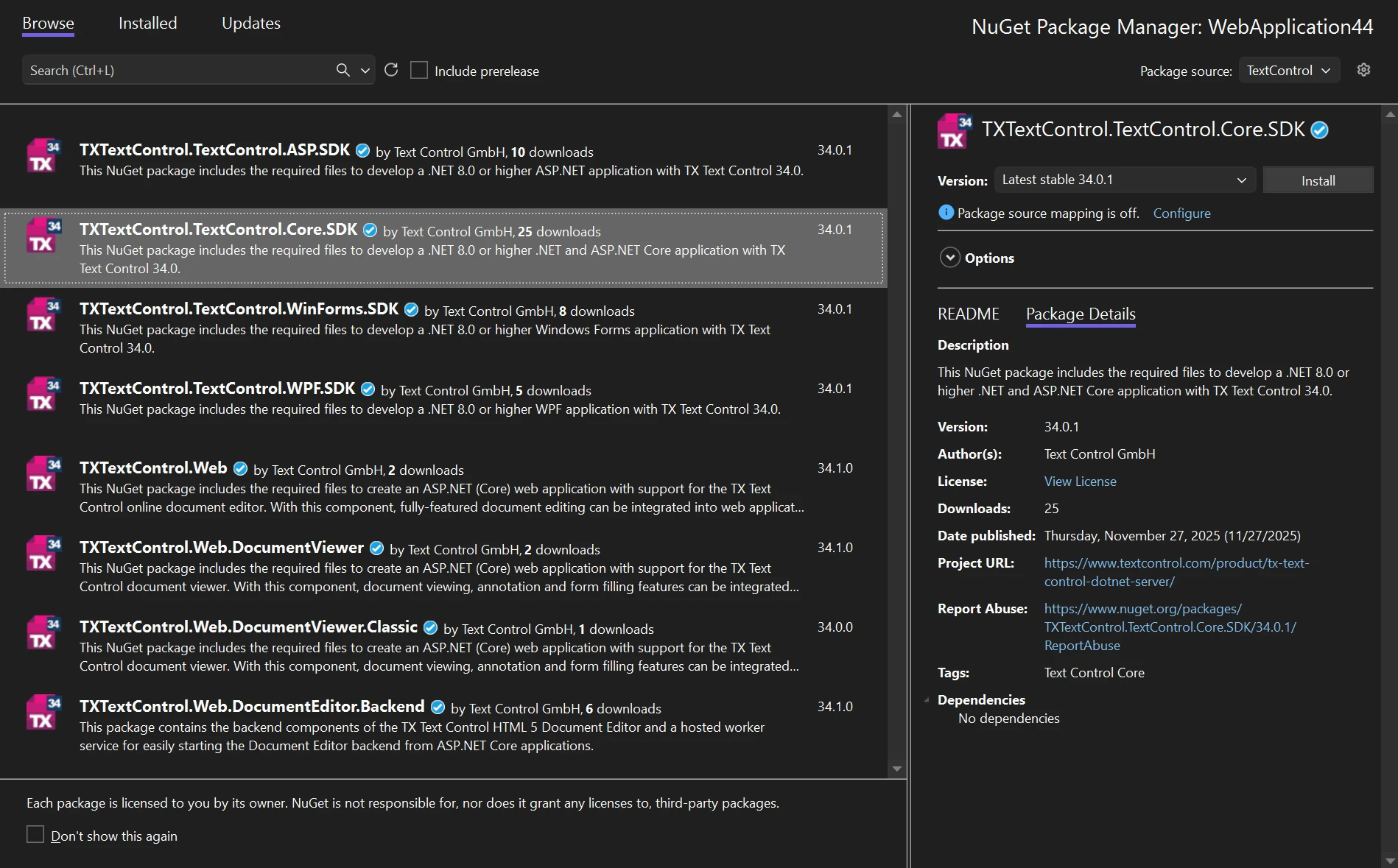
The Browse tab lists only the packages you are licensed for. NuGet downloads each package with the credentials in nuget.config, and your license is injected into the package before the download, so the package is ready to use after installation.
If Visual Studio Does Not Recognize nuget.config
If TextControl does not appear in the Package source drop-down, Visual Studio has not read the file from your project folder. Text Control describes the following alternative method for Visual Studio 2026:
- Open the NuGet configuration: choose Tools > NuGet Package Manager > Package Manager Settings.
- In Package Manager Settings, go to Configuration Files, select the path of a
NuGet.Configfile and click Open. - Replace the content of that file with the content of your downloaded
nuget.configfile. Replacing the content removes the package sources that the file listed before. - Save and close the file.
- Choose Manage NuGet Packages... from the Project main menu, select TextControl from the Package source drop-down, and browse and install packages.
NuGet reads nuget.config files from the solution folder and from every folder above it. If your solution file is in a different folder than your project, copying the file to the solution folder is another way to make Visual Studio find it. See Common NuGet configurations on Microsoft Learn and nuget.config.
Install the Packages for Your Project
Which packages you install depends on what your application does. For example, an ASP.NET Core application with the Document Editor needs three packages from the TextControl source:
TXTextControl.WebTXTextControl.TextControl.Core.SDKTXTextControl.Web.DocumentEditor.Backend
Some components are published on nuget.org instead. For a Blazor Web App with the Document Editor, you install the three packages above from TextControl, then select nuget.org as the package source and install TXTextControl.Web.Blazor.DocumentEditor. Package Overview lists the packages for each scenario.
If you prefer the Package Manager Console, the Install-Package command installs a package as well, for example Install-Package TXTextControl.TextControl.Core.SDK.
Troubleshooting
- TextControl is not listed as a package source: follow the steps in "If Visual Studio Does Not Recognize nuget.config" above.
- A package is not listed: check that a serial number for the product is assigned to your email address. The feed only shows packages you are licensed for.
- Authentication fails: check whether your API token has expired. See NuGet Authentication.
Next Steps
- Create Your First Application — install the Core package and create a DOCX and a PDF.
- ASP.NET Core Document Editor — add the Document Editor with packages from the feed.
- .NET CLI — install the same packages from the command line.