
Development Environments
Several tools build applications with TX Text Control .NET Server 34.0, each with its own requirements. Angular and React frontends add Node.js and npm versions to the list, and build servers have requirements of their own.
Tools at a Glance
| Tool | Runs on | Use it for |
|---|---|---|
| Visual Studio 2026 | Windows | .NET and ASP.NET Core applications. The current tutorials use Visual Studio 2026 with .NET 10. |
| Visual Studio 2022 | Windows | .NET and ASP.NET Core applications |
| Visual Studio Code with the .NET CLI | Windows and Linux | .NET and ASP.NET Core projects, and Angular and React frontends |
| .NET CLI | Windows and Linux | Creating, building and running projects from a terminal or on a build server |
| Node.js and npm | Windows and Linux | Angular and React frontends of the Document Editor and Document Viewer |
TX Text Control .NET Server 34.0 supports .NET 8, .NET 9 and .NET 10 to create .NET and ASP.NET Core applications in Visual Studio 2022 and Visual Studio 2026. Whichever tool you use, you need the .NET SDK for .NET 8 or higher. The tutorials use Visual Studio 2026 with the .NET 10 SDK. See .NET Versions.
Visual Studio 2026 and Visual Studio 2022
Text Control tested the NuGet packages and the Visual Studio tooling of version 34.0 with Visual Studio 2026. The Getting Started tutorials use Visual Studio 2026 with the standard project templates, for example Console App, ASP.NET Core Web App (Model-View-Controller), ASP.NET Core Web API and Blazor Web App, and .NET 10.0 (Long Term Support) as the framework.
You install the packages with the NuGet Package Manager of Visual Studio, from the TextControl source of the private NuGet feed or, with the trial version, from Text Control Offline Packages. Visual Studio has the steps, including what to do when Visual Studio 2026 does not recognize your nuget.config file.
Running on Linux From Visual Studio
With the Core engine, Visual Studio on Windows can run your application on Linux:
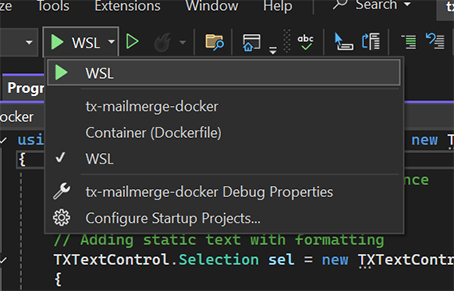
- WSL (Windows Subsystem for Linux): Select WSL as the startup profile and start the application.
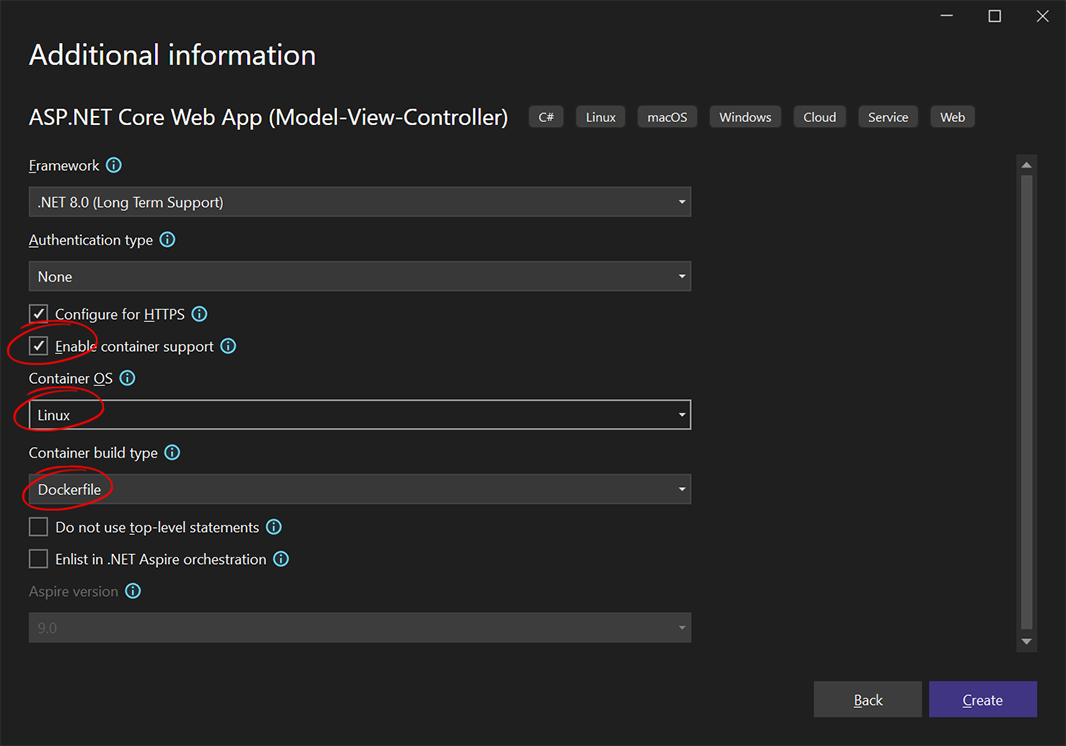
- Docker: When you create the project, check Enable container support, choose Linux as the Container OS and Dockerfile as the Container build type.
The startup profile drop-down in the Visual Studio toolbar then offers WSL and Container (Dockerfile) next to the project's own profile:
If WSL is not enabled on your machine yet, open PowerShell as an administrator and run the following command. It installs the default Linux distribution (usually Ubuntu) and enables the required features. Restart your computer afterward.
wsl --install
To set WSL 2 as the default version, run the following command in PowerShell as an administrator. If you have not installed a Linux distribution yet, install one with the second command.
wsl --set-default-version 2
wsl --install -d Ubuntu
Classic ASP.NET on the .NET Framework
For ASP.NET applications on the .NET Framework, which use the Classic engine from the Windows setup, the requirements list Microsoft Visual Studio 2017, 2019 and 2022, and Internet Information Server (IIS) 7.0 or IIS Express 7.0 or higher. For the Document Editor in these applications, the requirements list IIS 8.0 or higher, IIS Express 8.0 or higher and an installed WebSocket protocol.
Visual Studio Code and the .NET CLI
You can develop without Visual Studio: create, build and run projects with the .NET CLI and edit them in Visual Studio Code or any other editor. The Text Control blog shows this setup on Linux as well.
You need:
- The .NET SDK 8.0 or higher.
- Visual Studio Code.
- Optionally, the Visual Studio Code extensions C# Dev Kit and NuGet Gallery, which Text Control lists as helpful for ASP.NET C# development.
With your nuget.config file in the project directory, the .NET CLI installs the packages from the private feed:
dotnet new console MyTextControlApp
cd MyTextControlApp
dotnet add package TXTextControl.TextControl.Core.SDK
See .NET CLI for more commands.
Node.js and npm for Angular and React
The Angular and React frontends of the Document Editor and Document Viewer are npm packages, so you need Node.js and npm; the packages do not declare a required Node.js version. For Angular, you also need the Angular CLI in a version that creates applications inside the Angular range of the packages; the Getting Started tutorials use Angular CLI 19. The packages declare the Angular and React versions they work with as peer dependencies: Angular and React list the ranges.
The Angular and React frontends need an ASP.NET Core backend with TX Text Control .NET Server, and the Node.js Document Editor needs the Document Editor backend of TX Text Control .NET Server, a .NET application, so you also need the .NET tools described above. See npm Packages.
Build Servers and CI/CD
Build servers can restore the packages from the private NuGet feed. Store the feed credentials as secrets in your CI/CD platform and create the nuget.config file during the build, so the credentials stay out of source control. Text Control describes this for GitHub Actions, GitLab CI/CD, Azure DevOps, Jenkins, Bitbucket Pipelines and TeamCity. The GitHub Actions tutorial builds on an ubuntu-latest runner with the .NET 8 SDK.
Licenses are assigned per developer, not per machine or build server. See CI/CD Authentication and Development Licenses.
Next Steps
- Browser Requirements — what your users' browsers and network need.
- Text Control Private NuGet Feed — set up the feed for your projects.
- npm Packages — the packages for Angular, React and Node.js.
- Create Your First Application — your first project with Visual Studio or the .NET CLI.