
Annotations
Notes, highlights, stamps and drawings are annotations that users add on top of a document in the Document Viewer without changing its content. For review processes, documents delivered with instructions or collecting feedback, you learn which annotation types exist, how users add them and how your application stores and restores them.
What Annotations Are
Annotations are objects on the pages of a document, similar to the annotations of Adobe Acrobat Reader, but available for every document type the viewer displays. The viewer knows these types:
- Notes mark a place on a page and carry comments, like sticky notes on paper.
- Text highlights mark a range of text and carry comments on it.
- Text adds a line of text anywhere on a page.
- Stamps place a predefined label, such as a status, anywhere on a page.
- Drawings mark places with freehand lines.
- Signatures that users created in the viewer can be placed as annotations as well.
Users add annotations with the annotation toolbar, which the Toggle the annotation toolbar button of the main toolbar opens:

From left to right, its buttons select and delete annotations, add a text highlight, a note (Adds a comment to the current location), text and a stamp, place a signature (Manage signatures), draw with a pen or a marker, open two menus for the style of annotations (Open the annotation style dropdown menu), erase marker lines, clear all annotations, undo the last action and open the comments sidebar.
Users can add comments to any annotation, and the color, font size and other attributes of annotations can be changed. Typical uses are review processes, in which several users comment on a document before it is approved, and documents that are delivered with notes, for example with instructions on how to fill out a form.
How Annotations Are Stored
Annotations aren't part of the document: the viewer keeps them separately, and your code exports them as a JSON string, stores it and loads it again with the document. Import and Export describes the storage and the JSON format.
TXDocumentViewer.annotations returns the Annotations object:
| Method | Does |
|---|---|
| showToolbar | Shows or hides the annotation toolbar |
| showSidebar | Shows or hides the sidebar with the comments |
| export | Returns all annotations as a JSON string |
| load | Loads annotations from a JSON string |
| getStampList, setStampList | Get and set the stamps users can choose |
The viewer raises annotationsChanged whenever an annotation has been changed. The ASP.NET Core tutorial shows the toolbar, loads a note and exports the annotations in a handler of this event.
Add Custom Stamps
The following script shows the annotation toolbar and adds a "Reviewed" stamp to the stamps of the viewer. Add it to Views/Home/Index.cshtml of the ASP.NET Core tutorial:
window.addEventListener("documentViewerLoaded", function () {
  TXDocumentViewer.annotations.showToolbar(true);

  // Keep the available stamps and add a stamp of your own at the beginning
  var stamps = TXDocumentViewer.annotations.getStampList();
  stamps.unshift({ text: "Reviewed", color: "rgba(35, 142, 83, .9)", font: "Arial", size: "38", weight: "bold", style: "normal" });
  TXDocumentViewer.annotations.setStampList(stamps);
});
A stamp object has a text, a color, a font, a size, a weight and a style. The new stamp is the first entry of the stamp list, which users open with the arrow next to the stamp button; the viewer shows the texts in capital letters:
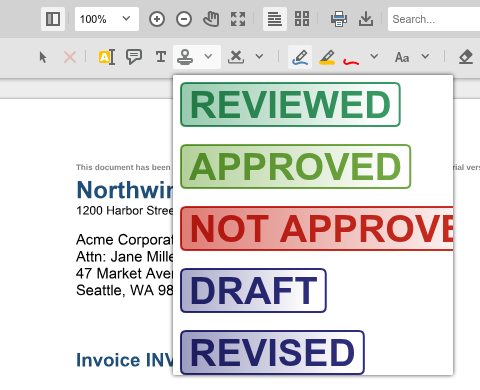
The built-in stamps are "approved", "not approved", "draft", "revised", "completed", "confidential", "for public release", "not for public release", "for comment", "void" and "information only", as getStampList returns them in version 34.2.0 of the Document Viewer package. The blog article Adding and Sharing Annotations across Document Types using the Document Viewer in ASP.NET Core C# shows annotations and custom stamps in an application.
Find the Right Page
| If you want to | Read |
|---|---|
| Let reviewers discuss a document with notes and comments, or show the comments a document contains | Comments |
| Mark ranges of text and read the marked text | Highlights |
| Store annotations in your database, load them with the document or merge them into the document | Import and Export |
Pages in This Section
- Comments: notes, comments and the comments sidebar.
- Highlights: text highlights and how they are stored.
- Import and Export: the JSON format and storing annotations on the server.