
Tables
Line items, price lists and schedules go into tables. On the server, ServerTextControl fills tables from your data, formats their cells, rows and columns, changes their structure, calculates totals with formulas and reads the tables of documents you load.
Create a Document inserts a first table with a header row. To repeat a table row for each record of your data in a template, use a merge block, described in Merge Blocks, instead of a loop.
How Tables Are Organized
ServerTextControl.Tables returns the TableCollection of the main text. Headers, footers and text frames have their own collections, such as HeaderFooter.Tables.
- A table and its parts. A Table has the collections Rows, Columns and Cells. Rows and columns are numbered from 1, and
Cells.GetItem(row, column)returns a single cell. - IDs. Tables.Add takes the number of rows and columns and an ID between 10 and
short.MaxValue. GetItem with the ID returns the table, ornullif no table has this ID.Addwithout parameters opens a dialog box and isn't meant for the server. - The input position. New tables are inserted at the current input position.
Tables.GetItem()without a parameter returns the table that contains the input position, and methods such asRows.Addwork on the row, column or cell at the input position or on the selected cells. - Units. Widths, heights, border widths and distances are measured in twips, 1/1440 inch.
Fill a Table From Data
The following program creates the line item table of an invoice. It adds one row for the column headings and one row for each item:
using System.Globalization;
using TXTextControl;

var lineItems = new[]
{
    new { Description = "TX Text Control .NET Server License", Quantity = 1, Price = 199.99 },
    new { Description = "Priority Support - 12 Months", Quantity = 1, Price = 99.98 }
};

using (ServerTextControl tx = new ServerTextControl())
{
    tx.Create();

    tx.Selection.Text = "Invoice INV-2025-001\r\n\r\n";

    // A header row and one row for each item
    tx.Tables.Add(lineItems.Length + 1, 3, 10);
    Table table = tx.Tables.GetItem(10);

    // One format for all cells: borders of 1 pt and space left and right of the text
    TableCellFormat cellFormat = new TableCellFormat()
    {
        LeftBorderWidth = 20,
        TopBorderWidth = 20,
        RightBorderWidth = 20,
        BottomBorderWidth = 20,
        LeftTextDistance = 100,
        RightTextDistance = 100
    };

    foreach (TableCell cell in table.Cells)
    {
        cell.CellFormat = cellFormat;
    }

    // Column headings in row 1
    string[] headings = { "Description", "Quantity", "Price" };

    for (int column = 1; column <= headings.Length; column++)
    {
        table.Cells.GetItem(1, column).Text = headings[column - 1];
    }

    table.Rows.GetItem(1).IsHeader = true;

    // One row for each item, starting in row 2
    for (int i = 0; i < lineItems.Length; i++)
    {
        int row = i + 2;
        table.Cells.GetItem(row, 1).Text = lineItems[i].Description;
        table.Cells.GetItem(row, 2).Text = lineItems[i].Quantity.ToString(CultureInfo.InvariantCulture);
        table.Cells.GetItem(row, 3).Text = lineItems[i].Price.ToString(CultureInfo.InvariantCulture);
    }

    // The first column is 4 inches wide
    table.Columns.GetItem(1).Width = 4 * 1440;

    // Alternative text for accessible PDF documents
    table.DescriptiveText = "Line items of invoice INV-2025-001";

    tx.Save("invoice-table.pdf", StreamType.AdobePDF);
}
The code works as follows:
- The table gets its size from the data:
lineItems.Length + 1rows and 3 columns. - A single TableCellFormat object is assigned to all cells through TableCell.CellFormat.
- TableCellCollection.GetItem returns the cell in a row and column, and TableCell.Text sets its text.
- TableRow.IsHeader repeats the first row at the top of each page when the table continues on the next page.
- TableColumn.Width sets the width of a column in twips.
- Table.DescriptiveText describes the table for the logical structure of accessible PDF documents, which PDF/UA covers.
Format Cells, Rows and Columns
A TableCellFormat applies to a cell, a row or a column, depending on whether you assign it to TableCell.CellFormat, TableRow.CellFormat or TableColumn.CellFormat. Its properties:
| Property | Sets |
|---|---|
BackColor | The background color |
LeftBorderWidth, TopBorderWidth, RightBorderWidth, BottomBorderWidth | The width of each border in twips |
LeftBorderColor, TopBorderColor, RightBorderColor, BottomBorderColor | The color of each border |
LeftTextDistance, TopTextDistance, RightTextDistance, BottomTextDistance | The distance between the border and the text in twips |
| VerticalAlignment | Top, Center or Bottom |
| TextType, NumberFormat | Whether the text is a number, and how numbers are displayed |
Rows and columns have settings of their own. TableRow.MinimumHeight is the height a row has at least, and the row grows when its text needs more room. With TableRow.AllowPageBreak set to false, a row isn't split across two pages. To format the text in a cell, select the cell with TableCell.Select and set the attributes of tx.Selection:
using TXTextControl;

using (ServerTextControl tx = new ServerTextControl())
{
    tx.Create();

    tx.Tables.Add(3, 3, 10);
    Table table = tx.Tables.GetItem(10);

    TableCellFormat cellFormat = new TableCellFormat()
    {
        LeftBorderWidth = 20,
        TopBorderWidth = 20,
        RightBorderWidth = 20,
        BottomBorderWidth = 20,
        LeftBorderColor = System.Drawing.Color.Gray,
        TopBorderColor = System.Drawing.Color.Gray,
        RightBorderColor = System.Drawing.Color.Gray,
        BottomBorderColor = System.Drawing.Color.Gray,
        LeftTextDistance = 144,
        TopTextDistance = 144,
        RightTextDistance = 144,
        BottomTextDistance = 144,
        VerticalAlignment = VerticalAlignment.Center
    };

    foreach (TableCell cell in table.Cells)
    {
        cell.CellFormat = cellFormat;
        cell.Text = $"Row {cell.Row}, Column {cell.Column}";
    }

    // The first row is at least 0.5 inch high and stays on one page
    TableRow firstRow = table.Rows.GetItem(1);
    firstRow.MinimumHeight = 720;
    firstRow.AllowPageBreak = false;

    table.Columns.GetItem(1).Width = 2 * 1440;

    // Bold, right-aligned text in the first cell
    table.Cells.GetItem(1, 1).Select();
    tx.Selection.Bold = true;
    tx.Selection.ParagraphFormat.Alignment = HorizontalAlignment.Right;

    tx.Save("formatted-table.pdf", StreamType.AdobePDF);
}
The other character and paragraph attributes of a selection are described in Text and Paragraphs.
Page Breaks in Table Rows
The paragraph settings KeepWithNext and PageBreakBefore work in tables as well, but row by row. A row holds several paragraphs, one or more in each cell, and only the first paragraph of the row decides how the whole row is treated; the settings of its other paragraphs are ignored:
- PageBreakBefore in the first paragraph moves the whole row to the top of a new page.
- KeepWithNext in the first paragraph keeps the whole row on the same page as the row below it.
How the two settings are set for a paragraph is shown in Paragraphs. AllowPageBreak, described above, decides something else: whether a single row may be split across two pages.
Add Rows and Columns and Merge Cells
Rows, columns and merged cells are added at the input position. To put the input position into a cell, set ServerTextControl.InputPosition to the position of the cell. TableCell.Start is one-based, while an InputPosition counts from zero, so subtract 1:
using TXTextControl;

using (ServerTextControl tx = new ServerTextControl())
{
    tx.Create();

    tx.Tables.Add(3, 3, 10);
    Table table = tx.Tables.GetItem(10);

    // Put the input position into row 3, column 1
    tx.InputPosition = new InputPosition(table.Cells.GetItem(3, 1).Start - 1);

    // The table and the cell at the input position
    Table current = tx.Tables.GetItem();
    TableCell currentCell = current.Cells.GetItem();
    Console.WriteLine($"Row {currentCell.Row}, column {currentCell.Column}");

    // Two rows below row 3 and a column right of column 1
    if (table.Rows.CanAdd)
    {
        table.Rows.Add(TableAddPosition.After, 2);
    }

    if (table.Columns.CanAdd)
    {
        table.Columns.Add(TableAddPosition.After);
    }

    // Remove row 2
    table.Rows.GetItem(2).Select();

    if (table.Rows.CanRemove)
    {
        table.Rows.Remove();
    }

    // Merge the cells of row 1 into one cell
    table.Select(1, 1, 1, table.Columns.Count);

    if (table.CanMergeCells)
    {
        table.MergeCells();
    }

    table.Cells.GetItem(1, 1).Text = "Invoice INV-2025-001";

    tx.Save("table-structure.docx", StreamType.WordprocessingML);
}
The code works as follows:
- TableRowCollection.Add adds a number of rows before or after the row at the input position, with a value of TableAddPosition. TableColumnCollection.Add adds one column left or right of the column at the input position.
- TableRowCollection.Remove removes the selected rows or the row at the input position. Columns and cells have a
Removemethod as well. - Table.Select with a first and last row and column selects a range of cells, and MergeCells merges them. SplitCells splits cells that were merged before.
CanAdd,CanRemoveand CanMergeCells tell whether the change is possible at the input position or for the selection.
Table.Split is different: it splits the whole table into two tables before or after the row at the input position, if CanSplit is true.
Split a Table at Bookmarks
A long table, for example one that a merge block filled, can be split into several tables at rows that a template marks with a bookmark. The following program builds a table with a header row and six items, marks row 5 with a bookmark named _split and splits the table there. The new table gets a copy of the header row:
using TXTextControl;

using (ServerTextControl tx = new ServerTextControl())
{
    tx.Create();

    // A header row and six items, with a bookmark in row 5
    tx.Tables.Add(7, 2, 10);
    Table items = tx.Tables.GetItem(10);
    items.Cells.GetItem(1, 1).Text = "Item";
    items.Cells.GetItem(1, 2).Text = "Price";
    items.Rows.GetItem(1).IsHeader = true;

    for (int row = 2; row <= 7; row++)
    {
        items.Cells.GetItem(row, 1).Text = $"Item {row - 1}";
        items.Cells.GetItem(row, 2).Text = $"{row * 10}.00";
    }

    tx.Select(items.Cells.GetItem(5, 1).Start - 1, 0);
    tx.DocumentTargets.Add(new DocumentTarget("_split"));

    foreach (DocumentTarget target in tx.DocumentTargets)
    {
        if (target.TargetName != "_split")
        {
            continue;
        }

        // The table that contains the bookmark
        tx.InputPosition = new InputPosition(target.Start - 1);
        Table table = tx.Tables.GetItem();

        if (table == null || !table.CanSplit)
        {
            continue;
        }

        // Copy the header row in the TX Text Control format
        byte[] headerRow = null;

        foreach (TableRow row in table.Rows)
        {
            if (row.IsHeader)
            {
                row.Select();
                tx.Selection.Save(out headerRow, BinaryStreamType.InternalUnicodeFormat);
                break;
            }
        }

        tx.Select(target.Start - 1, 0);
        table.Split(TableAddPosition.Before);

        // Insert the copy at the top of the new table
        tx.Selection.Start += 1;

        if (headerRow != null)
        {
            tx.Selection.Load(headerRow, BinaryStreamType.InternalUnicodeFormat);
        }
    }

    Console.WriteLine($"Tables: {tx.Tables.Count}");
    tx.Save("split-table.pdf", StreamType.AdobePDF);
}
The code works as follows:
- DocumentTarget.Start is the one-based position of the bookmark, and
Tables.GetItem()returns the table at the input position. - TableRow.Select selects the header row, and Selection.Save copies it into a byte array.
SplitwithTableAddPosition.Beforeends the first table above the row with the bookmark. One position further is the first cell of the new table, where Selection.Load inserts the copied row.
The program prints Tables: 2: the first table has the header row and items 1 to 3, the second a copy of the header row and items 4 to 6. The blog article Splitting Tables at Bookmark Positions and Cloning Table Headers splits the tables of a merged document this way.
Calculate With Formulas
A cell can calculate its text from other cells of the same table with a formula, as in a spreadsheet. The following program adds up the prices of two line items and shows the total with two decimal places:
using TXTextControl;

using (ServerTextControl tx = new ServerTextControl())
{
    tx.Create();

    // Address cells with a column letter and a row number, such as B2
    tx.FormulaReferenceStyle = FormulaReferenceStyle.A1;
    tx.IsFormulaCalculationEnabled = true;

    tx.Tables.Add(3, 2, 10);
    Table table = tx.Tables.GetItem(10);

    TableCellFormat amountFormat = new TableCellFormat()
    {
        TextType = TextType.Number,
        NumberFormat = "#.00"
    };

    string[] descriptions = { "TX Text Control .NET Server License", "Priority Support - 12 Months" };
    string[] prices = { "199.99", "99.98" };

    for (int row = 1; row <= 2; row++)
    {
        table.Cells.GetItem(row, 1).Text = descriptions[row - 1];

        TableCell price = table.Cells.GetItem(row, 2);
        price.CellFormat = amountFormat;
        price.Text = prices[row - 1];
    }

    table.Cells.GetItem(3, 1).Text = "Total";

    TableCell total = table.Cells.GetItem(3, 2);
    total.CellFormat = amountFormat;
    total.Formula = "SUM(B1:B2)";

    tx.Save("total.pdf", StreamType.AdobePDF);
}
The code works as follows:
- FormulaReferenceStyle sets how formulas address cells:
A1with a column letter and a row number,R1C1with a row number and a column number. - IsFormulaCalculationEnabled turns on the calculation, which updates a formula cell when the text of a cell it refers to changes.
- TableCellFormat.TextType with
Numbermakes the text of a cell a number, which formulas can calculate with.NumberFormat#.00shows two decimal places; Number Formats below describes the format strings. - TableCell.Formula sets the formula. A formula cell can itself be referred to by another formula, but references to other tables or documents aren't supported.
How a Formula Is Built
Formulas use the syntax of spreadsheet formulas in Office Open XML (ISO/IEC 29500-1, section 18.17.2), which spreadsheet applications such as Microsoft Excel use as well. A formula is made of four kinds of elements: constants, cell references and functions, which stand for values, and operators, which combine them.
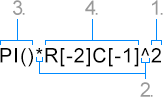
Take the formula PI()*R[-2]C[-1]^2, set in R1C1 style:
R[-2]C[-1]is a cell reference: the value of the cell two rows above and one column left of the formula cell.2is a numerical constant, and^raises the value of the cell to the power of 2.PI()is a function that returns π, 3.14159265..., and*multiplies the squared value by it.
Constants
A constant is a value written into the formula. There are five kinds: numerical, logical, string, error and array constants.
| Constant | Written as | Formula | Result |
|---|---|---|---|
| Integer | 4 | 9+7 | 16 |
| Decimal number, with a period | 3.937 | 4*5.5 | 22 |
| Engineering notation | 5e4 | 4*3e5 | 1200000 |
| Negative number, with a leading minus | -7.6 | -9+7 | -2 |
| Logical | TRUE, FALSE | 15>7=TRUE | TRUE |
| String, in double quotes | "Text" | "TX"&"Text"&"Control" | TXTextControl |
| Error | #N/A | NA() returns the same value | #N/A |
| Array, in braces | {1,2,3;4,5} | SUM(10,{1,2,3;4,5}) | 25 |
In an array constant, commas separate the values of a row and semicolons separate the rows, so {1;2;3} is a column of three values and SUM({1;2;3}) returns 6. An array can hold numbers, logical values and strings.
Comparing strings works as well: "Two"="One" returns FALSE, and "FALSE"="FALSE" returns TRUE.
Operators
Arithmetic operators return a number, comparison operators return TRUE or FALSE, and the concatenation operator joins strings:
| Operator | Meaning | Formula | Result |
|---|---|---|---|
+ | Addition | 8+6 | 14 |
- | Subtraction | 14-6 | 8 |
* | Multiplication | 4*3 | 12 |
/ | Division | 17/2 | 8.5 |
% | Percent, after a number | 290% | 2.9 |
^ | Exponentiation | 3^2 | 9 |
= | Equal to | 2=2 | TRUE |
> | Greater than | 4>6 | FALSE |
< | Less than | 4<6 | TRUE |
>= | Greater than or equal to | 6>=4 | TRUE |
<= | Less than or equal to | 26<=4 | FALSE |
<> | Not equal to | 2<>2 | FALSE |
& | Concatenation | "TX"&"Spell" | TXSpell |
Functions
A function has an uppercase name, followed by its arguments in parentheses and separated by commas. The parentheses are required even when a function takes no argument, as in PI(). An argument can be a number, a logical value, a string or an array, given as a constant, as a cell reference or range, or as the result of another function. A function returns a number, a logical value, a string or an array.
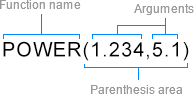
| Formula | Result |
|---|---|
ABS(-7.765) | 7.765 |
PI() | 3.141592654 |
POWER(3,2.5) | 15.5884573 |
SUM(1,2,3) | 6 |
SUM({1;2;3}) | 6 |
SUM(A1:A3) | 6, when cells A1, A2 and A3 hold 1, 2 and 3 |
Formula Functions lists all 85 functions with their arguments and defaults, and the limits of some of them, such as COUNT, which doesn't count dates. TableCollection.SupportedFormulaFunctions returns their names at runtime. A cell whose formula calls a function that isn't supported, such as VLOOKUP or SUMIF, shows the text UNSUPPORTED.
Cell References
FormulaReferenceStyle decides how a formula refers to other cells of its table: in A1 style or in R1C1 style.
A1 style. A column letter and a row number address a cell. Columns are named A to Z, then AA to AZ, BA to BZ and so on, so B3 is the cell in the second column of the third row. A plain A1 reference is relative: it describes where the cell is as seen from the formula cell, the same as a relative R1C1 reference. A $ in front of the column, the row or both makes that part absolute, so that it doesn't depend on where the formula is: $B$3, $B3 or B$3.
R1C1 style. R with a row number and C with a column number address a cell. The numbers are either relative or absolute:
- Relative, in square brackets: the number of rows and columns from the formula cell to the referenced cell. Negative numbers go up and to the left, and
[0]stays in the same row or column. Text Control recommends relative references. - Absolute, without brackets:
R5C4is always the cell in row 5 and column 4, wherever the formula is.
For a formula in row 4 and column 3 (R4C3), the relative references point at these cells:
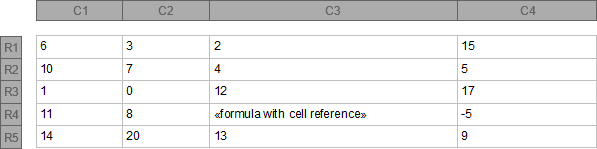
| Relative reference | Refers to |
|---|---|
R[-3]C[-1] | Row 1, column 2 (R1C2) |
R[1]C[-2] | Row 5, column 1 (R5C1) |
R[0]C[1] | Row 4, column 4 (R4C4) |
R[-2]C[1] | Row 2, column 4 (R2C4) |
Absolute R1C1 references work, but when the table is edited or its cells are pasted as a new table, they return wrong or invalid values. Use relative references in tables that are edited.
Ranges. Two references separated by a colon form a range: the first is the upper left cell, the second the lower right cell. For a formula in R3C3, SUM(R[-1]C[-2]:R[0]C[-1]) adds up the cells from R2C1 to R3C2, and in A1 style, SUM(A2:B3) adds up the same cells.
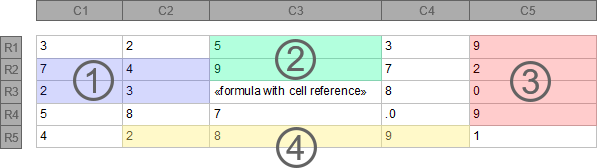
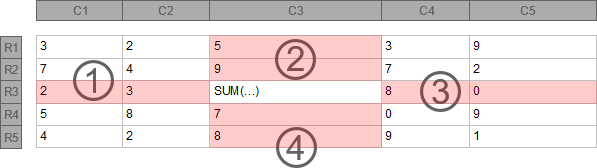
LEFT, ABOVE, RIGHT and BELOW stand for all cells next to the formula cell in one direction: SUM(ABOVE) adds up the cells above the formula cell, and SUM(LEFT) the cells to its left.
Handle Invalid Formulas and Number Formats
A formula with invalid syntax or missing arguments throws a FormulaException, and a number format with invalid syntax throws a NumberFormatException. Both have a CharacterIndex property with the one-based position of the first invalid character. Catch them when formulas or formats come from users or from data:
using TXTextControl;

using (ServerTextControl tx = new ServerTextControl())
{
    tx.Create();

    tx.Tables.Add(3, 2, 10);
    TableCell total = tx.Tables.GetItem(10).Cells.GetItem(3, 2);

    // A formula and a number format as a user might enter them
    string formula = "SUM(B1:B2";
    string numberFormat = "#.00";

    try
    {
        total.CellFormat = new TableCellFormat()
        {
            TextType = TextType.Number,
            NumberFormat = numberFormat
        };

        total.Formula = formula;
    }
    catch (FormulaException exc)
    {
        Console.WriteLine($"Invalid formula at character {exc.CharacterIndex}: {formula}");
    }
    catch (NumberFormatException exc)
    {
        Console.WriteLine($"Invalid number format at character {exc.CharacterIndex}: {numberFormat}");
    }
}
The closing parenthesis of the formula is missing, so the program prints the position where the formula becomes invalid. FormulaException.CharacterIndex and NumberFormatException.CharacterIndex count from 1, so the first character of the string is 1.
Number Formats
A number format decides how the number in a cell is displayed, whether it was typed in, set by your code or calculated by a formula. It applies when TableCellFormat.TextType is Number, and TableCellFormat.NumberFormat holds the format string. Without a format, NumberFormat is an empty string, and a result is shown as it is: a whole number without decimal places, a decimal number with all of its decimal places.
A format string is made of the placeholders # and 0, the separators . and ,, the percent sign % and other characters or text. Only formats for positive numbers are supported. TableCollection.SupportedNumberFormats returns a list of often used formats.
Decimal and Thousands Separators
In a format string, and in the text of a cell whose type is Number, the period is the decimal separator and the comma the thousands separator, whatever the language. The displayed number uses the separators of the system language instead: on a German system, the decimal separator is shown as a comma and the thousands separator as a period. So you always write . and , in code, and the reader sees the separators they are used to.
Placeholders and Decimal Places
# and 0 stand for the digits of the number. # shows only the digits the number has, and 0 fills a position with a zero when the number has no digit there:
| Number | Format | Displayed |
|---|---|---|
| 7 | # | 7 |
| 1234 | # | 1234 |
| 7 | 000 | 007 |
| 789 | 000 | 789 |
A period after the placeholders shows decimal places. The number of placeholders after the period is the maximum number of decimal places, and 0 shows a decimal place even when it is zero. Without a period, the number is rounded to an integer:
| Number | Format | Displayed |
|---|---|---|
| 12.6 | #.## | 12.6 |
| 5 | #.00 | 5.00 |
| 12.6 | #.00 | 12.60 |
| 0.543 | #.00 | 0.54 |
| 17.548 | # | 18 |
Thousands Separator and Scaling
A comma followed by placeholders inserts a thousands separator after every third digit. A comma with no placeholder after it divides the number by 1,000 instead, once for each such comma, which shows large amounts in thousands or millions:
| Number | Format | Displayed |
|---|---|---|
| 9876543210.1234 | ,###.## | 9,876,543,210.12 |
| 9876543210 | ,### | 9,876,543,210 |
| 12200000 | #,, | 12 |
| 12200000 | #.0,, | 12.2 |
Percentages
A % together with at least one placeholder multiplies the number by 100 and shows the percent sign where it stands in the format:
| Number | Format | Displayed |
|---|---|---|
| 0.52 | #% | 52% |
| 1 | #% | 100% |
| 0.00321 | 0.##% | 0.32% |
| 0.52 | %# | %52 |
Symbols and Text
Some characters can be written into a format as they are: $, -, +, /, (, ), :, !, ^, &, ', ~, {, }, <, >, = and the space. Any other single character, such as a currency symbol or a letter, needs a backslash in front of it. A digit that isn't a placeholder needs one too, as in \3. Words and longer text go in double quotes:
| Number | Format | Displayed |
|---|---|---|
| 500 | #$ | 500$ |
| 1 | -#.00 | -1.00 |
| 12.345 | +.## | +12.35 |
| 4 | \1/# | 1/4 |
| 7 | -(#+\3) | -(7+3) |
| 50 | #:"50" | 50:50 |
| 7.654 | ~#.0 | ~7.7 |
| 67 | {-#} | {-67} |
| 5.6 | #>=\6 | 6>=6 |
| 12 | #.00 $ | 12.00 $ |
| 12.99 | #.00\€ | 12.99€ |
| 42 | \"#\" | "42" |
| 18 | #:\X | 18:X |
| 4.50 | #.00"€" | 4.50€ |
| 76 | # "Units" | 76 Units |
The blog article Formatting Numbers in Table Cells shows number formats applied to typed text, formula results and fields in table cells.
Nest Tables
A table can be inserted into a cell of another table. Place the input position in the cell, without selecting its text, and call Tables.Add:
using TXTextControl;

using (ServerTextControl tx = new ServerTextControl())
{
    tx.Create();

    tx.Tables.Add(3, 3, 10);
    Table outerTable = tx.Tables.GetItem(10);

    // Put the input position into cell (1, 1) without selecting text
    outerTable.Cells.GetItem(1, 1).Select();
    tx.Selection.Length = 0;

    tx.Tables.Add(2, 2, 11);
    Table nestedTable = outerTable.NestedTables.GetItem(11);

    foreach (TableCell cell in nestedTable.Cells)
    {
        cell.Text = "Nested";
    }

    Console.WriteLine($"Nesting level {nestedTable.NestedLevel}, outer table {nestedTable.OuterTable.ID}");

    tx.Save("nested.pdf", StreamType.AdobePDF);
}
Table.NestedTables returns the tables inside a table. NestedLevel is 1 for a table that isn't nested, and OuterTable returns the table that contains a nested table, or null for a table at the top level.
Read the Tables of a Loaded Document
The tables of a loaded document are in the same collection. The following program prints the size of every table of Documents/sample.docx and the text of its cells:
using TXTextControl;

using (ServerTextControl tx = new ServerTextControl())
{
    tx.Create();
    tx.Load("Documents/sample.docx", StreamType.WordprocessingML);

    Console.WriteLine($"Tables: {tx.Tables.Count}");

    foreach (Table table in tx.Tables)
    {
        Console.WriteLine($"Table {table.ID}: {table.Rows.Count} rows, {table.Columns.Count} columns, level {table.NestedLevel}");

        foreach (TableCell cell in table.Cells)
        {
            Console.WriteLine($"  ({cell.Row}, {cell.Column}): {cell.Text}");
        }
    }
}
Tables in a loaded document may have no ID. For each of them, ServerTextControl raises the TableCreated event while the document is loaded. The blog article Export Document Tables to CSV in .NET C# writes the tables of a document to CSV files in the same way.
Remove Tables
TableBaseCollection.Remove with an ID removes that table and returns true if it was removed. TableCollection.Remove without a parameter removes the table at the input position, and Clear removes all tables of the collection:
// Remove the table with the ID 10
bool removed = tx.Tables.Remove(10);

// Remove all tables of the main text
tx.Tables.Clear();
Convert Between Tables and Text
Plain text formats and some older documents lay out columns with tab stops instead of a table. A table becomes such text when the text of its cells is joined with tab characters, one paragraph per row, and the left edges of its columns become the tab stops. The following program converts a price table this way and saves the result as price-list.tx:
using System.Text;
using TXTextControl;

using (ServerTextControl tx = new ServerTextControl())
{
    tx.Create();

    tx.Tables.Add(3, 3, 10);
    Table table = tx.Tables.GetItem(10);

    string[,] data =
    {
        { "Product", "Quantity", "Price" },
        { "TX Text Control .NET Server License", "1", "199.99" },
        { "Priority Support - 12 Months", "1", "99.98" }
    };

    for (int row = 1; row <= 3; row++)
    {
        for (int column = 1; column <= 3; column++)
        {
            table.Cells.GetItem(row, column).Text = data[row - 1, column - 1];
        }
    }

    // Columns of 3, 1 and 1 inches
    table.Columns.GetItem(1).Width = 3 * 1440;
    table.Columns.GetItem(2).Width = 1440;
    table.Columns.GetItem(3).Width = 1440;

    // One line of tab-separated cell texts per row
    StringBuilder text = new StringBuilder();

    for (int row = 1; row <= table.Rows.Count; row++)
    {
        List<string> cells = new List<string>();

        for (int column = 1; column <= table.Columns.Count; column++)
        {
            cells.Add(table.Cells.GetItem(row, column).Text);
        }

        text.Append(string.Join("\t", cells)).Append("\r\n");
    }

    // A tab stop at the left edge of each column except the first
    int[] tabPositions = tx.Selection.ParagraphFormat.TabPositions;
    Array.Clear(tabPositions);

    for (int column = 2; column <= table.Columns.Count; column++)
    {
        tabPositions[column - 2] = table.Columns.GetItem(column).Position;
    }

    // Replace the table with the text
    int start = table.Cells.GetItem(1, 1).Start - 1;
    tx.Tables.Remove(10);

    tx.Select(start, 0);
    tx.Selection.Text = text.ToString();

    tx.Select(start, text.Length);
    tx.Selection.ParagraphFormat.TabPositions = tabPositions;

    tx.Save("price-list.tx", StreamType.InternalUnicodeFormat);
}
The code works as follows:
- TableColumn.Position is the horizontal position of a column in twips. The first column starts at 0, so only the other columns need a tab stop.
- ParagraphFormat.TabPositions is an array of 14 absolute positions in twips, by default multiples of 1134 twips (2 cm). The program reads the array to get its length, clears the default positions and sets its own. Positions of 0 are no tab stops.
Tables.Removewith the ID removes the table, and the text is inserted where its first cell was.
The reverse direction reads tab-separated paragraphs, removes them and inserts a table with one row per paragraph and one column per tab-separated part. The tab stops of the first paragraph become the positions of the columns. The following program converts the three paragraphs of price-list.tx back into a table:
using TXTextControl;

using (ServerTextControl tx = new ServerTextControl())
{
    tx.Create();
    tx.Load("price-list.tx", StreamType.InternalUnicodeFormat);

    // Paragraphs 1 to 3 contain tab-separated text
    Paragraph first = tx.Paragraphs[1];
    Paragraph last = tx.Paragraphs[3];

    List<string[]> rows = new List<string[]>();

    for (int i = 1; i <= 3; i++)
    {
        rows.Add(tx.Paragraphs[i].Text.TrimEnd('\r', '\n').Split('\t'));
    }

    int columns = rows.Max(cells => cells.Length);
    int[] tabPositions = first.Format.TabPositions;

    // Remove the paragraphs and insert a table in their place
    int start = first.Start - 1;
    tx.Select(start, last.Start - 1 + last.Length - start);
    tx.Selection.Text = "";

    tx.Tables.Add(rows.Count, columns, 11);
    Table table = tx.Tables.GetItem(11);

    for (int row = 1; row <= rows.Count; row++)
    {
        for (int column = 1; column <= rows[row - 1].Length; column++)
        {
            table.Cells.GetItem(row, column).Text = rows[row - 1][column - 1];
        }
    }

    // The tab stops become the positions of columns 2, 3, ...
    for (int column = 2; column <= columns && tabPositions[column - 2] > 0; column++)
    {
        table.Columns.GetItem(column).Position = tabPositions[column - 2];
    }

    tx.Save("price-table.pdf", StreamType.AdobePDF);
}
Paragraph.Text returns the text of a paragraph with its paragraph break, which TrimEnd removes before the text is split at the tab characters. Paragraph.Format returns the paragraph's format with its tab stops. Both programs handle simple tables only: merged cells and nested tables have no equivalent in tab-separated text. The blog article Text to Table and Table to Text in TX Text Control and C# shows the same conversion for a selection in an editor.
Next Steps
- Merge Blocks: repeat table rows for each record of a data source.
- Text: format the text in table cells.
- Sections: give a wide table a page in landscape orientation.
- Formula Functions: look up the arguments of every function a formula can call.
- Tables in the Document Editor: work with tables from JavaScript.