
Digitally Sign a PDF
ServerTextControl signs a PDF with an X.509 certificate while it saves the document. For testing, you create a self-signed certificate, then sign the whole document, sign a visible signature field and check the result. The timestamp section explains a limitation in version 34.0 SP5.
How PDF Signing Works
A digital signature proves two things: who signed the document, and that the document has not been changed since it was signed. It is based on public key cryptography:
- A cryptographic hash of the document is calculated.
- The hash is encrypted with the signer's private key. The result is the digital signature.
- The signature and the signer's certificate are embedded in the PDF.
- A PDF reader decrypts the signature with the public key from the certificate and compares the hash with a newly calculated one. If they differ, the document has been changed and the signature is shown as invalid.
TX Text Control applies the signature when it saves a document as PDF or PDF/A. You describe the certificate with a DigitalSignature object, which wraps a .NET X509Certificate2, and pass it through SaveSettings. Signing works on Windows and Linux.
Certificates can be loaded from PFX, DER CER or Base64 CER files, from raw data or from the local certificate store. To sign, the certificate must include its private key, which is why this tutorial uses a PFX file.
Because the signature is created while the document is saved, you usually sign the document you generate, for example from a DOCX template. To sign a PDF that was created elsewhere, you first load it into ServerTextControl, which rebuilds its content as described in Load and Modify a PDF.
Sign the Document or Signature Fields
There are two ways to sign a PDF:
| Sign the whole document | Sign signature fields | |
|---|---|---|
| Property | SaveSettings.DigitalSignature | SaveSettings.SignatureFields |
| Appearance | Invisible. PDF readers show the signature in their signature panel. | Visible. A signature field shows an image, such as a handwritten signature. |
| Number of signatures | One signature for the document. | One certificate per named signature field, each with its own validation status. |
| Typical use | One person or organization certifies the complete document, for example a contract or a regulatory filing. | Several parties sign different fields, or a visible signature is required. |
Prerequisites
- A .NET console application with the
TXTextControl.TextControl.Core.SDKpackage (orTXTextControl.TextControl.ASP.SDKon Windows) installed from the Text Control Private NuGet Feed. Create a PDF shows how to set it up. - A certificate as a PFX file and its password. If you do not have one, create a self-signed certificate as described in the next step.
Create a Self-Signed Certificate for Testing
A self-signed certificate is fine for testing and internal use. Because it is not issued by a trusted certificate authority (CA), use a certificate from a CA for documents that other people must be able to trust. Self-Signed Certificates covers the topic in more detail.
On Windows
Open PowerShell as an administrator and create a certificate in the personal certificate store of the current user:
$cert = New-SelfSignedCertificate `
  -Subject "CN=MyTXCert" `
  -CertStoreLocation "Cert:\CurrentUser\My" `
  -KeyExportPolicy Exportable `
  -KeySpec Signature `
  -FriendlyName "My PDF Signing Certificate" `
  -NotAfter (Get-Date).AddYears(5)
Then export the certificate together with its private key to a password-protected PFX file:
$Password = ConvertTo-SecureString -String "123" -Force -AsPlainText

Export-PfxCertificate `
    -Cert "Cert:\CurrentUser\My\$($cert.Thumbprint)" `
    -FilePath "C:\Path\To\certificate.pfx" `
    -Password $Password
On Linux
With OpenSSL, create a private key and a certificate signing request, sign the request, and combine certificate and key into a PFX file:
openssl req rsa:2048 my_private.key my_request.csr
openssl x509 365 my_request.csr my_private.key my_certificate.crt
openssl pkcs12 my_certificate.pfx my_private.key my_certificate.crt
The first command asks for details such as country, organization and email address. The last command asks for the password that protects the PFX file.
Add the PFX file to your project and set its Copy to Output Directory property to Copy if newer, so the application finds it at runtime. The examples below use the file name certificate.pfx and the password 123.
Sign the Whole Document
Replace the content of Program.cs with the following code. It loads the certificate, creates a document and saves it as a signed PDF:
using System.Security.Cryptography.X509Certificates;
using TXTextControl;

// Load the certificate including its private key
X509Certificate2 certificate = X509CertificateLoader.LoadPkcs12FromFile(
    "certificate.pfx",
    "123",
    X509KeyStorageFlags.Exportable);

using (ServerTextControl tx = new ServerTextControl())
{
    tx.Create();
    tx.Text = "This document is digitally signed.";

    // Sign the complete document when it is saved
    SaveSettings saveSettings = new SaveSettings()
    {
        DigitalSignature = new DigitalSignature(certificate, "")
    };

    tx.Save("signed.pdf", StreamType.AdobePDF, saveSettings);
}
The second parameter of the DigitalSignature constructor is the URL of a timestamp server. This example passes an empty string to sign with the current date and time of the computer, without requesting a trusted timestamp.
X509CertificateLoader is available in .NET 9 and later. In a .NET 8 project, load the certificate with the constructor instead: new X509Certificate2("certificate.pfx", "123", X509KeyStorageFlags.Exportable).
The same SaveSettings work for any document. Load a DOCX file first to sign a converted contract, or save with StreamType.AdobePDFA and the font setting from Create a PDF to create a signed PDF/A document for archiving.
Do not keep certificate passwords in source code in production. Certificate-Based Signatures shows how to load the certificate together with its private key from Azure Key Vault.
Add a Trusted Timestamp
A signature on its own does not prove when the document was signed. Years later, when the certificate has expired or been revoked, a validator cannot tell whether the certificate was valid at signing time. A timestamp from an RFC 3161 timestamp server (a Time-Stamping Authority) adds this proof. Only a hash of the signature is sent to the server, never the document.
Warning
Timestamp Servers in Version 34.0 SP5. Requesting a server timestamp can fail during PDF export (TXT-5460), including with the error "The specified certificate is invalid or has no private key" (
1-1D0E). Keep the timestamp-server parameter empty for this tutorial. Before enabling server timestamps, verify that your installed build resolves TXT-5460.
new DigitalSignature(certificate, "") signs with the computer's current date and time. It does not provide a trusted timestamp or independent proof of the signing time. See RFC 3161 Timestamps for the timestamp concept and API.
Sign Signature Fields
A signature field is a named area in the document that shows the signature. The following code inserts a signature field with an SVG image and associates a certificate with it by the field's name. Add an image file named signature.svg to the project and set it to Copy if newer:
using System.Security.Cryptography.X509Certificates;
using TXTextControl;

X509Certificate2 certificate = X509CertificateLoader.LoadPkcs12FromFile(
    "certificate.pfx",
    "123",
    X509KeyStorageFlags.Exportable);

using (ServerTextControl tx = new ServerTextControl())
{
    tx.Create();

    // Create a signature field (size in twips) named "txsign" with the ID 10
    SignatureField signatureField = new SignatureField(
        new System.Drawing.Size(2000, 2000), "txsign", 10);

    // Show an image in the field (filter index 8 is SVG)
    signatureField.Image = new SignatureImage("signature.svg", 8);

    // Insert the field at the current input position
    tx.SignatureFields.Add(signatureField, -1);

    // Associate the certificate with the field by its name
    DigitalSignature digitalSignature =
        new DigitalSignature(certificate, "", "txsign");

    SaveSettings saveSettings = new SaveSettings()
    {
        SignatureFields = new DigitalSignature[] { digitalSignature }
    };

    tx.Save("signed-field.pdf", StreamType.AdobePDF, saveSettings);
}
A certificate can only be associated with a signature field that has a name. For a document with several signature fields, create one DigitalSignature object for each field and pass all of them in the SignatureFields array. You can also store information about the expected signer, such as name, title and reason, with the SignatureField.SignerData property.
In a typical signing workflow, users sign the signature fields electronically in the Document Viewer. Your ASP.NET Core backend receives the signed document, loads it into ServerTextControl and applies the certificate to the signature fields as shown above. See Document Viewer in Getting Started and Signature Fields.
Verify the Signed PDF
In a PDF Reader
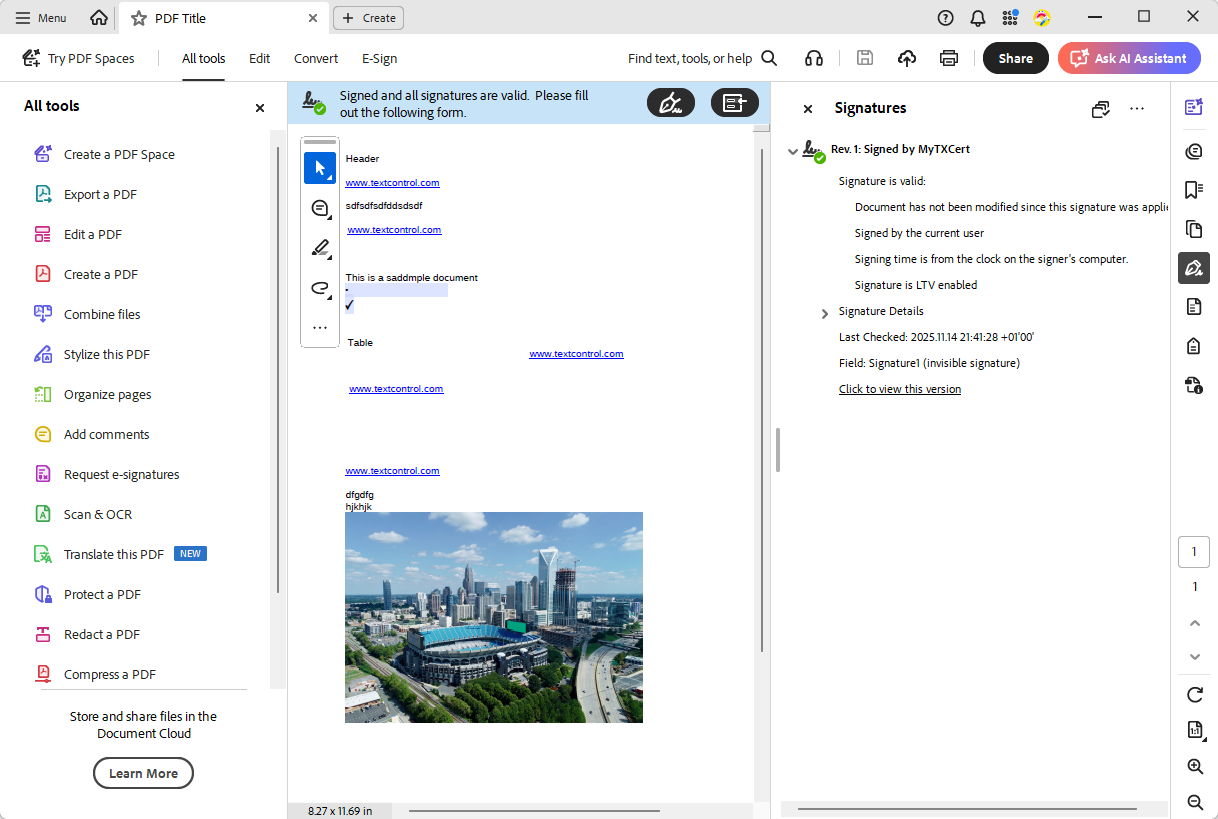
Open signed.pdf in Adobe Acrobat Reader. The signature and the certificate details are listed in the signature panel. A document signed with DigitalSignature contains an invisible signature field, which the panel names Signature1 (invisible signature):
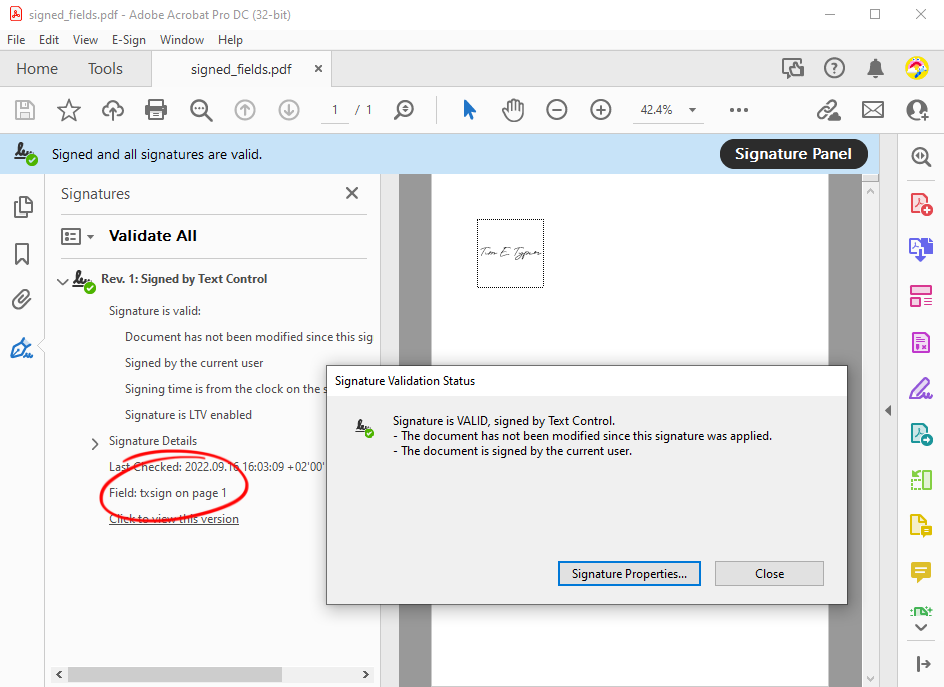
In signed-field.pdf, the signature field shows the image, and clicking it displays the validation status:
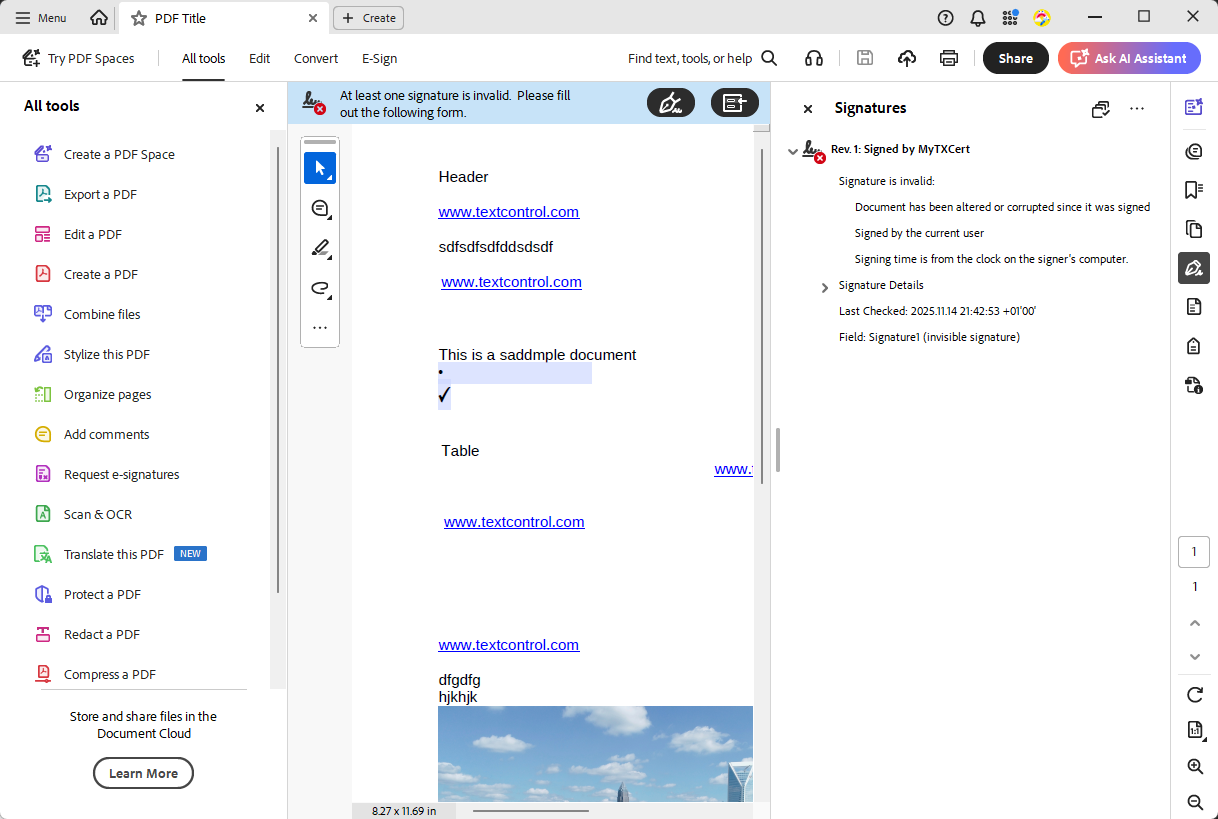
To see the protection at work, open a copy of the signed file in a text editor, change a value in the PDF metadata, such as the text of the /Producer entry, save it and open it in the reader again. The reader now shows that the document has been modified and the signature is no longer valid:
In Code
To check signatures automatically, for example before documents enter an archive, use the TXTextControl.PDF.Validation package from nuget.org. Its main purpose is PDF/UA validation, and it also reports the integrity, the signer and the signing time of each signature; it targets .NET 10, and for encrypted PDFs the report status is Blocked. Check the Signatures of a PDF shows the code.
Next Steps
- Signing PDF Documents: all options for signing PDF documents.
- Signature Fields: design documents with signature fields and signer data.
- Signature Validation: validate signatures and document integrity.
- Document Viewer: let users sign documents in the browser.