
Conditional Content
Not every document needs every paragraph: a clause applies only to some contracts, a payment note only to unpaid invoices. With TX Text Control, these decisions live in the template, so the merge code stays the same: IF fields choose between two texts, merge blocks include or remove whole sections, and merging conditions leave out blocks for some records. Where a decision needs your own logic, events of MailMerge let your code decide.
Blocks bound to single objects are introduced in Merge Blocks in Getting Started, and filters that leave out single rows of a block in Sorting and Filtering. The sample data is the invoice in data.json from Simple Mail Merge.
Ways to Make Content Conditional
| To | Use | In the template or in code |
|---|---|---|
| Insert one of two texts depending on a value | An IF field | Template |
| Move to the next record only when a value matches | A NEXTIF field | Template |
| Include a section only when its data exists | A merge block bound to an object or an array | Template |
| Merge a nested block only when its parent record meets a condition | BlockMergingCondition of the block | Template |
| Leave out single rows of a block | Filter instructions of the block | Template |
| Include or leave out a sub-template | An INCLUDETEXT field and the IncludeTextMerging event | Template and code |
| Change the merged text with your own logic | The FieldMerged event | Code |
Rules stored in the template are evaluated by every merge, so they work the same whether the template is merged by a console application or a Web API.
Insert IF Fields
An IF field compares the value of a merge field with another value and inserts one of two texts. Its MS Word field code has the form IF Expression1 Operator Expression2 TrueText FalseText, where Expression1 is the name of a merge field. The comparison operators are equal to, not equal to, greater than, less than, greater than or equal to and less than or equal to.
The IfField class creates such a field in code. The following program inserts an IF field that shows whether the invoice is paid and merges it:
using TXTextControl;
using TXTextControl.DocumentServer;
using TXTextControl.DocumentServer.Fields;

string jsonData = File.ReadAllText("data.json");

using (ServerTextControl tx = new ServerTextControl())
{
    tx.Create();

    IfField ifField = new IfField()
    {
        Expression1 = "AmountDue", // the name of a merge field
        Operator = IfField.RelationalOperator.GreaterThan,
        Expression2 = "0",
        TrueText = "Payment is due.",
        FalseText = "Paid in full."
    };

    tx.ApplicationFields.Add(ifField.ApplicationField);

    using (MailMerge mailMerge = new MailMerge { TextComponent = tx })
    {
        mailMerge.MergeJsonData(jsonData);
    }

    tx.Save("payment-status.pdf", StreamType.AdobePDF);
}
The code works as follows:
- Expression1 is the name of the field whose value is compared, and Expression2 the value it's compared with.
- Operator is
Equals,NotEqual,LessThan,GreaterThan,GreaterThanOrEqualToorLessThanOrEqualTo. - TrueText is inserted when the comparison is true, FalseText when it's false.
- DataSourceCulture sets the culture used to compare numbers.
With the sample data, AmountDue is 299.97, and the document shows "Payment is due." The inserted text takes the formatting of the field in the template. An IF field in a merge block is evaluated for each record: in an inventory table, a cell can show "LOW STOCK" only for products with a low count.
In MS Word, IF fields are inserted as fields; load such templates with LoadSettings.ApplicationFieldFormat set to MSWord. In the Document Editor, your JavaScript code inserts an IF field with TXTextControl.addMergeField and a TXTextControl.IfField object:
var ifField = new TXTextControl.IfField();
ifField.expression1 = "AmountDue";
ifField.operator = TXTextControl.RelationalOperator.GreaterThan;
ifField.expression2 = "0";
ifField.trueText = "Payment is due.";
ifField.falseText = "Paid in full.";

TXTextControl.addMergeField(ifField);
Users insert the field without code of yours: the Merge Fields group of the Reporting tab has an Insert Special Field drop-down next to Insert Merge Field, and IF in it opens a dialog box for the field name, the comparison and the true and false texts. The same drop-down holds IncludeText for INCLUDETEXT fields and Date for DATE fields. To open these dialog boxes from your own buttons, call TXTextControl.showMergeFieldDialog with a value of the FieldType enumeration: IfField, IncludeTextField, DateField, NextField or NextIfField, besides MergeField:
// Opens the dialog box that creates an IF field at the input position
TXTextControl.showMergeFieldDialog(TXTextControl.FieldType.IfField);
Without a parameter, showMergeFieldDialog opens the dialog box of the field at the input position, so users can change an existing IF field.
The online demo Conditional fields merges a template with IF fields.
Move to the Next Record Conditionally
A NEXT field moves on to the next record within the same copy of the template, as Put Several Records on One Page describes. A NEXTIF field does this only when a comparison of the current record is true. It compares like an IF field, but it inserts no text: the fields after it show the next record when the comparison is true and the current record again when it's false.
The NextIfField class creates the field in code. The following program puts two badges into each copy of the template, but moves on to the second record only for members of the sales team:
using TXTextControl;
using TXTextControl.DocumentServer;
using TXTextControl.DocumentServer.Fields;

string jsonData = "[" +
    "{ \"Name\": \"Anna Meyer\", \"Team\": \"Sales\" }," +
    "{ \"Name\": \"Ben Carter\", \"Team\": \"Sales\" }," +
    "{ \"Name\": \"Carla Diaz\", \"Team\": \"Support\" }]";

using (ServerTextControl tx = new ServerTextControl())
{
    tx.Create();

    tx.Selection.Text = "Badge 1: ";
    tx.ApplicationFields.Add(new MergeField { Name = "Name", Text = "«Name»" }.ApplicationField);

    // Moves on to the next record when Team is "Sales"
    NextIfField nextIfField = new NextIfField()
    {
        Expression1 = "Team", // the name of a merge field
        Operator = IfField.RelationalOperator.Equals,
        Expression2 = "Sales"
    };

    tx.ApplicationFields.Add(nextIfField.ApplicationField);

    tx.Selection.Text = "\r\nBadge 2: ";
    tx.ApplicationFields.Add(new MergeField { Name = "Name", Text = "«Name»" }.ApplicationField);

    using (MailMerge mailMerge = new MailMerge { TextComponent = tx })
    {
        mailMerge.MergeJsonData(jsonData);
    }

    Console.WriteLine(tx.Text);
}
The code works as follows:
- Expression1 is the name of the merge field whose value is compared, Expression2 the value it's compared with, and Operator takes the same comparison operators as an
IFfield. - The first copy shows Anna Meyer and Ben Carter: Anna Meyer is in the sales team, so the second badge takes the next record.
- The second copy starts with the third record. Carla Diaz is in the support team, so both badges show her name.
The three records create two copies instead of three, because the first copy used two records. In the Document Editor, a TXTextControl.NextIfField object is passed to TXTextControl.addMergeField, like an IfField, and showMergeFieldDialog(TXTextControl.FieldType.NextIfField) opens its dialog box.
Include Optional Sections
A merge block doesn't have to repeat. A block that is bound to a nested object is merged once when the object exists and removed with its content when the data doesn't contain it, because RemoveEmptyBlocks is true by default. The same applies to a block bound to an array that is empty or missing. A block can contain complete clauses, tables, images or footnotes.
A contract template, for example, has one block for each optional clause, named like the objects of the data:
[
  {
    "company": "Acme Corporation",
    "section_term": { "months": 24 },
    "section_compete": { "months": 12 }
  }
]
When section_compete is missing from the data of a contract, its clause isn't in the document, and the text that follows moves up. To keep a numbered list of clauses intact whether a clause stays or is removed, the blog article Generating Dynamic NDAs Using TX Text Control MailMerge in C# .NET includes the paragraph end of each clause in its block, followed by an additional empty paragraph:
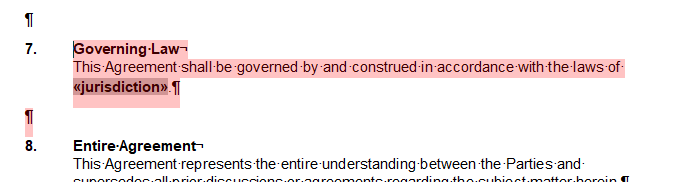
The online demo Conditional sections removes sections whose arrays are empty.
A table header row outside a block stays when the block is removed; put the header row into the block so that the whole table disappears.
Merge a Block Only for Matching Parent Records
In master-detail data, a nested block can depend on its parent record. MergeBlockInfo.BlockMergingCondition is a condition that the parent record must meet for the block to be merged at all, such as "the order has the ID 123" or "the product isn't available". The condition is stored with the block in the template, so the merge code needs nothing special. Sorting and Filtering shows how to set it.
Include Sub-Templates Depending on Your Code
An INCLUDETEXT field includes another document, a sub-template, when the template is merged; Template Design describes sub-templates. In the Document Editor, users insert the field with IncludeText in the Insert Special Field drop-down of the Reporting tab and type the name of the sub-template. The IncludeTextMerging event occurs for each such field, and your code can replace the document it includes. Assigning an empty document leaves the sub-template out.
The following program merges contract.docx, which includes the sub-template terms.docx with an INCLUDETEXT field, and leaves out the terms when your application decides so:
using TXTextControl;
using TXTextControl.DocumentServer;

string jsonData = File.ReadAllText("data.json");
bool includeTerms = false; // decided by your application

using (ServerTextControl tx = new ServerTextControl())
{
    tx.Create();

    LoadSettings loadSettings = new LoadSettings()
    {
        ApplicationFieldFormat = ApplicationFieldFormat.MSWord,
        LoadSubTextParts = true
    };

    tx.Load("contract.docx", StreamType.WordprocessingML, loadSettings);

    using (MailMerge mailMerge = new MailMerge
    {
        TextComponent = tx,
        // The folder that contains terms.docx
        SearchPath = Path.Combine(AppContext.BaseDirectory, "Templates")
    })
    {
        mailMerge.IncludeTextMerging += (sender, e) =>
        {
            if (e.Filename.EndsWith("terms.docx") && !includeTerms)
            {
                // An empty document leaves the sub-template out
                using (ServerTextControl empty = new ServerTextControl())
                {
                    empty.Create();

                    byte[] data;
                    empty.Save(out data, BinaryStreamType.InternalUnicodeFormat);
                    e.IncludeTextDocument = data;
                }
            }
        };

        mailMerge.MergeJsonData(jsonData);
    }

    tx.Save("contract.pdf", StreamType.AdobePDF);
}
The event arguments contain the Filename of the sub-template, and IncludeTextDocument takes the document to include, in the TX Text Control format. Instead of an empty document, your code can supply other content, such as text formatted in a second ServerTextControl.
Change the Merged Text in Code
For decisions that templates can't express, handle the FieldMerged event. Its DataRow contains the whole data record, so the text of one field can depend on another value. The following handler shows "Paid" instead of the due date when nothing is due:
mailMerge.FieldMerged += (sender, e) =>
{
    if (e.MailMergeFieldAdapter is MergeField mergeField &&
        mergeField.Name == "DueDate" &&
        e.DataRow != null &&
        Convert.ToDouble(e.DataRow["AmountDue"], System.Globalization.CultureInfo.InvariantCulture) == 0)
    {
        mergeField.ApplicationField.Text = "Paid";
    }
};
The handler needs using TXTextControl.DocumentServer.Fields; for MergeField. Merge Fields describes the other properties of the event arguments.
Remove What Stays Empty
Optional content often leaves something behind: an empty line where an address line had no data, or a placeholder image without an image. RemoveEmptyFields and RemoveEmptyBlocks are true by default; set RemoveEmptyLines and RemoveEmptyImages to true as well to remove lines that are empty after merging and images without data. A line is removed only when nothing else is on it. Control the Merge Result in Getting Started lists these properties with the other settings of a merge.
Next Steps
- Sorting and Filtering: filter the rows of a block and set merging conditions.
- Template Design: build sub-templates and templates with optional sections.
- Merge Fields: change merged fields in code.