
Data Sources
JSON from a Web API, business objects from your domain model, a DataSet filled from a database: MailMerge merges data in each of these shapes, and all of them follow the same rules for merge fields and merge blocks. You prepare each kind of data for a merge, handle invalid JSON, parse numbers and dates with the right culture and load the same data into the Document Editor, where templates are designed.
How field names find their values, including dot notation and the attributes DisplayName and Description, is explained in Merge Fields in Getting Started. The idea of pre-shaped data is described in Overview. template.docx and the invoice data of Simple Mail Merge serve as sample template and data.
JSON Data
MergeJsonData merges a JSON string. The rules:
- One object or an array. The JSON contains a single object or an array of objects with the same structure. The template is merged once for each object of an array.
- The first object defines the structure. The tables, columns and relations are deduced from the property names and nested objects of the object, or of the first object of an array.
- Nesting. A nested object provides values that merge fields address with dot notation, such as
Customer.CustomerName. An array provides the records of a merge block with its name. - Values. Values can be strings, numbers and images encoded as Base64 strings, which Images describes.
MergeJsonData analyzes the JSON in the same way as MergeObjects analyzes objects, so the rules for business objects below apply to JSON too.
When the JSON can't be parsed, MergeJsonData throws an exception derived from ParserException in the TXTextControl.DocumentServer.Json namespace:
| Exception | Cause |
|---|---|
UnexpectedEndOfInputException | The JSON string is incomplete |
UnexpectedTokenException | The JSON contains an unexpected character |
InvalidNumberFormatException | A number has an invalid format |
InvalidCodePointException | A Unicode code point in hexadecimal notation is invalid |
UnknownLiteralNameTokenException | An unknown sequence stands where true, false or null is expected |
UnknownParseErrorException | Another parse error |
Catch the base class to handle all of them:
using TXTextControl;
using TXTextControl.DocumentServer;
using TXTextControl.DocumentServer.Json;

string jsonData = File.ReadAllText("data.json");

using (ServerTextControl tx = new ServerTextControl())
{
    tx.Create();

    LoadSettings loadSettings = new LoadSettings()
    {
        ApplicationFieldFormat = ApplicationFieldFormat.MSWord,
        LoadSubTextParts = true
    };

    tx.Load("template.docx", StreamType.WordprocessingML, loadSettings);

    using (MailMerge mailMerge = new MailMerge { TextComponent = tx })
    {
        try
        {
            mailMerge.MergeJsonData(jsonData);
        }
        catch (ParserException exception)
        {
            Console.WriteLine($"Invalid JSON ({exception.GetType().Name}): {exception.Message}");
            return;
        }
    }

    tx.Save("output.pdf", StreamType.AdobePDF);
}
Business Objects
MergeObject merges a single object, and MergeObjects a collection of objects. MailMerge reads the objects with .NET reflection:
| Property | Becomes |
|---|---|
A property of a simple type, such as string, int or an enumeration | A column, merged as text from its ToString method |
A property whose type has public properties, such as Customer | A column merged with ToString, or a related table with one row, whose properties are addressed with dot notation |
A property of type IEnumerable, such as List<LineItem> | A related table, used by the merge block of the same name |
A read-only calculated property, such as Total => Quantity * Price | A column like any other property |
For a collection, the type of the first object defines the structure. When a collection contains objects of different types, the merge still succeeds, but some fields stay empty. The following classes extend the invoice of Simple Mail Merge with line items, a calculated total per item and a status:
using System.ComponentModel;
public class Invoice
{
public string InvoiceNumber { get; set; } = "";
public DateTime InvoiceDate { get; set; }
public DateTime DueDate { get; set; }
public decimal AmountDue { get; set; }
public InvoiceStatus Status { get; set; }
public Customer Customer { get; set; } = new Customer();
public List<LineItem> LineItems { get; set; } = new List<LineItem>();
}
public class Customer
{
public string CustomerName { get; set; } = "";
public string CustomerAddress { get; set; } = "";
}
public class LineItem
{
public string Description { get; set; } = "";
public int Quantity { get; set; }
public decimal Price { get; set; }
// Calculated in the object, merged like any other property
public decimal Total => Quantity * Price;
}
public enum InvoiceStatus
{
[]
Open,
Paid
}
Merge a list of invoices into the template, which has a merge field named Status and a merge block named LineItems with a field named Total:
using TXTextControl;
using TXTextControl.DocumentServer;

List<Invoice> invoices = new List<Invoice>
{
    new Invoice
    {
        InvoiceNumber = "INV-2025-001",
        InvoiceDate = new DateTime(2025, 5, 27),
        DueDate = new DateTime(2025, 6, 10),
        AmountDue = 299.97m,
        Status = InvoiceStatus.Open,
        Customer = new Customer
        {
            CustomerName = "Acme Corporation",
            CustomerAddress = "123 Business Lane, Suite 456, Metropolis, USA"
        },
        LineItems = new List<LineItem>
        {
            new LineItem { Description = "TX Text Control .NET Server License", Quantity = 1, Price = 199.99m },
            new LineItem { Description = "Priority Support - 12 Months", Quantity = 1, Price = 99.98m }
        }
    }
};

using (ServerTextControl tx = new ServerTextControl())
{
    tx.Create();

    LoadSettings loadSettings = new LoadSettings()
    {
        ApplicationFieldFormat = ApplicationFieldFormat.MSWord,
        LoadSubTextParts = true
    };

    tx.Load("template.docx", StreamType.WordprocessingML, loadSettings);

    using (MailMerge mailMerge = new MailMerge { TextComponent = tx })
    {
        mailMerge.MergeObjects(invoices);
    }

    tx.Save("output.pdf", StreamType.AdobePDF);
}
The field Status shows "Awaiting payment", the text of the Description attribute. The blog article Merging Self-Calculating Business Objects with TX Text Control MailMerge in C# builds a complete invoice with calculated properties.
Format a Value With ToString
Because a property is merged as the text that its ToString method returns, a class can decide how it appears in a document. A merge field named Customer, without dot notation, receives the text of Customer.ToString(). Override the method to return an address block, and the line breaks of the returned string are kept in the merged document:
public class Customer
{
    public string CustomerName { get; set; } = "";
    public string CustomerAddress { get; set; } = "";

    // Merged into a field named Customer, one value per line
    public override string ToString()
    {
        return $"{CustomerName}\n{CustomerAddress}";
    }
}
With the invoice above, the field Customer shows "Acme Corporation" on one line and the address on the next. The fields Customer.CustomerName and Customer.CustomerAddress still address the single values.
Business objects are also a way to merge data from a database: query the data, for example with Entity Framework, into objects with the structure of the document and merge them.
Dictionaries and Anonymous Objects
When the structure of the data is only known at run time, merge instances of Dictionary with string keys: MergeObjects takes a collection of them, and the keys are the field names. MergeObject takes a single object of any type, such as an anonymous object:
Dictionary<string, object> invoice = new Dictionary<string, object>
{
[] = "INV-2025-001",
[] = new DateTime(2025, 5, 27),
[] = 299.97m
};
mailMerge.MergeObjects(new List<Dictionary<string, object>> { invoice });
// or, with an anonymous object
mailMerge.MergeObject(new { InvoiceNumber = "INV-2025-001", AmountDue = 299.97m });
DataTable and DataSet
Merge merges a DataTable: its column names are the field names, and the template is merged once for each row. To merge related data, such as the customer and the line items of an invoice, put the tables in a DataSet, add DataRelation objects and pass the master table. Merge follows the relations: a merge block uses the related table of the same name, and fields address a related table with its name as prefix, such as Customer.CustomerName:
using System.Data;
using TXTextControl;
using TXTextControl.DocumentServer;

DataSet dataSet = new DataSet();

DataTable invoice = dataSet.Tables.Add("Invoice");
invoice.Columns.Add("InvoiceId", typeof(int));
invoice.Columns.Add("InvoiceNumber");
invoice.Columns.Add("AmountDue", typeof(decimal));
invoice.Rows.Add(1, "INV-2025-001", 299.97m);

DataTable customer = dataSet.Tables.Add("Customer");
customer.Columns.Add("InvoiceId", typeof(int));
customer.Columns.Add("CustomerName");
customer.Columns.Add("CustomerAddress");
customer.Rows.Add(1, "Acme Corporation", "123 Business Lane, Suite 456, Metropolis, USA");

DataTable lineItems = dataSet.Tables.Add("LineItems");
lineItems.Columns.Add("InvoiceId", typeof(int));
lineItems.Columns.Add("Description");
lineItems.Columns.Add("Quantity", typeof(int));
lineItems.Columns.Add("Price", typeof(decimal));
lineItems.Rows.Add(1, "TX Text Control .NET Server License", 1, 199.99m);
lineItems.Rows.Add(1, "Priority Support - 12 Months", 1, 99.98m);

// The relations connect the master table with the related tables
dataSet.Relations.Add("InvoiceCustomer", invoice.Columns["InvoiceId"]!, customer.Columns["InvoiceId"]!);
dataSet.Relations.Add("InvoiceLineItems", invoice.Columns["InvoiceId"]!, lineItems.Columns["InvoiceId"]!);

using (ServerTextControl tx = new ServerTextControl())
{
    tx.Create();

    LoadSettings loadSettings = new LoadSettings()
    {
        ApplicationFieldFormat = ApplicationFieldFormat.MSWord,
        LoadSubTextParts = true
    };

    tx.Load("template.docx", StreamType.WordprocessingML, loadSettings);

    using (MailMerge mailMerge = new MailMerge { TextComponent = tx })
    {
        // Pass the master table; the related tables fill the blocks and prefixed fields
        mailMerge.Merge(invoice);
    }

    tx.Save("output.pdf", StreamType.AdobePDF);
}
Older code may call MergeBlocks, which merges only the blocks of a template with the tables of a DataSet whose names match the block names. The What's New documentation of version 20.0 calls it obsolete: since that version, Merge processes data relations, as shown above. Deprecated APIs lists it with its replacement.
XML data is merged the same way: DataSet.ReadXml reads an XML file into a DataSet, and you pass its master table to Merge. The tables of the DataSet need relations for the merge blocks, as above.
Data Source Configuration Files
A Report Data Source Configuration file is an XML file with the extension .rdsc that holds the data provider, the connection string, the selected master table and the data relations of a database. With such a file, MailMerge connects to the database and reads the data itself, which is the one exception to the pre-shaped data described in Overview. The feature was introduced in version 20.0 and belongs to Windows Forms.
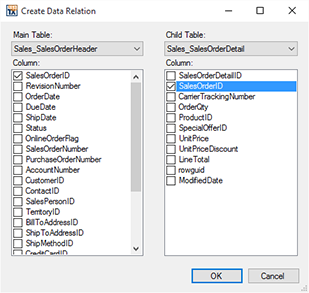
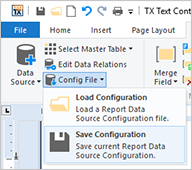
The files are created in a template designer on the desktop: in TX Text Control Words or in the Reporting tab of a Windows Forms application, a user connects a database, defines the relations between its tables in the Create Data Relation dialog box, selects the master table and saves the configuration next to the template. One file serves any number of templates, so when the database moves to another server, only the file changes. Because the connection string is stored in the file, protect it like any other file with database credentials.
MailMerge reads such a configuration with these members:
| Member | Purpose |
|---|---|
| ReportDataSourceConfigFile | The path of an .rdsc file created with TX Text Control Words |
| ReportDataSourceConfig | The same configuration as an XML string, in the form of the file content |
Merge() and Merge(bool append) of Merge | Connect to the database of the configuration and merge the template with its master table and all relations |
LoadDataSourceConfig and SaveDataSourceConfig of DataSourceManager | Load and save a configuration in a template designer |
These members are part of the MailMerge and DataSourceManager classes that all TX Text Control .NET products share, which is why the .NET Server reference lists them. The reference also states that data source configuration files can only be used in Windows Forms applications, and SaveDataSourceConfig works only for a database connected through a Windows Forms dialog box that TX Text Control .NET Server doesn't include. The Document Editor has no command to connect a database either. In a .NET Server application, query the database in your code and merge a DataSet with relations, as shown above, or business objects. Data Source Configuration Files in the Windows Forms documentation describes the feature where it applies.
Database Connections in the Template Designer (Legacy)
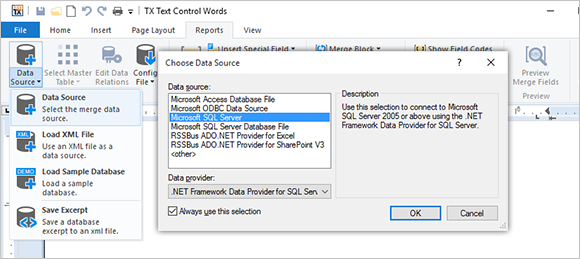
Older descriptions of TX Text Control Reporting mention a data connection wizard in the template designer that connects to MS SQL Server, Access, ADO.NET and ODBC databases, so that merge fields and blocks can be inserted from the tables of the database. This wizard is the Choose Data Source dialog box of the Windows Forms Reporting tab and of TX Text Control Words. In the Document Editor, the names of fields and blocks come from sample data that your code loads, as Use the Same Data in the Document Editor shows.
Parse Numbers and Dates With the Right Culture
Numbers and dates in the data are often text, such as "299,97" in German data. MailMerge.DataSourceCulture sets the culture used to parse them, and MergeCulture the culture used to format them in the merged document. Both default to the culture of the current thread, which on a server may not be the culture of your data:
using (MailMerge mailMerge = new MailMerge
{
    TextComponent = tx,
    // Numbers and dates in the data are written the German way
    DataSourceCulture = new System.Globalization.CultureInfo("de-DE"),
    // The document shows them the US English way
    MergeCulture = new System.Globalization.CultureInfo("en-US")
})
{
    mailMerge.MergeJsonData(jsonData);
}
Merge fields have the same two properties for a single field, as Merge Fields describes.
Read the Merged Records in Events
Whatever kind of data you merge, MailMerge hands the records to its events in one form: each record is an IDataRowAdapter, and its table an IDataTableAdapter. Both interfaces of the TXTextControl.DocumentServer.DataSources namespace were introduced in version 23.0. MailMerge implements them for the data it has read; they describe that data and are not a way to pass your own kind of data to a merge method.
The following handlers print the line items of each LineItems block and the table that supplies each merged field. Add the using directive at the top of the business objects program above, and the handlers inside its using block of MailMerge, before MergeObjects is called:
using TXTextControl.DocumentServer.DataSources;
mailMerge.BlockMerging += (sender, e) =>
{
    if (e.BlockData == null)
    {
        return;
    }

    // One IDataRowAdapter for each record of the block
    foreach (IDataRowAdapter row in e.BlockData)
    {
        Console.WriteLine($"{e.BlockName}: {row["Description"]}, quantity {row["Quantity"]}");
    }
};

mailMerge.FieldMerged += (sender, e) =>
{
    // The table of the record that supplied the value of the field
    IDataTableAdapter? table = e.DataRow?.Table;

    if (table != null)
    {
        Console.WriteLine($"Table {table.TableName}: {string.Join(", ", table.ColumnNames)}");
    }
};
The code works as follows:
- BlockData of the BlockMerging event contains the records of the block that is about to be merged.
- The indexer Item returns the value of the column with the given name, here the properties
DescriptionandQuantityof aLineItem. - DataRow of the FieldMerged event is the record that supplies the current field. The arguments of
DataRowMerged,ImageMergedandFormFieldMerged, and ofBarcodeMergedandChartMergedthrough their base class FrameMergedEventArgs, have aDataRowproperty of the same type. - Table returns the table of a record, with its TableName and its ColumnNames.
A table also has its records in Rows and the names of its related tables in ChildTableNames. GetChildRows returns the records of a related table for one record, such as the line items of an invoice, or null when no relation has the given name.
Analyze a Data Source
A template designer needs to know which fields and blocks a data source offers. The DataSourceManager class loads every kind of data that MailMerge accepts and describes its tables, columns and relations:
using TXTextControl;
using TXTextControl.DocumentServer.DataSources;

using (ServerTextControl tx = new ServerTextControl())
{
    tx.Create();

    DataSourceManager dataSourceManager = new DataSourceManager();
    dataSourceManager.LoadJson(File.ReadAllText("data.json"));

    foreach (DataTableInfo table in dataSourceManager.DataTables)
    {
        Console.WriteLine(table.TableName);

        foreach (DataColumnInfo column in table.Columns)
        {
            Console.WriteLine($"  {column.ColumnName} ({column.DataType})");
        }
    }

    foreach (DataTableInfo table in dataSourceManager.PossibleMergeBlockTables)
    {
        Console.WriteLine($"Merge block: {table.TableName}");
    }
}
The code works as follows:
- LoadJson loads the data.
LoadObjects,LoadSingleObject,LoadDataSet,LoadDataTable,LoadXmlFileandLoadXmlStringload the other kinds of data. - DataTables contains a DataTableInfo for each table, with its Columns.
- PossibleMergeBlockTables contains the tables that can be merge blocks at the level of the current master table, which MasterDataTableInfo sets.
With the same class, your code inserts merge blocks into a template, as Merge Blocks in Getting Started shows.
Use the Same Data in the Document Editor
Users design templates in the Document Editor with sample data that has the structure of the real data. Loaded into the editor, the data fills the drop-down lists of the Reporting ribbon tab with the names of fields and blocks:
- JavaScript: TXTextControl.loadJsonData loads JSON data, and loadXMLDatabase XML data.
- ASP.NET Core view: LoadDataFromJson loads JSON data, which must be an array of objects with the same structure. LoadDataFromModel takes a collection of business objects, and LoadDataSet a
DataSetwith its relations.
In the view of the ASP.NET Core tutorial, sample data saved as App_Data/data.json in the project is loaded like this:
@using TXTextControl.Web.MVC

@Html.TXTextControl().TextControl().LoadDataFromJson(
    System.IO.File.ReadAllText("App_Data/data.json")).Render()
A template designed with this data merges with any data of the same structure, whether it comes as JSON, business objects or a DataSet.
Next Steps
- Merge Fields: format the values that fields receive.
- Merge Blocks: repeat parts of a template for arrays and related tables.
- Nested Blocks: merge data with several levels.
- Template Design: design templates with sample data.