
AcroForms
When a customer fills in a PDF form in Adobe Acrobat Reader or a browser, they type into AcroForm fields, the interactive form fields of the PDF format. TX Text Control writes these fields when a document with form fields is saved as PDF, and it reads them from the PDF documents that come back. Knowing what ends up in the PDF, and how the fields look to your code when you read them, helps you design forms whose data you can process reliably.
The form field types of TX Text Control and the code that inserts them are described in Form Fields in Document Processing. Processing the values of returned forms is the subject of Import Form Data.
What AcroForms Are
Interactive forms in the PDF format, also known as AcroForms, are the common standard for PDF forms. An AcroForm field is a text field, a check box, a radio button, a push button or a choice field such as a drop-down list. Each field has a name that identifies its value, a position in the document and, optionally, a tooltip.
TX Text Control works with AcroForms in both directions:
- Creating. Since version 28.0, form fields are converted into PDF form fields when a document is saved as PDF.
- Reading. Since version 29.0, Forms.GetAcroFormFields returns the fields of a PDF document with their values. You call it with a file name or a byte array and don't create a
ServerTextControlfor it.
The TX Text Control form field types are text form fields, check boxes, drop-down lists, combo boxes and date form fields. There are no radio buttons or push buttons among them, so TX Text Control doesn't create these fields, but it reads them from PDF documents created with other tools.
Create a Fillable PDF Form
All form field types are exported as the corresponding AcroForm fields, with their names and values. A PDF reader recognizes the saved document as a form, and values that your code set before saving are already filled in and can be changed. The following program loads the order form that Create a Fillable Form creates, saved as Documents/order-form.tx, gives each field a description, saves it as PDF and lists the AcroForm fields of the result:
using TXTextControl;
using TXTextControl.DocumentServer.PDF;
using TXTextControl.DocumentServer.PDF.AcroForms;

using (ServerTextControl tx = new ServerTextControl())
{
    tx.Create();
    tx.Load("Documents/order-form.tx", StreamType.InternalUnicodeFormat);

    // Written in full, because the AcroForms namespace has a FormField class, too
    foreach (TXTextControl.FormField field in tx.FormFields)
    {
        field.DescriptiveText = field.Name switch
        {
            "Customer" => "Name of the customer",
            "Product" => "Product to order",
            "InvoiceDate" => "Date of the invoice",
            "TermsAccepted" => "Customer accepts the terms and conditions",
            _ => field.DescriptiveText
        };
    }

    tx.Save("Documents/order-form.pdf", StreamType.AdobePDF);
}

foreach (var field in Forms.GetAcroFormFields("Documents/order-form.pdf"))
{
    // Derived classes first: a radio button is a check box, a list box is a combo box
    string details = field switch
    {
        FormTextField textField => $"text \"{textField.Value}\"",
        FormRadioButton radioButton => $"radio button, checked: {radioButton.IsChecked}",
        FormCheckBox checkBox => $"check box, checked: {checkBox.IsChecked}",
        FormListBox listBox => $"list box, value \"{listBox.Value}\"",
        FormComboBox comboBox => $"combo box, value \"{comboBox.Value}\"",
        FormButton => "push button",
        _ => ""
    };

    Console.WriteLine($"{field.FieldName}: {details}, tooltip \"{field.AlternateFieldName}\"");
}
The code works as follows:
- DescriptiveText describes a form field for screen readers. In the blog article Designing the Perfect PDF Form with TX Text Control in .NET C#, these descriptions appear as tooltips in Acrobat Reader and come back as
AlternateFieldName. StreamType.AdobePDFturns the form fields into AcroForm fields. The Name of a form field becomes the name of the AcroForm field.GetAcroFormFieldsreturns an array of field objects. Theswitchexpression tests the derived classes first, because FormRadioButton derives from FormCheckBox and FormListBox from FormComboBox.
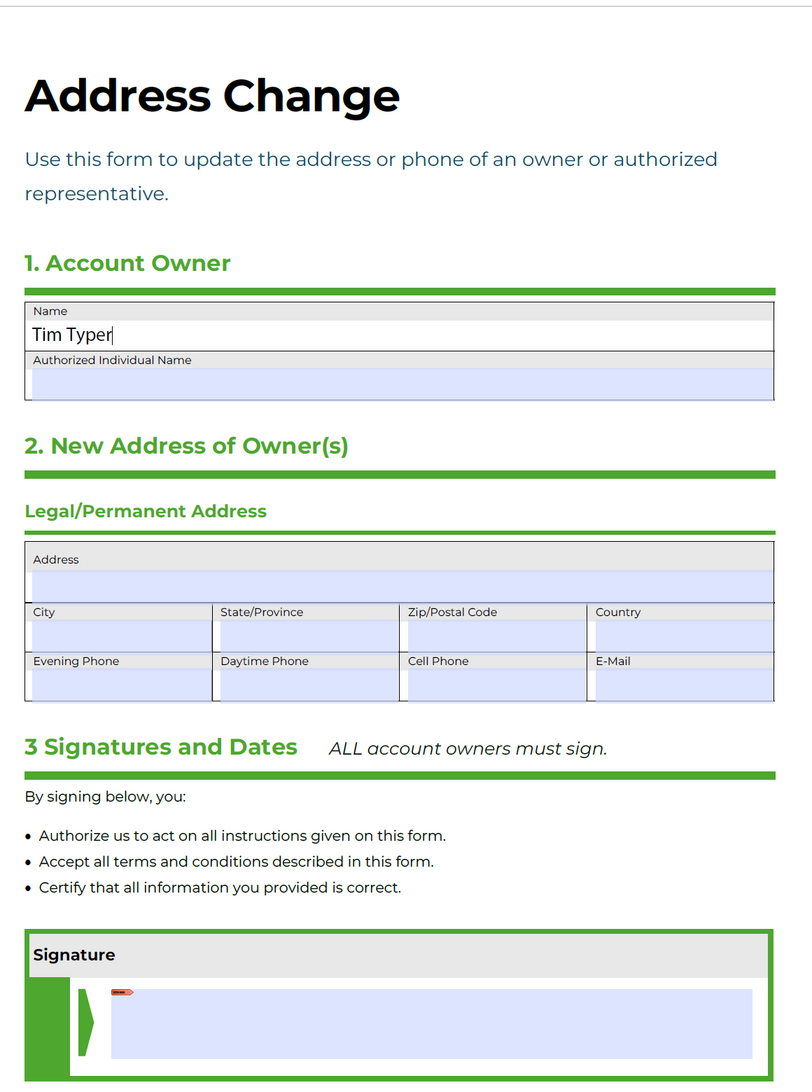
Two practices from the blog article make a form reliable: form fields placed in table cells keep their size and position in Acrobat Reader, and names that describe the content, such as Customer instead of a generated name, let your code map the values to its data model.
The form of that article, opened in Adobe Acrobat Reader, keeps the layout it has in TX Text Control. Its fields sit in table cells, and the reader highlights them as fillable:
Turn a DOCX Form Into a Fillable PDF
Forms designed in MS Word contain content controls or legacy form fields. Loaded into TX Text Control, they become form fields, and saved as PDF, they become AcroForm fields. The following program converts Documents/form.docx into a PDF that readers can fill in and print, but not change otherwise:
using TXTextControl;

LoadSettings loadSettings = new LoadSettings()
{
    // Content controls and legacy form fields become form fields
    ApplicationFieldFormat = ApplicationFieldFormat.MSWordTXFormFields
};

using (ServerTextControl tx = new ServerTextControl())
{
    tx.Create();
    tx.Load("Documents/form.docx", StreamType.WordprocessingML, loadSettings);

    SaveSettings saveSettings = new SaveSettings()
    {
        MasterPassword = "owner1234",
        DocumentAccessPermissions = DocumentAccessPermissions.AllowAuthoringFields |
                                    DocumentAccessPermissions.AllowHighLevelPrinting
    };

    tx.Save("Documents/form.pdf", StreamType.AdobePDF, saveSettings);
}
The code works as follows:
- ApplicationFieldFormat
MSWordTXFormFieldsimports the form fields of the DOCX file as form fields and all other MS Word fields, such as merge fields, as application fields. With the default valueNone, form fields are imported as form fields as well. - DocumentAccessPermissions
AllowAuthoringFieldsallows filling in existing form fields, andAllowHighLevelPrintingallows printing. The permissions only take effect together with a MasterPassword. Without a user password, everyone can open the form.
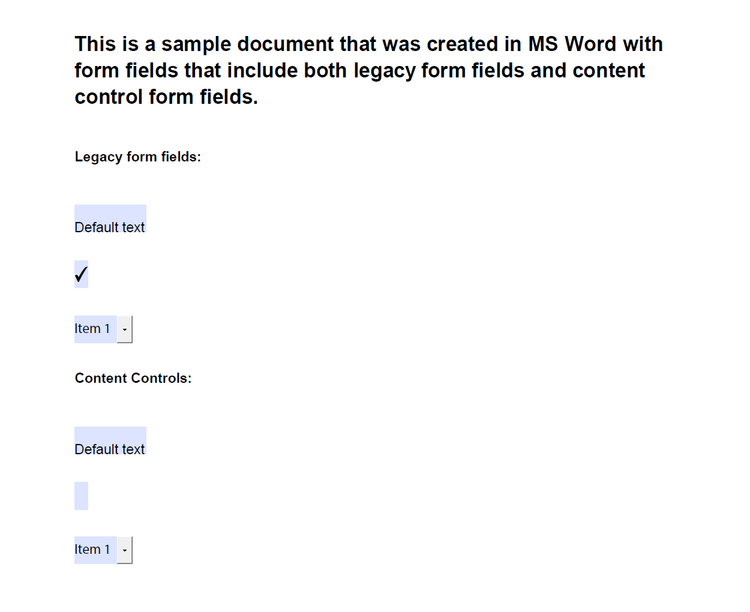
Protect a PDF With Passwords and Permissions lists all permissions. The blog article Convert MS Word DOCX to PDF with Form Fields in C# .NET converts a DOCX form with all form field types.
In the PDF of that article, the legacy form fields and the content controls of the Word document are fillable text fields, check boxes and drop-down lists:
Other Ways to Create PDF Forms
- In the Document Editor, users insert form fields in the browser, and
saveDocumentwithAdobePDFsaves the form as PDF, as Form Fields in Document Editor describes. - With a mail merge,
MailMerge.FormFieldMergeTypePreselectfills the form fields of a template with data and keeps them fillable, whileReplacereplaces them with the values, as Merge Form Fields shows. - From an HTML form, the blog article Create Fillable PDFs from HTML Forms in C# ASP.NET Core Using a WYSIWYG Template builds the HTML inputs from the form fields of a template and merges the posted values into a fillable PDF.
Where Users Fill In the Form
- Adobe Acrobat Reader and other PDF readers that support form fields.
- Google Chrome fills in AcroForm fields since version 85 and downloads the PDF with the entered values.
- The Document Viewer displays PDF forms with PDF.js, lets users fill them in and sign them and saves the values into the PDF, as Form Fields in Document Viewer describes.
The AcroForms Classes
GetAcroFormFields returns an array of FormField objects of the TXTextControl.DocumentServer.PDF.AcroForms namespace. Each object is of the class that fits its field:
| Class | Field in the PDF | Members |
|---|---|---|
FormField | The base class of all fields | FieldName, AlternateFieldName, FieldType, Bounds |
| FormTextField | Text field | Value |
FormCheckBox | Check box | IsChecked |
FormRadioButton | Radio button, derived from FormCheckBox | IsChecked |
| FormButton | Push button | None |
| FormChoiceField | The base class of choice fields | Value, Options, CanEdit, MultiSelect, Sort, DoNotSpellCheck, CommitOnSelChange |
FormComboBox | Combo box, derived from FormChoiceField | The members of FormChoiceField |
FormListBox | List box, derived from FormComboBox | The members of FormChoiceField |
What the members contain:
FieldNameis the name of the field, andAlternateFieldNameits alternate name, which Acrobat shows as the tooltip.FieldTypeis a value of the FieldType enumeration:Txfor a text field,Btnfor a button,Chfor a choice field orSigfor a signature field. Signature fields are processed with the classes described in Signature Fields.Boundsis the rectangle of the field in the document.Optionslists the items of a choice field andValueholds the selected value.CanEditandMultiSelecttell whether users can type their own value or select several items.
The TXTextControl namespace has a FormField class, too, for the form fields of a document. When a file uses both namespaces, write one of the class names in full, as the program above does.
Forms in PDF/A and PDF/UA Documents
- Accessibility. A form in an accessible PDF needs a
DescriptiveTextfor every form field, as PDF/UA describes. - Archiving. PDF/A doesn't allow encryption, so permissions can't protect a PDF/A form. Forms that users fill in are delivered as PDF, and the filled result can be flattened and archived, as Flatten Forms describes.
Next Steps
- Import Form Data: read the values of filled PDF forms into your application.
- Export XFDF: exchange form data as XFDF.
- Flatten Forms: replace form fields with their values before archiving.
- Form Fields: create form fields in code.