
Installation
When a TX Text Control package can't be found, won't install or installs without the parts it needs, the cause is usually the package source, the target framework or a missing companion package. Each problem below starts with what you see, explains the cause and ends with the steps that fix it. Problems with the credentials of the private feed are covered on NuGet Authentication, and trial and license messages on Licensing.
The TX Text Control Package Is Not Found
The restore or the NuGet Package Manager reports that TXTextControl.TextControl.Core.SDK or TXTextControl.TextControl.ASP.SDK doesn't exist in any of your package sources.
The engine packages are not on nuget.org, because they contain licensing information. Licensed developers install them from the Text Control Private NuGet Feed, and the setup of TX Text Control .NET Server installs them in the local source Text Control Offline Packages.
- Licensed: save the personal nuget.config that Text Control sent you in the folder of your solution. See nuget.config.
- Select the package source TextControl in the NuGet Package Manager, or restore with the .NET CLI, which reads nuget.config.
- If the package source answers but the package is missing, check that a serial number for TX Text Control .NET Server is assigned to your email address. See NuGet Authentication.
- Evaluating: install the trial setup and select Text Control Offline Packages as the package source. See Offline Packages.
A few packages, such as TXTextControl.Web.Blazor.DocumentEditor and TXTextControl.PDF.Validation, are published on nuget.org only. If your nuget.config starts with <clear />, it must list nuget.org as well. Package Overview lists the source of every package.
TextControl Is Missing From the Package Sources in Visual Studio
The Package source drop-down of the NuGet Package Manager doesn't offer TextControl, although nuget.config is in your project folder.
NuGet reads nuget.config from the folder of the solution and the folders above it, not from the project folder, so Visual Studio doesn't find a file next to a project whose solution file is elsewhere. Where to Put the File explains the rules.
- Move nuget.config to the folder of the solution file, or
- Add the feed to the configuration of Visual Studio as Visual Studio describes.
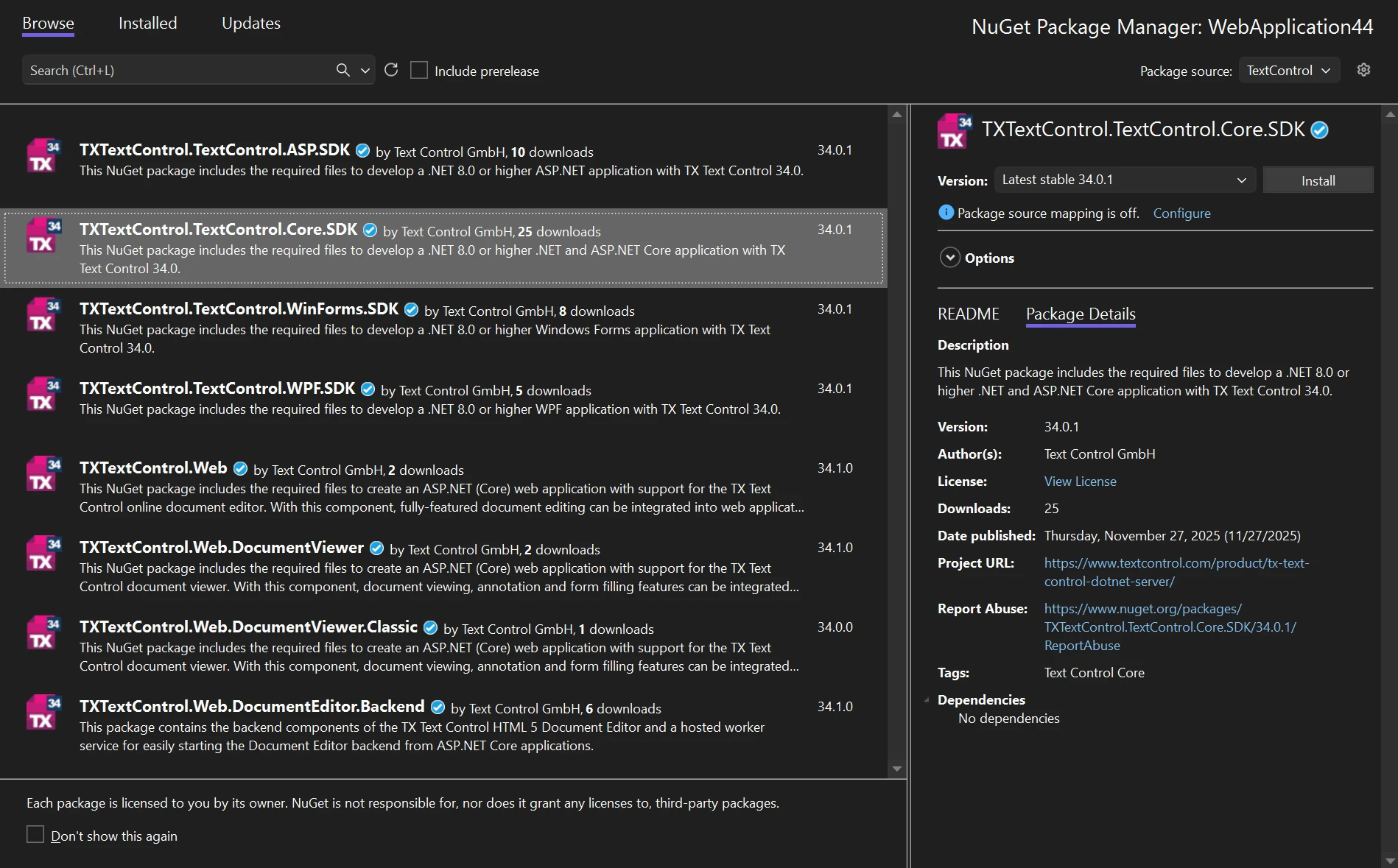
When NuGet finds the file, TextControl appears in the drop-down, and the packages of your license are listed:
Text Control Offline Packages Is Missing
The package source Text Control Offline Packages isn't available, for example in Visual Studio Code, on a build server or on Linux.
The setup of TX Text Control .NET Server registers this local source, and the setup runs on Windows only. On other machines, the source doesn't exist until you point to the folder of the packages.
- Install the setup on a Windows machine. The current setups are TX Text Control.NET Server 34.0 Trial.exe and TX Text Control.NET Server 34.0 with SP5.exe.
- On another machine, copy the packages from the setup's folder C:\Program Files (x86)\Text Control GmbH\NuGetPackages or host them in your own repository.
- Add the folder as a package source in nuget.config, as Offline Packages shows.
Licensed developers can use the private feed instead, which works on every operating system and on build servers.
The Package Doesn't Support the Target Framework
Installing an SDK package into an existing project fails because the package isn't compatible with the target framework of the project.
The SDK packages TXTextControl.TextControl.Core.SDK and TXTextControl.TextControl.ASP.SDK contain libraries for .NET 8 and require .NET 8 or higher since version 33.0. They have no build for the .NET Framework.
- Open the project file and set the target framework to
net8.0or higher, for examplenet10.0. - Install the package again.
- Applications that must stay on the .NET Framework use the Classic assemblies of the setup with licenses.licx instead of the NuGet packages. See .NET Versions.
The Viewer or the Backend Is Installed Without the Engine
A project has TXTextControl.Web.DocumentViewer or TXTextControl.Web.DocumentEditor.Backend, but no SDK package.
The web packages don't declare a dependency on an engine package. TXTextControl.Web.DocumentViewer needs the assemblies of the Core engine and TXTextControl.Web.DocumentViewer.Classic those of the Classic engine; the README of each package says that they are not included. The backend package TXTextControl.Web.DocumentEditor.Backend needs the Core assemblies and their native libraries as well.
- Install
TXTextControl.TextControl.Core.SDKin the project that usesTXTextControl.Web.DocumentViewerorTXTextControl.Web.DocumentEditor.Backend. - For
TXTextControl.Web.DocumentViewer.Classic, installTXTextControl.TextControl.ASP.SDK.
Package Overview shows which packages each scenario needs.
The Packages Have Different Versions
The TX Text Control packages of a project have different major versions, or only some of them were updated.
Text Control releases the SDK packages and the web packages as a set, and the major version of every package has to be the same. The web packages have minor versions of their own, so the version numbers within a set differ.
- List the packages of the project with
dotnet list packageand compare the Resolved column with Current Versions. - Update all TX Text Control packages together, as Updating NuGet Packages describes.
- To check which service pack an application runs with, read VersionInfo.ServicePack. Service Packs shows the code.
The Blazor Build Fails With NETSDK1082
Adding the Document Editor package to a Blazor Web App stops the build:
error NETSDK1082: There was no runtime pack for Microsoft.AspNetCore.App available for the specified RuntimeIdentifier 'browser-wasm'.
The package was added to the .Client project, which holds the components with interactive WebAssembly or Auto rendering. The Document Editor works with interactive server rendering only.
- Remove the package from the .Client project.
- Add it to the server project and give the page with the editor interactive server rendering.
Blazor in the Integration Guide describes the render modes of both components.
npm Can't Resolve the Angular Packages
Installing @txtextcontrol/tx-ng-document-editor or @txtextcontrol/tx-ng-document-viewer stops with this error:
npm ERR! code ERESOLVE
npm ERR! ERESOLVE unable to resolve dependency tree
The message names the range of Angular versions the package accepts, for example peer @angular/common@">=18.2.14 <=21.*.*" from @txtextcontrol/tx-ng-document-editor@34.0.0. Either your Angular version is outside this range, or @angular/cdk is missing from package.json, and npm picks a version of it that requires another Angular version.
- Install
@angular/cdkwith the major version of your Angular version before the TX Text Control package, for examplenpm i @angular/cdk@20. - Install the TX Text Control package again.
- If your Angular version is outside the range, see Peer Dependency Conflicts for the options.
npm Can't Resolve the React Packages
Installing the Document Viewer in a new React project stops with an error such as:
npm ERR! Could not resolve dependency:
npm ERR! peer react@"^18.2.0" from @txtextcontrol/tx-react-document-viewer@34.0.0
@txtextcontrol/tx-react-document-viewer 34.0.0 requires React 18, while @txtextcontrol/tx-react-document-editor 34.0.0 requires React 19.2 and a new project created with Vite uses React 19.
- For the Document Viewer, install React 18 before the package:
npm install react@18 react-dom@18. - To use both components, see Using Both Packages in One Project.