
WebSockets
The Document Editor works only while two connections are open: a WebSocket from the browser to your ASP.NET Core application at /api/TXWebSocket, and a TCP connection from the application to the backend TXTextControl.Web.Server.Core, which listens on port 4283 in version 34.x. When the editor stays empty or reports that it can't connect, one of the two is broken. WebSocket Architecture explains both connections; the problems are ordered the way a request meets them, from the browser to the backend.
Find Out Where the Connection Fails
When the WebSocket can't be opened, or closes before the editor has loaded, the editor shows this message:
Can't connect to the server.
Please refresh the website to re-connect.
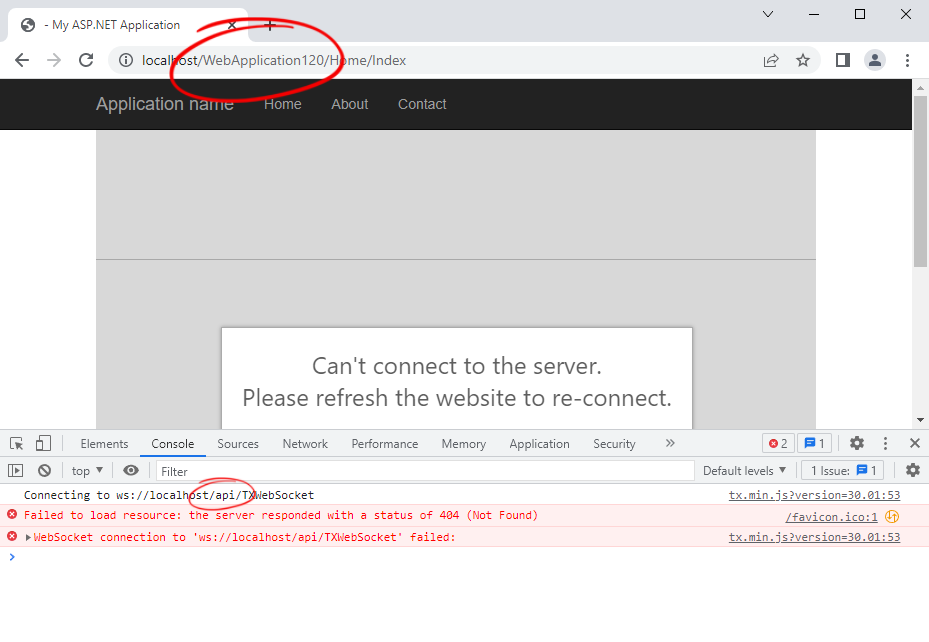
The message doesn't say which part failed. Collect the evidence first:
- Open the browser console with F12. The editor logs the address it connects to, for example
Connecting to wss://localhost:7118/api/TXWebSocket, and many connection errors appear there. - Read the log of the application. The output of the backend reaches the ASP.NET Core log with the prefix
[TXTextControl.Web.Server.Core]. A backend that has started logsStarting TCP listener on port 4283 for IPv4 and IPv6., and one line withStarting web editor worker process with connection IDfor each editor that connects. - Handle the events. The event
webSocketClosedpasses a WebSocketClosedEventArgs object with the close code and reason of the WebSocket. Event Reference lists them under "Connection and Errors".
Client and server packages of different versions can cause connection problems as well; use the same version everywhere, as The Packages Have Different Versions describes.
WebSockets Aren't Enabled in the Pipeline
The editor stays empty or shows the connection message.
ASP.NET Core accepts WebSocket requests only when app.UseWebSockets() is part of the request pipeline, and the TX Text Control middleware needs it to come first.
- Add
app.UseWebSockets();to Program.cs. - Put it before
app.UseTXWebSocketMiddleware();. - Put both after
app.UseRouting();and before the endpoint mappings, such asapp.MapControllerRoute.
A middleware that checks the handshake, for example for a token, goes between the two calls. Add the Middleware to the Pipeline shows the complete order.
The Middleware Is Missing or Gets the Wrong Parameters
The editor doesn't connect, although app.UseWebSockets() is in the pipeline.
app.UseTXWebSocketMiddleware() adds the TX Text Control middleware that answers the WebSocket requests of the editor and forwards them to the backend. Without it, nothing handles the requests. A call with one string, such as app.UseTXWebSocketMiddleware("127.0.0.1"), selects the overload that sets the path of the middleware instead of the backend's address.
- Call
app.UseTXWebSocketMiddleware()without parameters when the backend runs with its defaults in the same application. - To connect to another address or port, pass both together, for example
app.UseTXWebSocketMiddleware("127.0.0.1", 4283).
The Backend Isn't Running or Listens on Another Port
The editor doesn't load, and the browser console shows a message such as this one:
WebSocketHandler.DoTalkingAsync(): Could not connect to TextControl TCP server at 127.0.0.1:4283
The middleware can't reach the backend at the address and port it names. The causes are:
- The backend isn't started. In version 34.x, the hosted service
DocumentEditorWorkerManagerfrom the packageTXTextControl.Web.DocumentEditor.Backendstarts the backend. Withoutbuilder.Services.AddHostedService<DocumentEditorWorkerManager>();in Program.cs, no backend runs. - The backend failed to start. The log then contains a line that starts with
Error starting TXTextControl.Web.Server.Core:and the reason, or reports that TXTextControl.Web.Server.Core.dll was not found. Messages about a 64-bit environment or runtime are covered on Native Library / Runtime Errors. - The ports don't match. The port of the backend was changed in the
DocumentEditorWorkerOptionsor in TXTextControl.Web.Server.Core.config.json, but the middleware still connects to 4283. The options take precedence over the file. - The backend has ended.
DocumentEditorWorkerManagerstarts the backend when the application starts and stops it when the application shuts down, so a worker process that has ended comes back with the next start of the application. - Another backend uses the port. Several applications on one server all use port 4283 unless you configure other ports, and overlapping IIS worker processes start two backends on the same port.
- A firewall blocks the port. When the backend runs on another machine or in another container, TCP traffic to its port must be allowed.
To fix it:
- Check the log for the lines of a started backend, described in Find Out Where the Connection Fails.
- Register
DocumentEditorWorkerManageras a hosted service, and installTXTextControl.TextControl.Core.SDKas well, which the backend needs. - Give the middleware the address and port that the backend uses, for example
app.UseTXWebSocketMiddleware("127.0.0.1", 4567)for port 4567. - Give each application on a server its own port.
- Restart the application if its backend has ended.
Configure the Backend Process shows how to change address and port, and IIS covers overlapping worker processes.
The Handshake Is Rejected With 401 or 403
The browser console reports that the WebSocket handshake failed with the status code 401 or 403, and the editor doesn't connect.
The application refused the handshake before the TX Text Control middleware saw it:
- 401: a middleware that checks tokens found none, or an unknown or expired one. Signed-in users are required as well when a fallback authorization policy is active and
UseAuthenticationandUseAuthorizationcome before the TX Text Control middleware. - 403: the page comes from an origin that isn't in
WebSocketOptions.AllowedOrigins.
To fix it:
- Send the token with the editor. In JavaScript, pass it in the array
webSocketProtocolsof the editor settings; Angular and React components pass it as a parameter of the WebSocket URL. See Check the Handshake. - Add the origin of the page to the allowed origins. See Restrict the Origins.
- Put a checking middleware between
app.UseWebSockets()andapp.UseTXWebSocketMiddleware(), and never let it accept the WebSocket itself.
webSocketProtocols must be an array of strings. Any other value is ignored, and the console reports 'webSocketProtocols' must be an array of strings.
A Proxy or Web Server Doesn't Pass the WebSocket
The editor works on your machine but not behind the server, proxy or firewall it's deployed to.
Every component between the browser and the application has to pass WebSocket requests on:
- nginx needs the
UpgradeandConnectionheaders for the location of the application. Without them, the browser console reportsError during WebSocket handshake: Unexpected response code. Host the Connection shows the configuration. - IIS needs the Windows feature WebSocket Protocol. See IIS.
- Azure App Service on Windows has Web sockets set to Off by default. See Azure.
- The development servers of Angular and Vite need
ws: truefor/api/TXWebSocketin their proxy configuration. If the proxy reportsECONNREFUSEDfor a target onlocalhost, use127.0.0.1. - Firewalls that inspect traffic on port 80 can block WebSockets. HTTPS on port 443 avoids this. If a company policy blocks WebSockets, the editor can't be used.
Proxies can also close connections that are idle. WebSocketOptions.KeepAliveInterval sends pings to keep them open; its default is two minutes.
The WebSocket URL Is Wrong
The console shows the address the editor tries in its Connecting to line, and it isn't the address of your application. Or initialization stops with one of these errors:
Invalid WebSocket URL '<url>'.
Missing WebSocket URL.
The editor connects to the address in webSocketURL, which must start with ws:// or wss://. The Angular and React components also load the script of the editor from this address.
- Compare the address in the console with the address of your application followed by
/api/TXWebSocket. - Use
wss://for a page served over HTTPS andws://for HTTP. - For an application in a subfolder or an IIS sub-application, set TextControlSettings.APIRoute and StaticFilesPath of the HTML helper.
How the WebSocket URL Is Built explains the address for each kind of frontend.
The Connection Is Lost While Editing
The editor blocks input and shows:
Connection lost. Reconnecting…
The WebSocket closed while the user was working, for example because the network or the server was briefly unavailable. The editor tries to reconnect to its session until reconnectTimeout has passed; if it fails, the event reconnectionFailed occurs and unsaved changes are lost. "Losing and Restoring the Connection" in The Life of an Editing Session describes the process and shows how to set the timeout and handle the event; Angular and React components have an input or prop named reconnectTimeout as well. Save documents regularly, so that little is lost when the connection doesn't return. The blog article Document Editor: How to Customize the Reconnecting Alert Message replaces the message with your own.
Reconnecting Fails Behind a Load Balancer
After a lost connection, reconnectionFailed reports one of these reasons:
Could not reconnect. Connection ID is unknown to the synchronization service.
Could not reconnect. A connection with the same ID already exists.
Each instance of the application has its own backend, which knows only its own editor sessions. Behind a load balancer without session affinity, the reconnecting editor can reach another instance, whose backend doesn't know its connection ID. An instance that was stopped or replaced ends its sessions as well. Unsaved changes are lost in both cases.
- Turn on session affinity, also called sticky sessions, in the load balancer, for example Session affinity in Azure App Service or
SessionAffinityin YARP. - Keep each instance of the application connected to its own backend.
Scaling Containers and Scaling and Load Balancing describe setups with several instances.
A Setup From an Older Article Doesn't Connect
An application built from an older blog article or sample doesn't connect after an upgrade to 34.x.
The setup of the backend changed with the major versions of ASP.NET Core applications. Before 33.0, the backend was a Windows service, which applications on the .NET Framework still use; 33.0 articles copy the backend files into the project and start them with a hosted service of their own; 34.x uses the package TXTextControl.Web.DocumentEditor.Backend. Version 32.0 replaced app.UseMiddleware<TXTextControl.Web.WebSocketMiddleware>() with app.UseTXWebSocketMiddleware(), and the default port of the backend changed from 4282 in 33.0 to 4283 in 34.x.
- Remove the copied backend files and the old hosted service, and install the backend package, as From the Old Document Editor Backend to the Backend Package describes.
- Don't copy port numbers from older articles.
- Update all TX Text Control packages to the same version. See Installation.