
Spell Checking
With TX Spell .NET, the Document Editor highlights spelling errors as users type. You add it to your application and control it through the JavaScript API: turning it on, setting the language of text, managing dictionaries, opening the spell checking dialog boxes, working with misspelled words and hyphenating words.
The examples extend the application of the ASP.NET Core tutorial.
What You Need
Spell checking is provided by TX Spell .NET, a separate Text Control product. It provides the NuGet package TXTextControl.TXSpell.Core.SDK for .NET and ASP.NET Core applications. When the application that hosts the Document Editor backend includes this package and spell checking is turned on, misspelled words are highlighted as users type.
Add the package to the ASP.NET Core project, next to the packages of the tutorial:
dotnet add package TXTextControl.TXSpell.Core.SDK
The package adds the required files and the folders for the dictionaries to the project. For licensing questions about TX Spell .NET, contact the Text Control sales team.
Turn Spell Checking On
setIsSpellCheckingEnabled turns spell checking on or off, and getIsSpellCheckingEnabled passes the current state. The following view turns it on when the editor is loaded and adds buttons for the functions of this page. Replace the content of Views/Home/Index.cshtml:
@using TXTextControl.Web.MVC

@Html.TXTextControl().TextControl().Render()

<input type="button" onclick="toggleSpellChecking()" value="Spell Checking On/Off" />
<input type="button" onclick="setLanguage('de-DE')" value="Selection: German" />
<input type="button" onclick="showSpellCheckDialog()" value="Check Spelling" />
<input type="button" onclick="listDictionaries()" value="List Dictionaries" />
<input type="button" onclick="countMisspelledWords()" value="Count Misspelled Words" />

<script>
    TXTextControl.addEventListener("textControlLoaded", function () {
        TXTextControl.setIsSpellCheckingEnabled(true);
    });

    function toggleSpellChecking() {
        TXTextControl.getIsSpellCheckingEnabled(function (enabled) {
            TXTextControl.setIsSpellCheckingEnabled(!enabled);
        });
    }

    function setLanguage(culture) {
        TXTextControl.selection.setCulture(culture);
    }

    function showSpellCheckDialog() {
        TXTextControl.showHtmlDialog(TXTextControl.HtmlDialogBoxKind.SpellCheckDialog);
    }

    function listDictionaries() {
        TXTextControl.Proofing.getDictionaryList(function (dictionaries) {
            dictionaries.forEach(function (dictionary) {
                console.log(dictionary.fileName + (dictionary.isLoaded ? " (loaded)" : ""));
            });
        });
    }

    function countMisspelledWords() {
        TXTextControl.misspelledWords.getCountOf(TXTextControl.MisspelledWordKind.Normal, function (count) {
            console.log(count + " misspelled words");
        });
    }
</script>
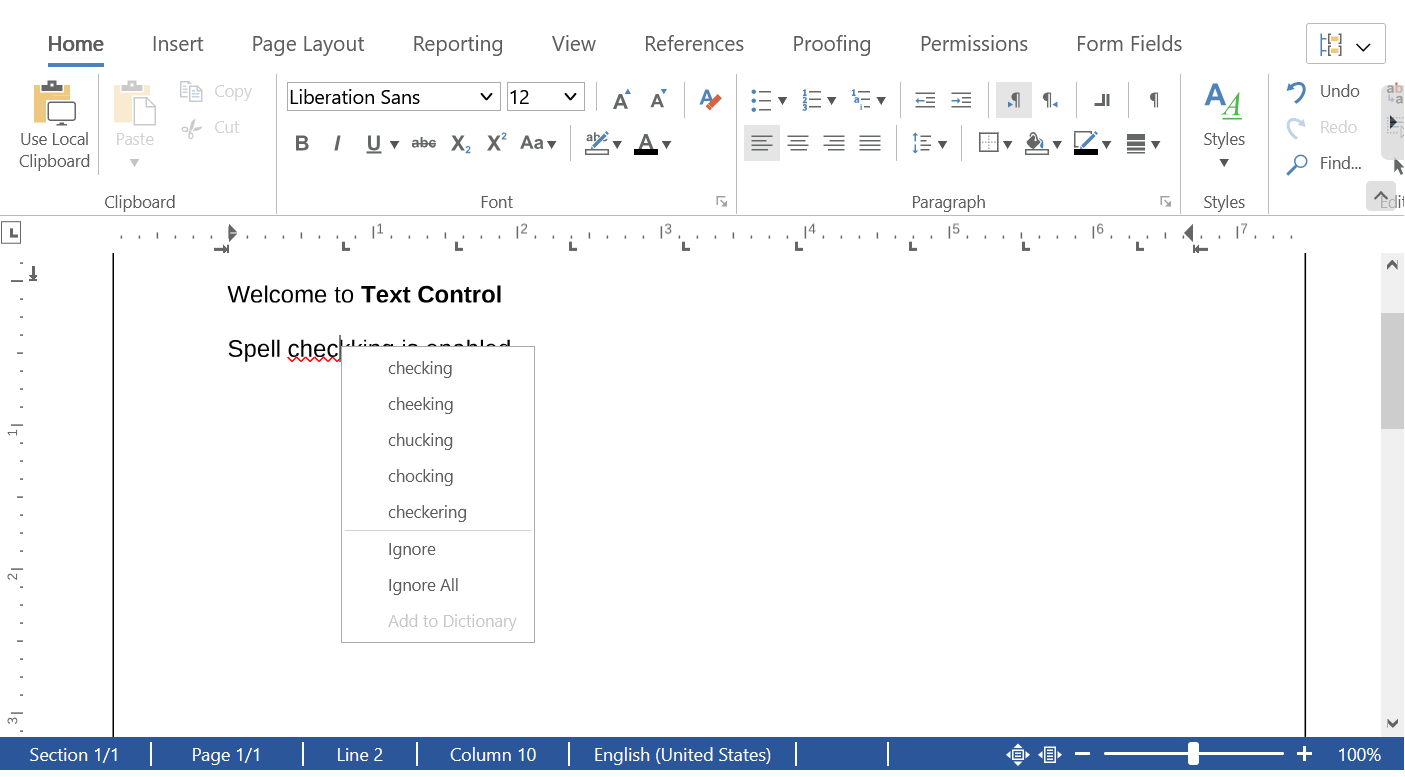
Type a sentence with a spelling mistake: the misspelled word is underlined with a red wavy line. A right-click on it opens a context menu with suggestions and the commands Ignore, Ignore All and Add to Dictionary:
The functions are explained in the following sections. The older property isSpellCheckingEnabled is obsolete; use the get and set methods.
Set the Language of Text
Spell checking uses the dictionary for the language of the text. The language is a character attribute:
- Selection.setCulture sets the language of the selected text with a culture name such as
"en-US"or"de-DE". ThesetLanguagefunction of the view uses it. - FormattingStyle.setCulture sets the language of a formatting style, so that all text with that style is checked in that language.
- setIsLanguageDetectionEnabled turns the automatic detection of the language on or off.
Users set the language of the selected text in the language dialog box, which showDialog opens with LanguageDialog from DialogBoxKind.
Dictionaries
The dictionaries are files on the server. TXTextControl.Proofing contains the methods that manage them:
- getDictionaryList passes an array of DictionaryInfo objects with the fileName of each dictionary and whether it isLoaded.
- loadDictionary loads a dictionary by its file name, and removeDictionary removes it from the loaded dictionaries.
TX Spell .NET supports most Hunspell dictionaries of OpenOffice. The license terms of each dictionary apply.
User Dictionaries
A user dictionary contains words that the spell checker accepts in addition to a dictionary, such as product names. loadUserDictionary creates one with a name, an array of words and a language:
function loadCompanyTerms() {
  TXTextControl.Proofing.loadUserDictionary("company", ["Contoso", "Fabrikam"], "en-US");
}
addWordToUserDictionary adds words to it, and saveUserDictionary passes the name and the words to a callback, so that your code can store them and load them again the next time.
Spell Checking Dialog Boxes
showHtmlDialog opens the dialog boxes of the editor with a value of HtmlDialogBoxKind:
| Value | Dialog box |
|---|---|
SpellCheckDialog | Checks the spelling of the document word by word |
LoadDictionaryDialog | Loads dictionaries |
ThesaurusDialog | Looks up synonyms |
LoadThesaurusDialog | Loads thesaurus files |
Work With Misspelled Words
TXTextControl.misspelledWords returns the MisspelledWordCollection of the main text. Its methods take a value of MisspelledWordKind: Normal for misspelled words, Duplicate for a word that repeats the word in front of it, Ignored for words the user has ignored, or All.
- getCountOf passes the number of words of a kind, as the
countMisspelledWordsfunction of the view shows. - getItemAtInputPosition passes the misspelled word at the input position; if there is none, the next one.
- remove replaces a misspelled word with a corrected text.
- MisspelledWord.setIsIgnored with
trueignores a word: it stays in the collection, but it is no longer underlined.
The following function corrects the misspelled word at the input position:
function correctWord(correctedText) {
  TXTextControl.misspelledWords.getItemAtInputPosition(TXTextControl.MisspelledWordKind.Normal, function (word) {
    if (!word) {
      return;
    }
    TXTextControl.misspelledWords.remove(word, correctedText, function (removed) {
      console.log("Corrected: " + removed);
    });
  });
}
The editor raises spellCheckText when text has changed and needs to be checked; see Events.
The blog article Document Editor with TX Spell .NET on Linux using ASP.NET Core sets up spell checking in an application that runs on Linux.
Hyphenate Words
With hyphenation turned on, a word that doesn't fit at the end of a line is divided and continued on the next line. Like spell checking, hyphenation is calculated by TX Spell .NET, in the language of the text. setIsHyphenationEnabled turns it on or off, and getIsHyphenationEnabled passes the current state.
The following code turns hyphenation on together with spell checking and logs each word that is hyphenated. Add it to the view of "Turn Spell Checking On":
<input type="button" onclick="toggleHyphenation()" value="Hyphenation On/Off" />

<script>
    TXTextControl.addEventListener("textControlLoaded", function () {
        TXTextControl.setIsSpellCheckingEnabled(true);
        TXTextControl.setIsHyphenationEnabled(true);

        TXTextControl.addEventListener("hyphenateWord", function (e) {
            console.log("Hyphenate \"" + e.word + "\" at position " + e.dividePos +
                " (at most " + e.maxDividePos + ")");
        });
    });

    function toggleHyphenation() {
        TXTextControl.getIsHyphenationEnabled(function (enabled) {
            TXTextControl.setIsHyphenationEnabled(!enabled);
        });
    }
</script>
- The
hyphenateWordevent is raised when a word doesn't fit in the line and has to be hyphenated. The handler receives HyphenateWordEventArgs. - word is the word, dividePos the position at which it is divided, and maxDividePos the largest position at which it can be divided.
The older property isHyphenationEnabled is obsolete; use the get and set methods.
Next Steps
- Text and Paragraph Formatting: set the language of text and styles.
- Localization: the language of the editor's user interface.
- Deployment Guide: deploy the application with its dictionaries.