
Merge Blocks
Merge blocks repeat part of a template for each record in a collection, for example one table row per invoice line item. A block name maps to an array or collection in your data, and you create merge blocks in the Document Editor and in code. Nested blocks build master-detail reports, and the rows of a block can be sorted and filtered.
How Merge Blocks Work
A merge block is a defined section of a template that is bound to a collection in the data. During the merge, MailMerge repeats the block once for each record and fills the merge fields inside it with the values of that record.
- A merge block can contain a table row, a complete table, paragraphs, images or text frames.
- The whole block is cloned for each record, including its formatting and style.
- In the document, a merge block is a SubTextPart whose name is the prefix
txmb_followed by the block name. The static property MailMerge.MergeBlockNamePrefix returns this prefix. A block namedLineItemsis aSubTextPartnamedtxmb_LineItems. - Blocks can be nested in unlimited levels.
Match the Block Name to the Data
The name of a merge block matches the name of a collection in the data. In the following JSON data, the LineItems array provides the records for a block named LineItems:
[
  {
    "InvoiceNumber": "INV-2025-001",
    "LineItems": [
      {
        "Description": "TX Text Control .NET Server License",
        "Quantity": 1,
        "Price": 199.99
      },
      {
        "Description": "Priority Support - 12 Months",
        "Quantity": 1,
        "Price": 99.98
      }
    ]
  }
]
A typical template has a table with a header row and a second row that forms the LineItems block. That row contains merge fields named Description, Quantity and Price. Because the fields are inside the block, their names refer to the properties of each line item. After the merge, the table has one row per item in the array. The InvoiceNumber field is outside the block and is merged once.
The same mapping works with other data:
- Business objects: A public property of type
IEnumerable, such asList<LineItem> LineItems, is used as the data of a merge block with the same name. - DataSet: When you pass the master table of a
DataSetto MailMerge.Merge, each block is merged with the relatedDataTableof the same name.
A block can also be bound to a single nested object instead of an array. It is then merged once if the object exists in the data and removed if it is missing. This is a simple way to include optional sections, such as an optional contract clause, depending on the data.
If a block receives no data, its content is removed, because MailMerge.RemoveEmptyBlocks is true by default.
Create a Merge Block in the Document Editor
The Document Editor lets users insert merge blocks without code. As for merge fields, load JSON data with the same structure as your merge data using TXTextControl.loadJsonData. The drop-down lists of the Reporting ribbon tab are then populated with the block and field names found in the data, and users insert merge blocks and merge fields from there.
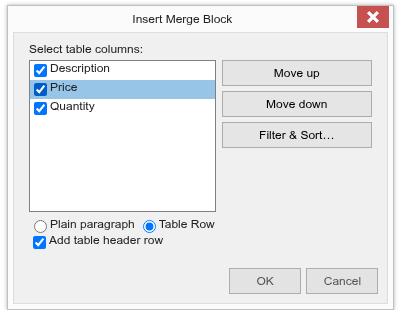
With the JSON data above, the Insert Merge Block menu lists LineItems. Choosing it opens the Insert Merge Block dialog, in which users select the columns that become merge fields and choose between a table row and a plain paragraph, the same choices the code in the next section makes:
To insert a block around content that is already in the template, such as a table row, users select the content first and choose Insert Custom Merge Block... from the same menu. The Highlight Merge Blocks item of the menu highlights the blocks, which makes the repeating parts of a template easy to find. Save the template as DOCX or in the internal TX Text Control format. When you load a DOCX template for merging, set LoadSettings.LoadSubTextParts to true so that the merge blocks are loaded, as shown in Simple Mail Merge.
Create a Merge Block in Code
To create merge blocks programmatically, for example in your own template designer, use the DataSourceManager class in the TXTextControl.DocumentServer.DataSources namespace. It analyzes a data source and inserts complete merge blocks, including their merge fields.
Save the JSON data from the previous section as data.json in the application's working directory, and use the following code in Program.cs:
using TXTextControl;
using TXTextControl.DocumentServer;
using TXTextControl.DocumentServer.DataSources;

using (var tx = new ServerTextControl())
{
    tx.Create();

    // load the JSON data into a DataSourceManager
    string jsonData = File.ReadAllText("data.json");

    var dataSourceManager = new DataSourceManager();
    dataSourceManager.LoadJson(jsonData);

    // add a merge block for each table that can be used as a merge block
    foreach (var table in dataSourceManager.PossibleMergeBlockTables)
    {
        // describe the block: its table name and the merge fields it contains
        var mergeBlockInfo = new MergeBlockInfo(table.TableName)
        {
            ColumnNames = table.Columns.Select(c => c.ColumnName).ToList()
        };

        // insert the block as a table row with a header row
        var mergeBlockSettings = new MergeBlockSettings(BlockTemplateType.TableRow, true);

        dataSourceManager.InsertMergeBlock(tx, mergeBlockInfo, mergeBlockSettings);
    }

    // optionally keep the generated template
    tx.Save("template.tx", StreamType.InternalUnicodeFormat);

    // merge the data into the template and save the result
    using (MailMerge mailMerge = new MailMerge { TextComponent = tx })
    {
        mailMerge.MergeJsonData(jsonData);
    }

    tx.Save("results.pdf", StreamType.AdobePDF);
}
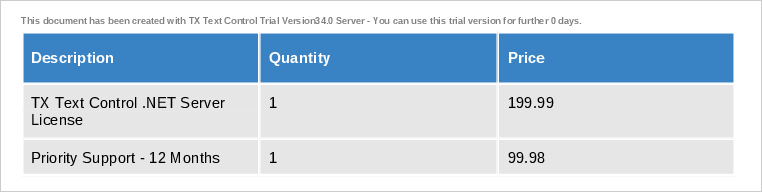
The merged results.pdf contains a table with a header row and one row for each of the two line items:
The code works as follows:
- LoadJson deduces tables, columns and relations from the JSON data.
- PossibleMergeBlockTables returns the tables that can be used as merge blocks, here
LineItems. Each table'sColumnscollection lists the available field names. - MergeBlockInfo describes the block to insert: the table name and, in
ColumnNames, the merge fields it contains. - MergeBlockSettings defines the block type.
BlockTemplateType.TableRowinserts a table row based block, andtrueadds a table header row.BlockTemplateType.PlainParagraphinserts a paragraph based block instead. - InsertMergeBlock inserts the block at the current input position.
A block can also be created from existing content: mark the range with a SubTextPart whose name starts with the merge block prefix and add it to the SubTextParts collection. The start position is one-based:
SubTextPart subTextPart = new SubTextPart(MailMerge.MergeBlockNamePrefix + "LineItems", 1, start, length);
tx.SubTextParts.Add(subTextPart);
Nest Merge Blocks for Master-Detail Reports
A master-detail relationship is a one-to-many relationship, such as orders and the articles of each order. Nested arrays in the data map to nested merge blocks:
[
  {
    "company_name": "Text Control, LLC",
    "orders": [
      {
        "id": 123,
        "articles": [
          {
            "id": 1,
            "product": {
              "name": "Product A",
              "price": 200
            },
            "qty": 5
          }
        ]
      }
    ]
  }
]
The template contains an outer block named orders, which is repeated for each order, and inside it a block named articles, typically a table row, which is repeated for each article of the current order. A field in the articles block is named qty, and the product name of the article is product.name. Nested blocks are inserted in the same way as other merge blocks. In code, the ChildBlocks property of MergeBlockInfo holds the blocks nested inside a block.
See Nested Blocks for more about master-detail reports.
Sort and Filter Block Data
The rows of a merge block do not have to be merged in the order and number in which they appear in the data. Sorting and filter instructions are stored with the merge block in the template, so the merge code does not change: users can define them in the template, and MailMerge applies them during the merge.
To add instructions in code, create a MergeBlockInfo from the block's SubTextPart, add FilterInstruction and SortingInstruction objects, and call Apply to store them in the block:
using TXTextControl;
using TXTextControl.DocumentServer;
using TXTextControl.DocumentServer.DataSources;

using (ServerTextControl tx = new ServerTextControl())
{
    tx.Create();
    tx.Load("template.tx", StreamType.InternalUnicodeFormat);

    foreach (SubTextPart subTextPart in tx.SubTextParts)
    {
        // find the merge block named "LineItems"
        if (DataSourceManager.IsMergeBlock(subTextPart) &&
            subTextPart.Name == MailMerge.MergeBlockNamePrefix + "LineItems")
        {
            MergeBlockInfo mergeBlockInfo = new MergeBlockInfo(subTextPart);

            // merge only rows with a price greater than 100
            mergeBlockInfo.Filters.Add(
                new TXTextControl.DocumentServer.DataShaping.FilterInstruction(
                    "Price",
                    TXTextControl.DocumentServer.DataShaping.RelationalOperator.GreaterThan,
                    100));

            // sort the rows by price, highest first
            mergeBlockInfo.SortingInstructions.Add(
                new TXTextControl.DocumentServer.DataShaping.SortingInstruction(
                    "Price",
                    TXTextControl.DocumentServer.DataShaping.SortOrder.Descending));

            // store the instructions in the merge block
            mergeBlockInfo.Apply();
        }
    }

    tx.Save("template.tx", StreamType.InternalUnicodeFormat);
}
FilterInstructioncompares a column with a value using a relational operator such asEquals,NotEqual,LessThan,GreaterThan,IsBlankorIsNotBlank. Several filter instructions are combined with a logicalAndorOr.SortingInstructionsorts the rows by a column inAscendingorDescendingorder.- BlockMergingCondition sets a condition that the parent data row must meet for a nested block to be merged at all.
Applydoes not update nested blocks, so call it for each block you change.
Sorting and Filtering covers these options in more detail, and the blog article Filtering and Sorting Repeating Blocks in MailMerge using C# shows an inventory report built this way.
Next Steps
- Merge Fields: field names inside blocks, dot notation and formats.
- Mail Merge and Reporting: Merge Blocks: merge blocks in depth.
- Conditional Content: include or remove sections depending on the data.
- Template Design: design templates that work well with mail merge.