
Template Design
Templates are often designed by people who aren't developers, in MS Word or in the Document Editor, and the way a template is built decides whether every merge produces a clean document, whatever the data contains. Designers and developers who prepare templates together choose where to design them and with which data, how to store them, which layout rules hold up with growing data and how to test a template before it goes live.
The elements of a template are described on their own pages: Merge Fields, Merge Blocks, Conditional Content, Images and Barcodes.
Where Templates Are Designed
| Tool | Who uses it | What to know |
|---|---|---|
| MS Word | Business users who work with Word documents | Merge fields are MERGEFIELD fields. Load DOCX templates with LoadSettings.ApplicationFieldFormat set to MSWord and LoadSubTextParts set to true |
| Document Editor | Users of your web application | The Reporting ribbon tab inserts merge fields and merge blocks from the names of loaded sample data, and its Insert Special Field drop-down inserts IF, INCLUDETEXT and DATE fields, as Conditional Content describes. The editor becomes the template designer of your application |
| TX Text Control Words or the Reporting tab of a Windows Forms application | Designers who work with TX Text Control .NET for Windows Forms | The same fields and blocks as in the Document Editor. The Windows Forms tab can also connect a database and save a data source configuration file, which Data Sources describes. See Template Design in the Windows Forms documentation |
| Code | Developers | MergeField inserts merge fields, and DataSourceManager inserts complete merge blocks |
Whichever tool is used, a template contains only the names of fields and blocks, never a connection to a data source, so one template works with every data source of the same structure.
Design With Sample Data
Templates are designed against sample data: data with the structure and names of the real data and made-up values. Loaded into the Document Editor, the sample data fills the drop-down lists of the Reporting tab with the names of fields and blocks, nested objects appear as fields with dot notation, and arrays appear as merge blocks. At merge time, any data with the same structure fills the template.
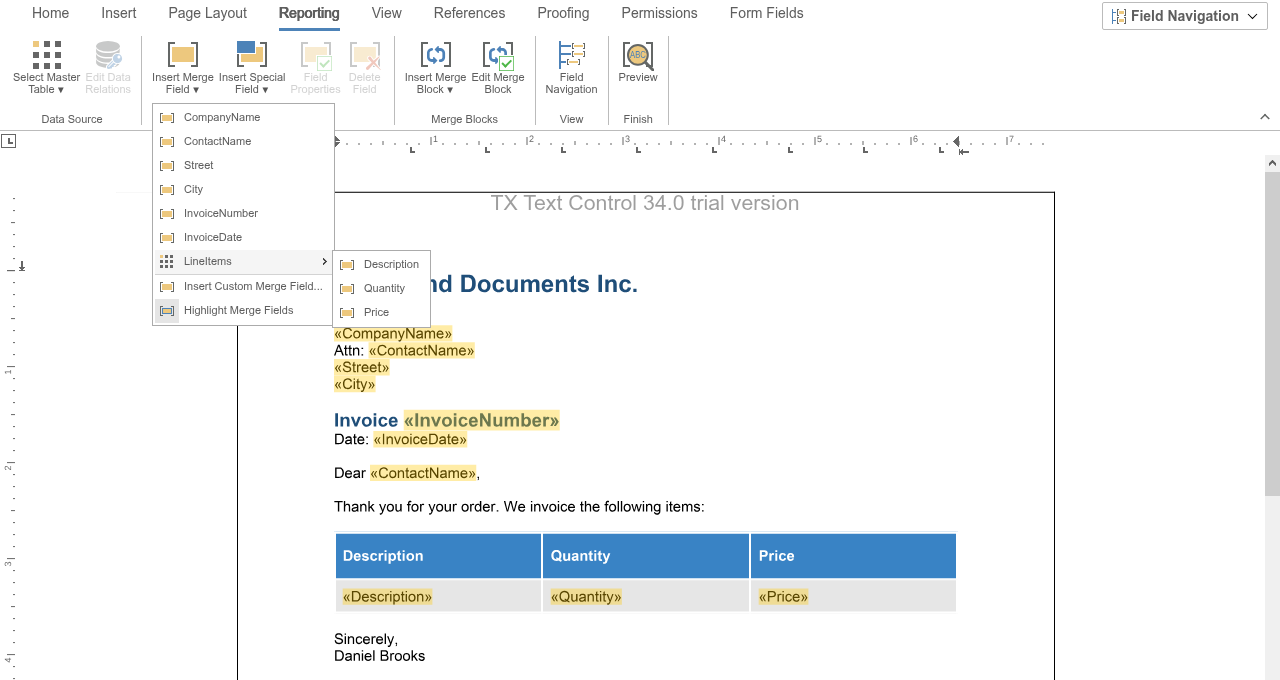
Your application loads the sample data into the editor, in the view with LoadDataFromJson or at run time with TXTextControl.loadJsonData, as Use the Same Data in the Document Editor shows. With invoice data whose records have the fields CompanyName, ContactName, Street, City, InvoiceNumber and InvoiceDate and an array LineItems, the Insert Merge Field menu lists the fields and offers the fields of the array in a submenu:
With the data loaded, the Preview function of the Reporting tab merges the template in the editor with the sample data, so designers see the result while they work. The ribbon then shows only Exit and buttons that move between the records:
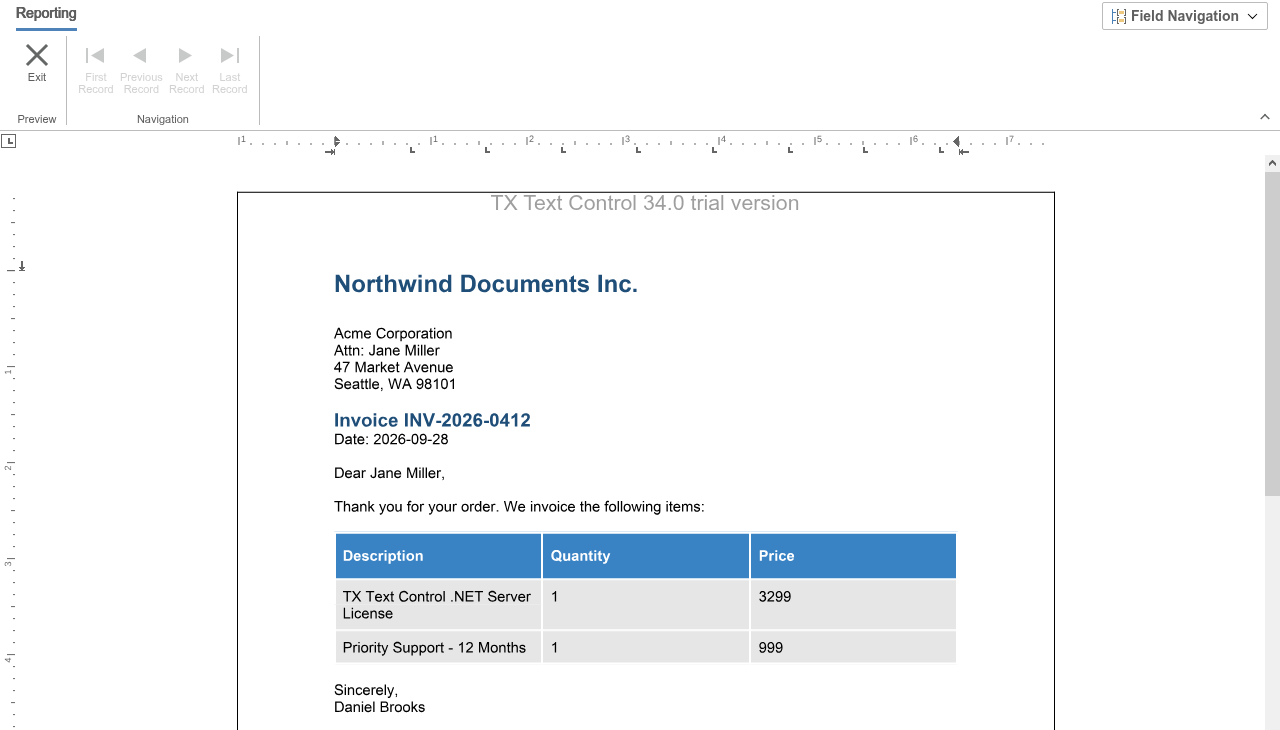
Before the preview starts, the Limit Preview Data dialog box asks for the number of records to preview.
A good way to create sample data is to serialize an object of the class that your application merges later, filled with sample values.
Choose the Storage Format
Templates are stored as DOCX files or in the TX Text Control format. The two differ in what they keep:
| TX Text Control format | DOCX | |
|---|---|---|
| Merge blocks | Kept as subtext parts | Loaded as subtext parts with LoadSubTextParts set to true |
| Barcodes as barcodes | Kept | Saved as images |
| Loading for a merge | StreamType.InternalUnicodeFormat, no load settings | LoadSettings with ApplicationFieldFormat and LoadSubTextParts |
Store templates that users design in the Document Editor in the TX Text Control format, which keeps the sorting, filter and merging rules of merge blocks and keeps barcodes as barcodes; the Document Editor saves it with saveDocument and StreamType.InternalUnicodeFormat, as Loading and Saving Documents shows. Use DOCX for templates that must stay editable in MS Word.
Follow Layout Rules That Merge Well
Merged content grows and shrinks with the data, so a template that looks right with sample data can break with real data. The following rules avoid the typical problems:
- Use
PageBreakBeforeinstead of page breaks. A forced page break in a template can leave an empty page when the text before it grows. Set "page break before" on the paragraph, ideally in its paragraph style, as the blog article Document Templates Tip: Say No to Forced Page Breaks explains. - Control how tables break. Mark header rows as header rows, so that they're repeated on each page, prevent page breaks inside rows that belong together and keep rows with the next row where needed, as described in Why Table Control in Templates is Important for Professional PDF Creation.
- Put per-block headers into the block. A header row outside a merge block shows the same content on every page and stays when the block is removed, as Repeat Table Headers per Block and Include Optional Sections describe.
- Avoid empty lines.
RemoveEmptyLinesremoves a line that is empty after merging, but only when nothing else is on it; put optional fields on lines of their own. - Use blocks for optional sections. A section that depends on the data goes into a merge block bound to an object, as Conditional Content describes.
- Disconnect first page headers for multi-record documents. When several records are merged into one document, a first page header connected to the previous section shows the data of the first record in all sections. Headers and Footers explains
ConnectedToPrevious.
The blog article Designing the Perfect Contract Template for MailMerge in C# builds a contract template whose optional sections are merge blocks. On its second page, the sections Intellectual Property and Indemnification are merge blocks, highlighted in red, next to merge fields that address nested data with dot notation:
Reuse Content With Sub-Templates
Content that many templates share, such as terms and conditions or an address area, can live in a sub-template of its own. An INCLUDETEXT field in a template includes the sub-template during the merge, so a change to the sub-template appears in every template that includes it. Sub-templates can contain merge fields, merge blocks and other sub-templates.
The IncludeText class creates such a field in code. The following program includes terms.tx from a Templates folder and merges the data into the template and the sub-template:
using TXTextControl;
using TXTextControl.DocumentServer;
using TXTextControl.DocumentServer.Fields;

using (ServerTextControl tx = new ServerTextControl())
{
    tx.Create();

    tx.Selection.Text = "Invoice\r\n";

    // An INCLUDETEXT field that includes terms.tx
    IncludeText includeText = new IncludeText()
    {
        Filename = "terms.tx"
    };

    tx.ApplicationFields.Add(includeText.ApplicationField);

    using (MailMerge mailMerge = new MailMerge
    {
        TextComponent = tx,
        // The folder in which sub-templates are searched
        SearchPath = Path.Combine(AppContext.BaseDirectory, "Templates")
    })
    {
        mailMerge.MergeJsonData(File.ReadAllText("data.json"));
    }

    tx.Save("invoice-with-terms.pdf", StreamType.AdobePDF);
}
The code works as follows:
- Filename is the file name of the sub-template.
- MailMerge.SearchPath is the folder in which
MailMergesearches sub-templates. The sub-template must exist there. - The merge fields of the sub-template are filled with the same data as the template.
In the Document Editor, your JavaScript code inserts the field with TXTextControl.addMergeField and a TXTextControl.IncludeTextField object whose fileName is the sub-template. The online demo Merging Sub-Templates shows the complete workflow, and Conditional Content leaves a sub-template out depending on your code.
Test a Template
Before a template goes live, merge it with sample data and check what didn't receive data. The following program lists the merge blocks of template.docx, reports every merge field that the sample data doesn't fill and saves the result for a visual check:
using TXTextControl;
using TXTextControl.DocumentServer;
using TXTextControl.DocumentServer.Fields;

string jsonData = File.ReadAllText("data.json");

using (ServerTextControl tx = new ServerTextControl())
{
    tx.Create();

    LoadSettings loadSettings = new LoadSettings()
    {
        ApplicationFieldFormat = ApplicationFieldFormat.MSWord,
        LoadSubTextParts = true
    };

    tx.Load("template.docx", StreamType.WordprocessingML, loadSettings);

    using (MailMerge mailMerge = new MailMerge { TextComponent = tx })
    {
        Console.WriteLine("Merge blocks: " + string.Join(", ", mailMerge.GetBlockNames()));

        // Report fields that the sample data doesn't fill
        mailMerge.FieldMerged += (sender, e) =>
        {
            if (!e.Merged && e.MailMergeFieldAdapter is MergeField mergeField)
            {
                string block = string.IsNullOrEmpty(e.MergeBlockName) ? "" : $" in block {e.MergeBlockName}";
                Console.WriteLine($"No data for merge field {mergeField.Name}{block}");
            }
        };

        mailMerge.MergeJsonData(jsonData);
    }

    tx.Save("test-result.pdf", StreamType.AdobePDF);
}
GetBlockNames lists the merge blocks of the template, and FieldMerged reports each field with Merged set to false when it received no data.
A template can also look different on another server when a font or a linked image is missing there. The blog article Check TX Text Control Template Dependencies Before Deployment checks fonts, linked images and the names of fields and blocks before a template is deployed, for example in a build pipeline with the production packages and fonts.
Next Steps
- Template Assistant: design fields, blocks and rules step by step in an online demo.
- Data Sources: prepare the data that fills the template.
- Styling: format merged content that depends on the data.
- Document Editor with ASP.NET Core: add the editor that users design templates with.