
Sections
A landscape appendix or a two-column part needs a page layout of its own, and sections provide it. From JavaScript, your application inserts section breaks in the Document Editor and sets the orientation, the columns, the page margins and the page numbering of a section.
The examples extend the view of the ASP.NET Core tutorial.
What a Section Is
A section is a part of a document with its own page size and margins and its own headers and footers. Every document has at least one section, and the sections are numbered from 1. Sections let one document combine different layouts, for example:
- a cover page without a header, followed by the content with a header and page numbers
- a table in landscape orientation between pages in portrait orientation
- a part with two columns
A section begins at a section break. When you insert one, the new section takes over all settings of the previous section, and you change the ones that should differ. The page size and the headers and footers can only differ for a section that begins on a new page.
Insert a Section Break
TXTextControl.sections returns the SectionCollection of the document. SectionCollection.add inserts a section break at the current input position. If the input position is inside a paragraph or a table, the break splits it in two. The first parameter is a value of SectionBreakKind:
| Value | The new section begins |
|---|---|
BeginAtNewPage | On the next page, with a new paragraph |
BeginAtNewLine | On the next line, with a new paragraph |
addAtTextPosition inserts the break at a text position instead.
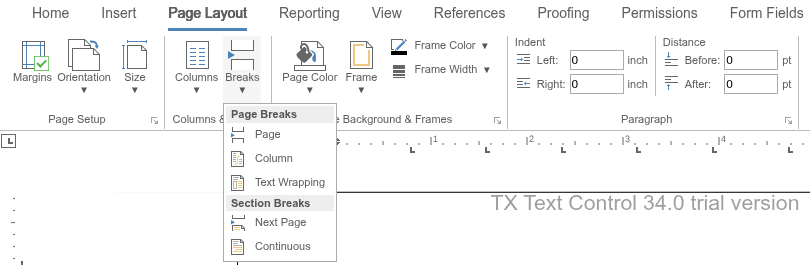
Users insert section breaks with the Breaks button of the Page Layout tab. Its Section Breaks entries correspond to the two values: Next Page to BeginAtNewPage and Continuous to BeginAtNewLine. The Page Setup and Columns & Breaks groups of the same tab set the margins, orientation, size and columns:
Format a Section
SectionCollection.getItem passes a Section to its callback: without a number, the section that contains the input position, and with a number as the second parameter, the section with that number. Its format property returns a SectionFormat with these set methods:
| Method | Sets |
|---|---|
| setLandscape | Landscape (true) or portrait (false) orientation |
| setColumns | The number of page columns |
| setEqualColumnWidth | Whether all columns have the same width, calculated from the page size |
| setColumnWidths | The widths of the columns in twips |
| setColumnLineWidth, setColumnLineColor | A line between the columns: its width in twips (0 for no line) and its color |
| setRestartPageNumbering | Whether the page numbers start again in this section |
| setBreakKind | Whether the section begins on a new page or a new line |
The following buttons insert a section break and format the section that contains the input position. Add the code below the editor in Views/Home/Index.cshtml:
<input type="button" onclick="insertSectionBreak()" value="Insert Section Break" />
<input type="button" onclick="formatCurrentSection()" value="Landscape, Two Columns" />

<script>
    function insertSectionBreak() {
        TXTextControl.sections.add(TXTextControl.SectionBreakKind.BeginAtNewPage, function (added) {
            console.log("Section break inserted: " + added);
        });
    }

    function formatCurrentSection() {
        // Without a number, getItem returns the section at the input position
        TXTextControl.sections.getItem(function (section) {
            var format = section.format;

            format.setLandscape(true, function () {
                // Two columns of equal width with a line between them
                format.setColumns(2, function () {
                    format.setEqualColumnWidth(true, function () {
                        format.setColumnLineWidth(20, function () { // twips
                            section.getNumber(function (number) {
                                console.log("Section " + number + " formatted");
                            });
                        });
                    });
                });
            });
        });
    }
</script>
Place the cursor where the new layout should begin and click Insert Section Break. The text after the cursor moves to a new page. Click into that page and then Landscape, Two Columns: the pages of the new section turn to landscape orientation with two columns, while the pages before the break keep their layout.
Page Size, Margins and Borders
SectionFormat has three more properties for the page of a section:
- pageSize returns a PageSize with the methods
setWidthandsetHeight. - pageMargins returns PageMargins with
setLeft,setTop,setRightandsetBottom. - pageBorder returns a PageBorder, a border in the page margin with separate lines for each side. It can be limited to the first page or leave out the first page.
The values of page sizes and margins are in the page unit of the document, which TXTextControl.setPageUnit sets with a value of MeasuringUnit, such as Twips or Millimeter. For the page size and margins of the whole document, use TXTextControl.pageSize and TXTextControl.pageMargins, whose default unit is 1/100 inch.
To let users change these settings in a dialog box, open the section format dialog box of the editor:
TXTextControl.showDialog(TXTextControl.DialogBoxKind.SectionFormatDialog);
Find the Sections of a Document
SectionCollection is a collection like the others of the API, so getCount passes the number of sections and forEach calls a function for each one. A Section also returns its number, its one-based start and its length in characters, and select selects its text.
The editor raises pageFormatChanged when the page format changes; see Events.
Next Steps
- Headers and Footers: give a section its own header and page numbers.
- Text and Paragraph Formatting: page breaks within a section.
- Sections in Document Processing: work with sections on the server with
ServerTextControl.